How to Submit COMPASS Requests
Use the APEX Digital Customer Portal to submit COMPASS change requests, bug reports, and work requests. The portal keeps each request, comment, approval, file, and status update in one place.
- You need access to the customer portal at customer.apexdigital.online.
- Your department may give every user access, or it may ask one system champion to submit requests.
- If you cannot sign in, contact your system champion or the COMPASS team.
Why Requests Must Go Through the Portal
COMPASS requests must be submitted through the customer portal so nothing gets lost in email threads or side conversations. Think of the portal as the shared request desk for COMPASS: you open one request, and everyone can follow the same history.
The portal is used for three main request types. A Change Request is for new features or changes to existing behavior. A Bug Report is for something that does not work as expected. A Work Request is for general COMPASS work that does not fit neatly into the first two types.
Each request has its own page with status, comments, attachments, activity, and notifications. The person who submits the request receives email updates when there are important changes, comments, approvals, or resolution updates.
Step 1: Confirm Who Should Submit the Request
Confirm whether you should submit the request yourself or send it to your department's system champion. A system champion is the person on the customer side who coordinates COMPASS topics for the department.
Some departments give every end user their own portal account. In that setup, you can sign in and submit the request yourself. Other departments use one or more system champions. In that setup, send the details to the system champion, and the system champion enters the request in the portal.
Either way, the request should still end up in the customer portal. This gives the COMPASS team and the customer approvers one clear place to review, discuss, approve, and track the work.
Step 2: Open the Customer Portal
Open customer.apexdigital.online and sign in with your portal account. After signing in, open Requests from the left sidebar.
Click New request to start a new request. You see a form with a Request type & priority section, followed by fields for the title, description, and any extra details needed for the selected request type.
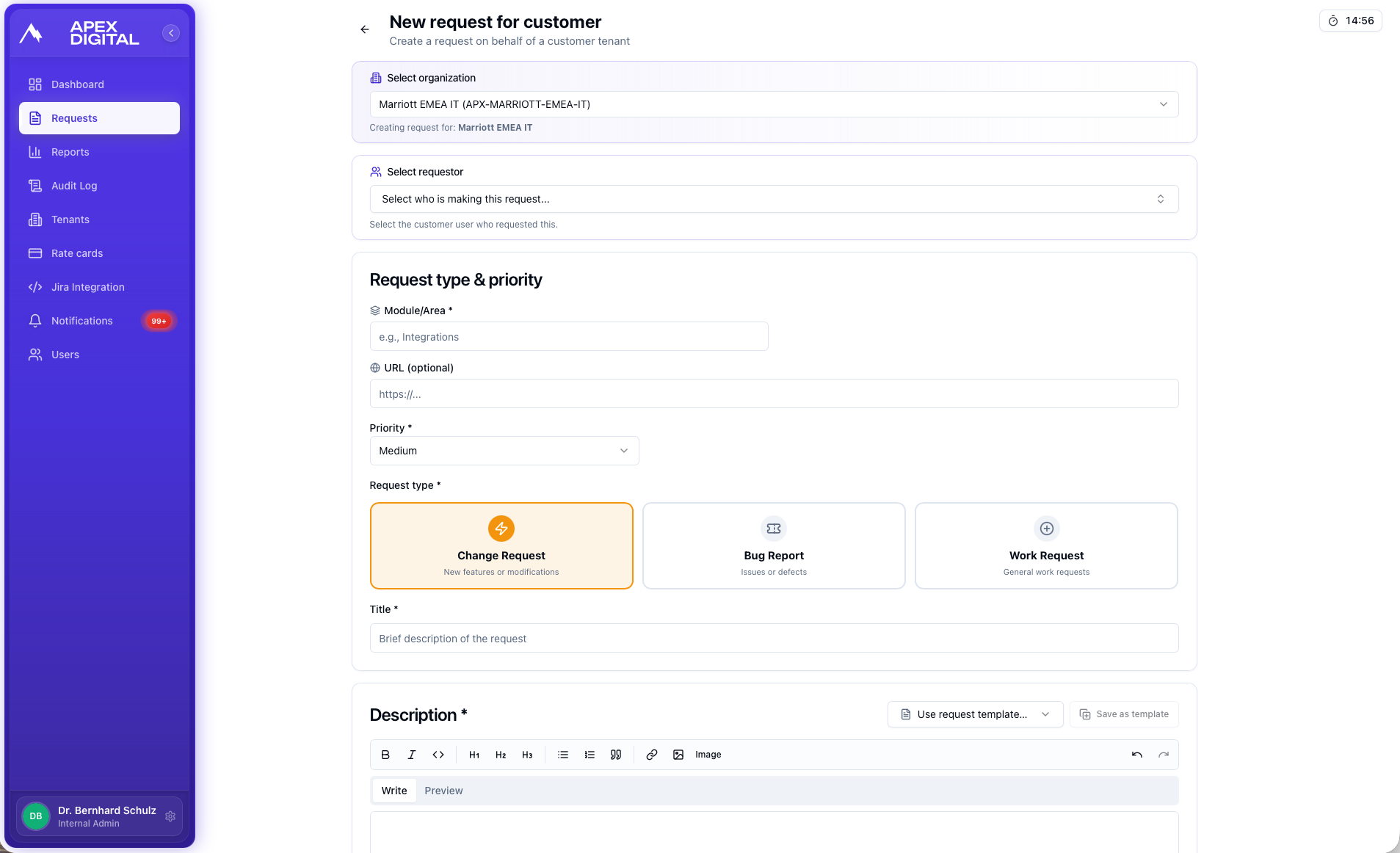
If you do not have access yet, do not create a request by email as a workaround. Ask your system champion or the COMPASS team to invite you, or ask your system champion to submit the request for you.
Step 3: Choose the Right Request Type
Choose the request type that best matches what you need. The request type helps the COMPASS team handle the request in the right way from the start.
| Request type | Use it for | Example |
|---|---|---|
| Change Request | A new feature or a change to how COMPASS works | Add a new approval step before a budget is finalized |
| Bug Report | Something that is broken or gives the wrong result | The Finance export fails when I select April 2026 |
| Work Request | General COMPASS work or support that is not a bug | Please help create a new report for monthly project reviews |
Change Requests are normally reviewed and quoted before work starts. No billable COMPASS team work starts until the customer approver formally approves the quote in the portal.
Step 4: Fill In the Request Details
Fill in the request fields as clearly as possible. A clear request helps the COMPASS team understand the need faster and reduces back-and-forth questions.
Use Priority to show how urgent the request is. Use Module/Area for the part of COMPASS involved, such as Projects, Finance, Budget Estimator, or Task Management. Use URL if the issue happens on a specific page.
Write a short Title that someone can understand from a request list. In Description, explain what you need, why you need it, and what a good result looks like.
Example: For a change request, write
Add a filter for approved budgets in Budget Estimator. In the description, explain who needs the filter, when they use it, and what result they expect.
The better the request is described, the easier it is for the COMPASS team to resolve it. Add names of modules, project examples, screenshots, dates, and expected results when they help.
Step 5: Add Bug Details for Bug Reports
Bug Reports need extra details because the COMPASS team must be able to see the same problem you see. Select the Environment, then fill in Steps to reproduce, Expected result, and Actual result.
In Steps to reproduce, write the exact clicks or actions that lead to the problem. In Expected result, describe what should have happened. In Actual result, describe what happened instead, including any error message.
Example:
1. Open Finance. 2. Go to Actual Income. 3. Select April 2026. 4. Click Export. Expected result: the export downloads. Actual result: the page shows an error message.
If possible, add a screenshot or file after the request is created. On the request page, open Attachments and click Upload file.
Step 6: Submit and Track the Request
Click Submit request when the request is ready. The portal opens the request page after submission, where you can follow status, comments, attachments, and activity.
Use Comments to ask questions or add more details. Type @ in a comment to mention another portal user. Mentioned users receive an email notification, and they are added to the group watching the request.
You can also use Watch on a request page to receive updates. The requester is added as a watcher automatically, so the person who submits the request receives email updates when important activity happens.
What Happens After You Submit
After you submit a COMPASS request, the next steps depend on the request type and the customer approval setup. The portal keeps the request visible while the COMPASS team reviews it.
For a Change Request, the COMPASS team reviews the request and prepares a quote when billable work is needed. The customer approver then reviews the quote in the portal. Work starts only after the quote is formally approved in the portal. Some customers require a digital signature during approval.
For a Bug Report, the COMPASS team reviews the issue, works on the fix, and updates the request status. You receive email notifications for relevant comments, mentions, and resolution updates.
For a Work Request, the COMPASS team reviews the request and confirms the next step. If the work is billable, it may also require a quote and formal customer approval before work starts.
Common Mistakes
-
Problem: The request is sent by email instead of through the portal.
Fix: Submit it in the customer portal, or ask your system champion to submit it there. -
Problem: The request says something is broken but does not explain how to see the problem.
Fix: Add steps to reproduce, the expected result, the actual result, and a screenshot if possible. -
Problem: A Change Request is discussed in comments, but the quote is not approved.
Fix: Ask the customer approver to open the request and use Review & Approve when the quote is ready. -
Problem: You cannot access the portal.
Fix: Contact your system champion or the COMPASS team so they can invite you or submit the request for you.