Blocked Periods
Blocked Periods are date ranges where holidays are not allowed for selected users or roles. Administrators use them when the team must stay available, such as a hotel opening week, training period, finance close, or other critical window.
Blocked periods are different from project conflict warnings. A project conflict is an information warning. A blocked period is an administrator rule that tells staff the selected period should not be booked as holiday.
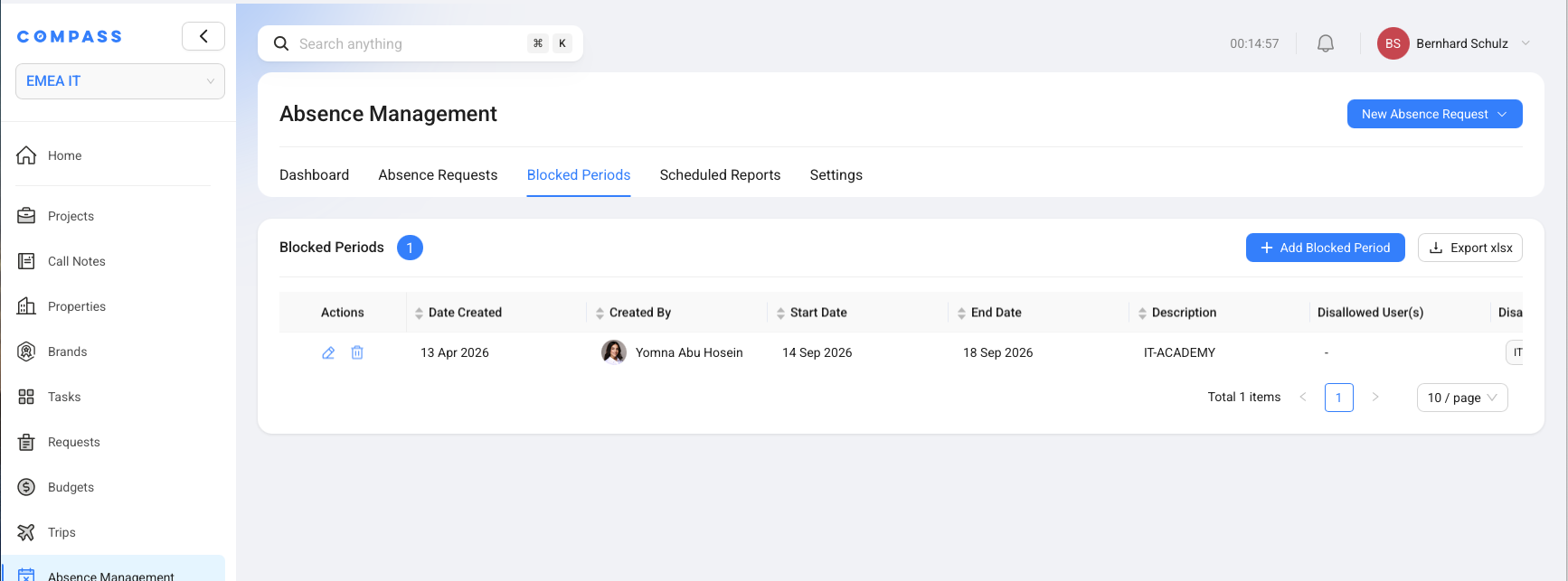
How To Add A Blocked Period
Create a blocked period from the Blocked Periods tab when holidays should not be allowed for a defined group.
- Open Absence Management.
- Select the Blocked Periods tab.
- Click Add Blocked Period.
- Select the Start Date.
- Select the End Date.
- Add a clear Description.
- Select who the block applies to in Disallow Holidays for.
- Click Add Blocked Period.
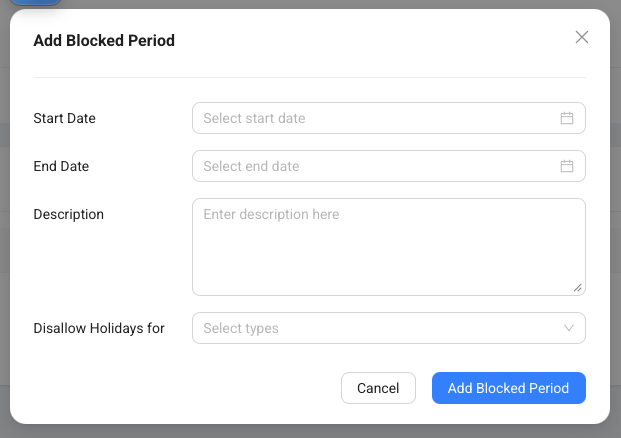
Use a description that explains the business reason, such as IT-Academy, Hotel Opening Week, or Year-End Close.
What Each Blocked Period Field Means
Blocked Periods use a small set of fields so employees can understand the rule quickly.
| Field | Meaning |
|---|---|
| Start Date | The first date when holidays are blocked. |
| End Date | The last date when holidays are blocked. |
| Description | The reason for the block. |
| Disallow Holidays for | The users or roles who cannot request holidays during this period. |
| Disallowed User(s) | Specific users included in the block. |
| Disallowed Role(s) | Roles included in the block, such as a project team or administrator group. |
| Created By | The person who created the blocked period. |
How Blocked Periods Affect Requests
Blocked Periods are checked when someone creates or reviews an absence request.
If the selected dates overlap a blocked period for that employee or role, COMPASS shows a conflict. The employee can then change the dates or contact an administrator if the block should not apply.
Administrators should keep blocked periods focused. A short, clear block is easier for staff to understand than a broad block that covers many unrelated situations.