User Absence Settings
User Absence Settings let administrators set absence rules for one employee. Use them when a person's contract, location, schedule, holiday allowance, or approval route differs from the department default.
Open Users & Roles, open the user profile, then select the Absence Management tab. The tab includes a left navigation with Summary, Work Schedule, Holiday Request Settings, Sick Notes Settings, Carryover Request Settings, and Days-in-Lieu Request Settings.
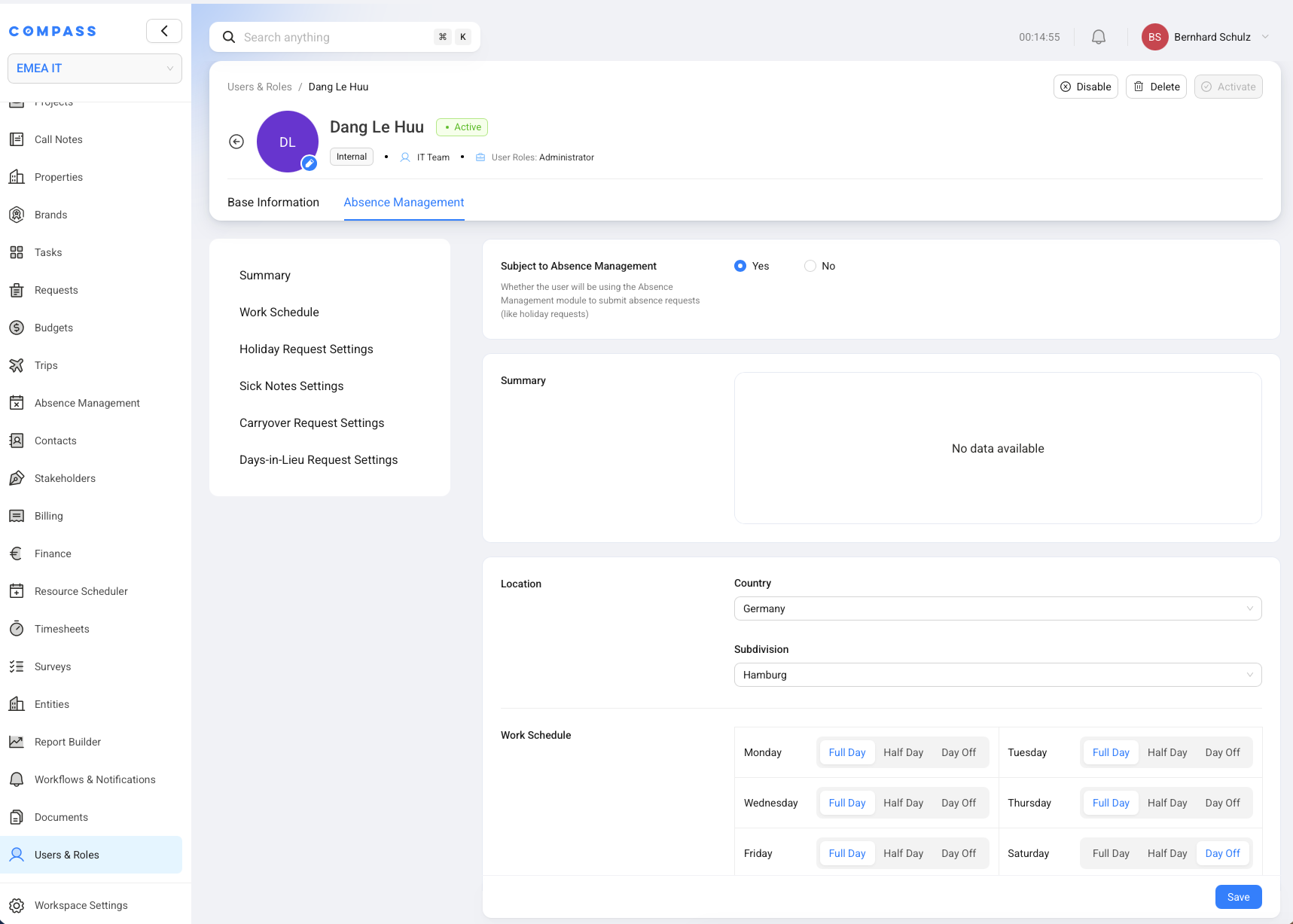
Subject To Absence Management
Subject to Absence Management decides whether the user can use the Absence Management module.
Set this to Yes when the employee should submit absence requests and appear in absence reporting. Set it to No when the user account should not take part in absence tracking, such as a service account or a user outside the managed department.
When this is turned off, the rest of the user's absence settings do not apply.
Location And Work Schedule
Location and work schedule tell COMPASS which days count as working days for this employee.
The Country and Subdivision fields help COMPASS use the right regional context, such as local public holidays. The Work Schedule shows each weekday as Full Day, Half Day, or Day Off. COMPASS uses this schedule to calculate how many holiday days a request consumes.
For example, a holiday on a normal Day Off should not reduce the employee's holiday balance. A holiday on a Half Day uses less than a full working day.
Contract Information And Contractual Year
Contract information tells COMPASS how the employee earns holiday allowance.
Hours per week records the contractual working time. Entry date records when the employee started. Contractual Year Begins sets the first day of the employee's holiday year. This may be different from the calendar year.
The contractual year matters because holiday allowance, carryover, and expiry dates are calculated against that year. For example, one employee may reset on 01 Jan, while another resets on their employment anniversary.
Yearly Holiday Allowance
Yearly Holiday Allowance is the employee's normal contractual holiday budget.
This value feeds the Holiday Summary widget and the holiday request review step. It is the main bucket of days before available days in lieu and carried-over days are added.
Set this value carefully. A wrong allowance can make the dashboard show too many or too few days available to book.
User-Level Approval And Notification Rules
User-level approval and notification rules override the department defaults for this employee.
Use Holiday Request Settings to decide whether this employee's holiday requests need approval and who approves them. Use Carryover Request Settings and Days-in-Lieu Request Settings to control those request types for this employee. Use Sick Notes Settings to decide who receives sick note notifications for this employee.
This is useful when one employee reports to a different manager or has a special approval route.