Service Forms
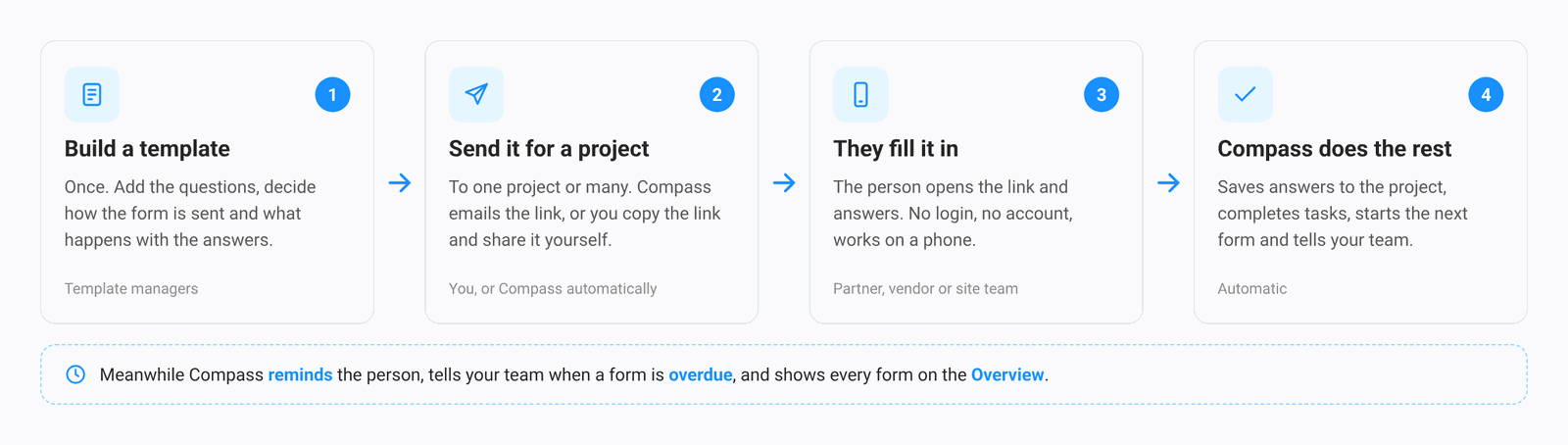
Service Forms collect information for a project from people outside your team: a property team, a vendor, a partner. You send them a short form. They fill it in from a link, without a login. Compass then writes the answers into the project, ticks off tasks and tells your team.
Think of it as a smart questionnaire that knows which project it belongs to, chases the person for you, and files the answers in the right place.
Service Forms or Surveys?
Both modules send a form to people outside Compass. The difference is who the answers are for. Ask yourself one question: do the answers belong to one specific project?
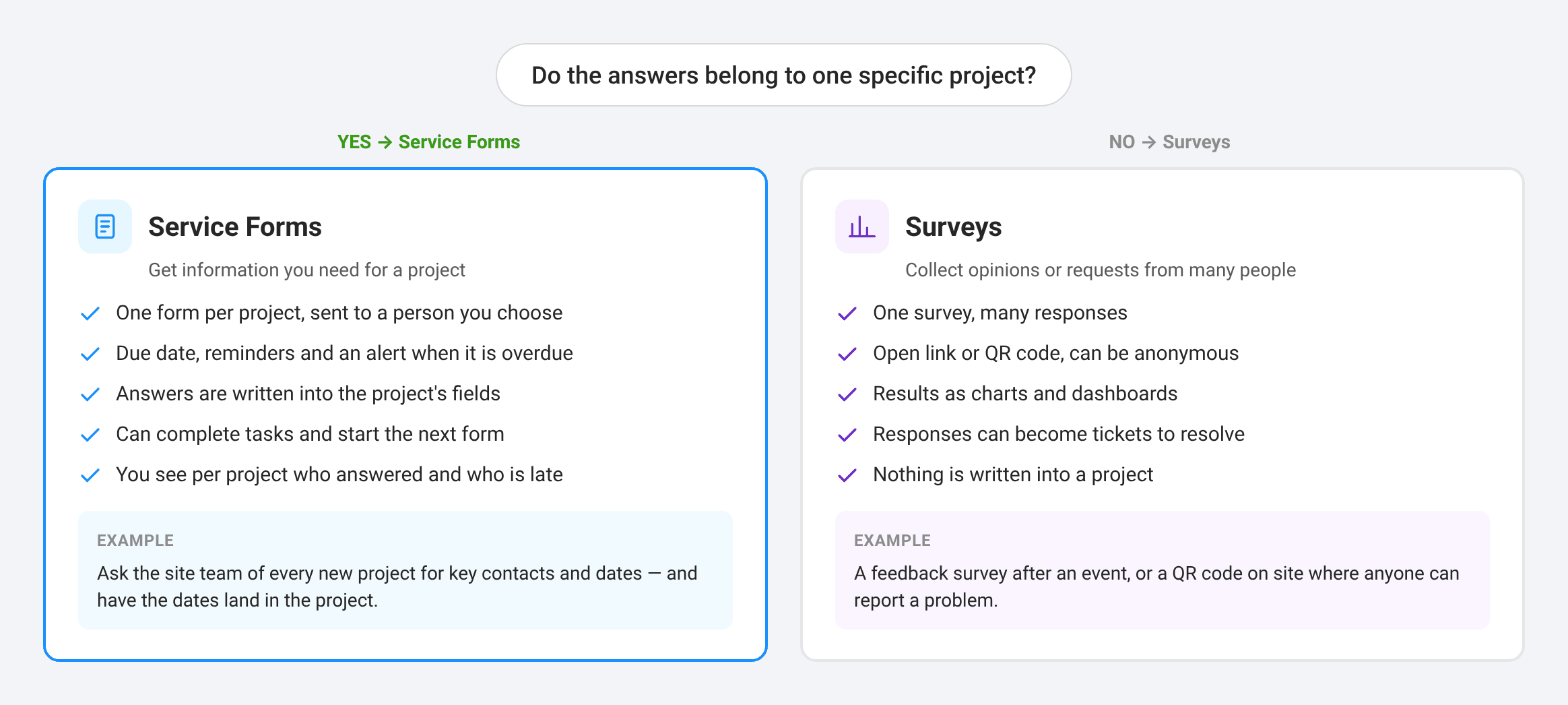
| You want to… | Use |
|---|---|
| Ask the site team of each new project for key contacts and dates | Service Forms |
| Get a vendor to confirm a handover and upload the signed agreement | Service Forms |
| Send the next questionnaire only when an answer says so | Service Forms |
| Ask a large group, for example all staff, for feedback | Surveys |
| Put a QR code on site so anyone can report a problem | Surveys |
Where to Find Service Forms
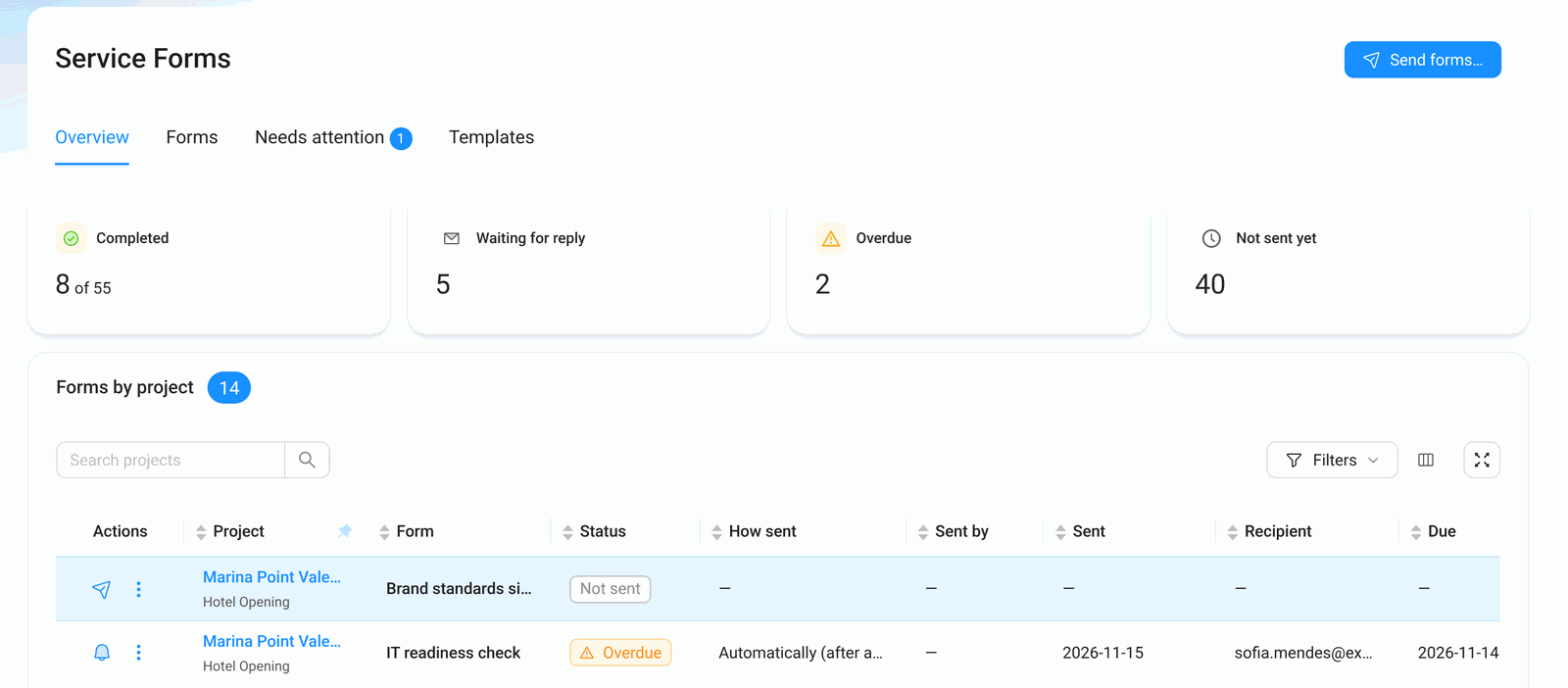
Open Service Forms in the left menu. The module has four tabs, and the blue Send forms… button sits top right.
- Overview — every project and its forms, with counters for completed, waiting, overdue and not sent yet.
- Forms — all sent forms in one list.
- Needs attention — problems Compass could not solve on its own, each with a "How to fix" action.
- Templates — the forms you can send, and how they follow each other.
Each project also has a Service Forms tab with the forms of that project.
Key Words in Service Forms
A few words come up again and again in Service Forms. Here is what they mean.
- Template — the blueprint of a form: the questions, how it is sent, and what happens with the answers. You build it once and send it as often as you like.
- Form — one template sent for one project. "Property contacts for Harbour View Lisbon" is a form.
- Recipient — the person who fills in the form. They do not need a Compass account.
- Due date — the day the answers are expected. After it, the form is Overdue.
- Next form — a form that Compass sends by itself when another form is answered, for example an IT check after the contact form.
What You Can Do
1. Build the form
Questions, headings and text, exactly as the recipient sees them.
2. Decide how it is sent
Manually, on a date or for a task — plus reminders and the email text.
3. Decide what happens next
Save answers to the project, rules, tasks, the next form, notifications.
Send a form
By email from Compass, or as a link you share yourself.
Follow up on forms
See who answered, who is late, and what needs your attention.
What the recipient sees
The form page, step by step, on a laptop or a phone.
How Service Forms Connect to Other Modules
Service Forms work together with these parts of Compass.
- Projects: every form belongs to a project. Answers can be saved into the project's fields, and uploaded files land in the project's files, marked External upload.
- Task Management: an answered form can mark tasks as done, and a task can start a form.
- Users & Roles: the Service Forms permission decides who can send forms; Manage templates decides who can build them. See Service Forms FAQ.