Decide How a Form Is Sent
The Sending step answers one question first: who starts the form? Everything else on this step depends on that answer.
Manually, On a Date, or For a Task
| Choice | When to use it | Example |
|---|---|---|
| Manually | Someone in your team decides when to send. | You send the property contacts form when the contract is signed. |
| On a date | Every project of this type gets it, a set number of days before or after a project date. | 30 days before a date of the project, Compass sends the brand standards sign-off. |
| For a task | It goes out when a task starts, is due or is completed. | When "Contract signed" is completed, the welcome form goes out. |
A Form You Send Manually
When you choose Manually, the template needs nothing else. Below it you see Defaults for sending: suggestions that the person who sends the form can still change in the Send dialog.
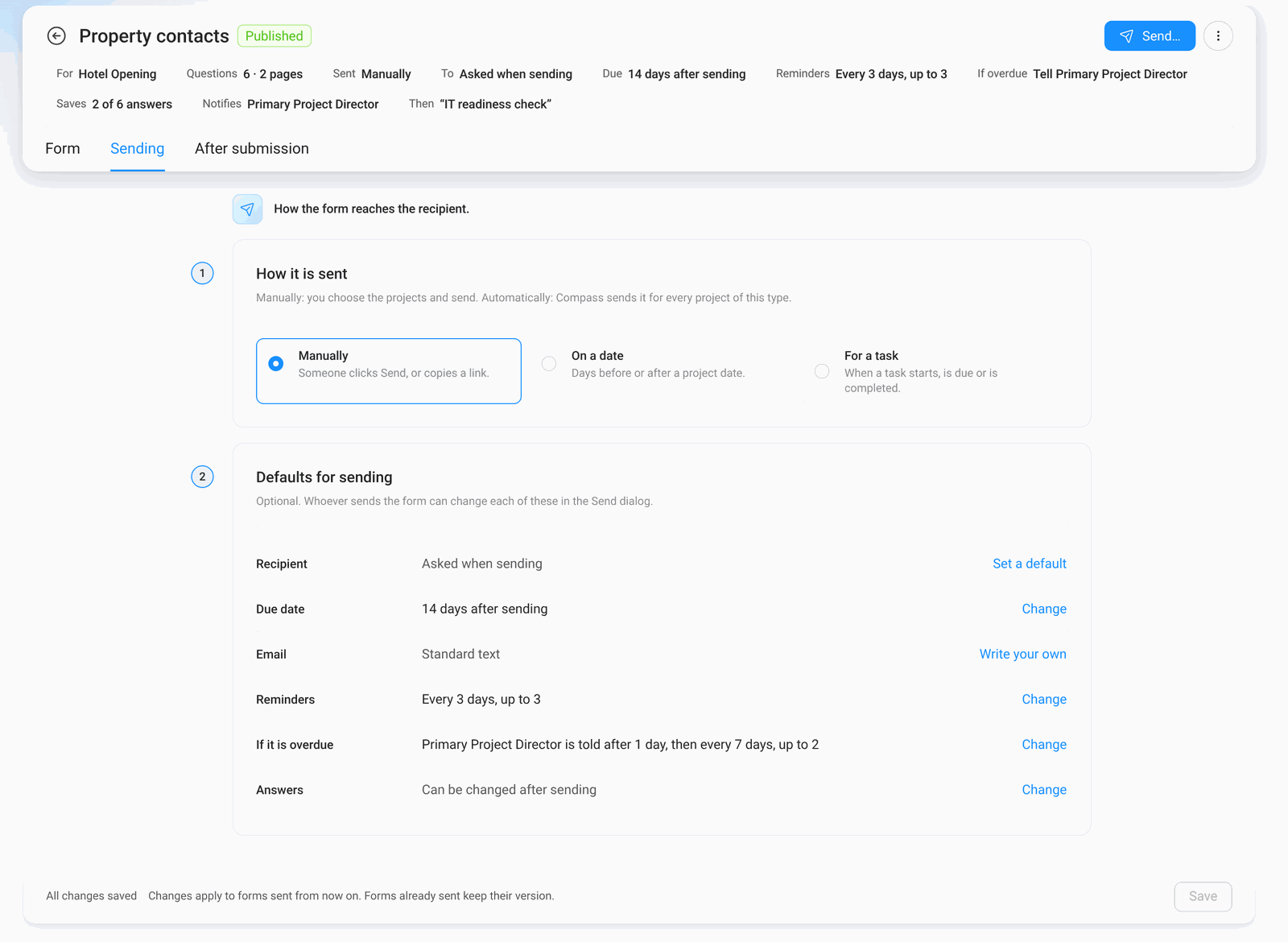
Click Change (or Set a default, Write your own) on a row to open it right there.
| Row | What it means |
|---|---|
| Recipient | Who gets the form. Empty means "asked when sending". |
| Due date | The suggested due date, counted from the day it is sent. |
| The subject and message of the email. Empty means the standard text. | |
| Reminders | When Compass reminds the recipient, for example after 3 days, every 3 days, up to 3 times. |
| If it is overdue | Who on your team is told when the due date has passed, and how often. |
| Answers | Can be changed after sending (the recipient can correct the answers later) or Only once. |
A Form Sent Automatically
With On a date or For a task, nobody is there to choose, so the template needs everything up front: the full cards for Recipient, Email, Reminders, If it is overdue and Answers stay on the page.
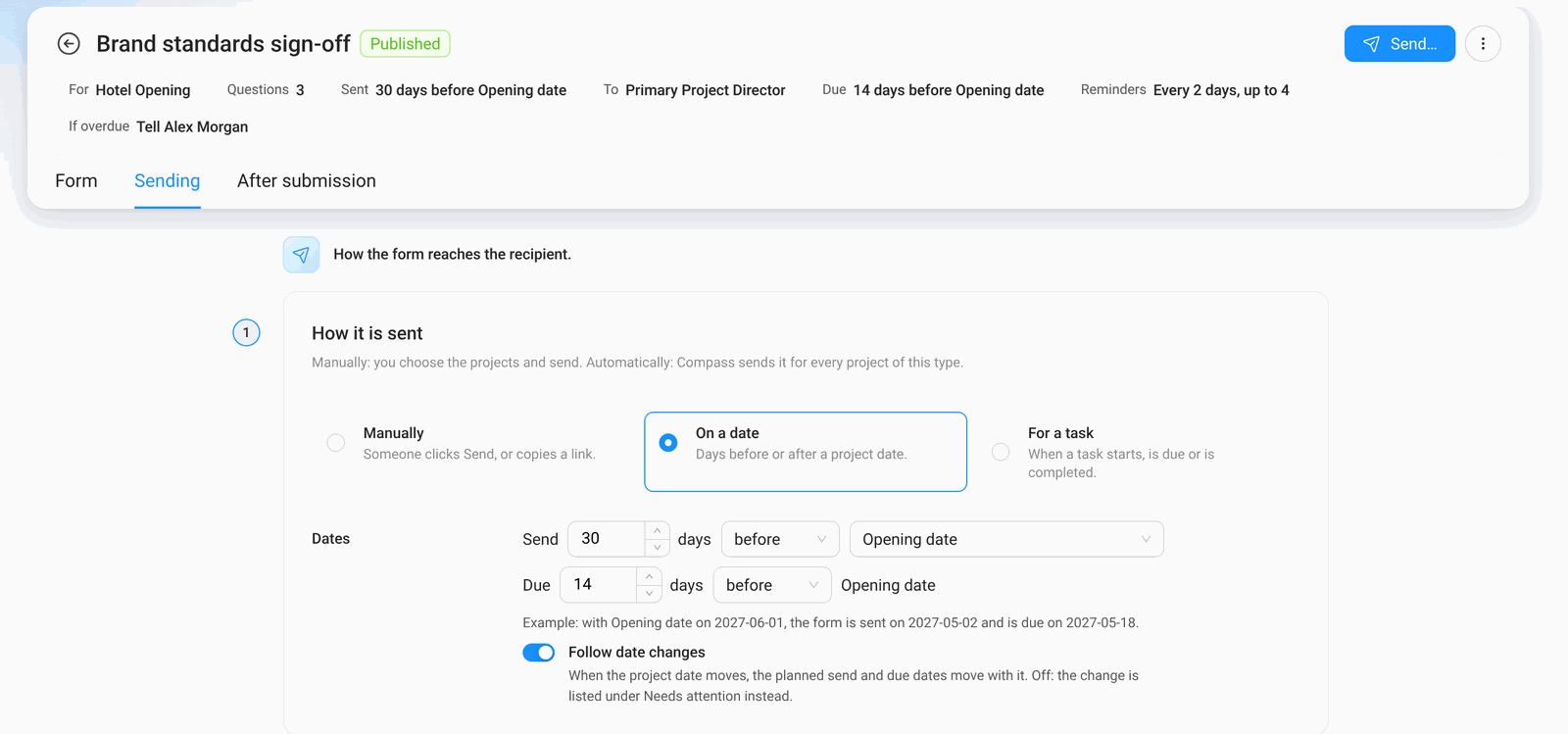
- Follow date changes on: if the project date moves, the planned send and due dates move with it. Off: the change is listed under Needs attention instead.
- The recipient must be fixed: an email address, a user, a role, or a person field of the project such as Primary Project Director.
The Email the Recipient Gets
Compass sends the email from its own address, so it reaches the inbox. You can set the subject, a short message, the sender name shown in the inbox, and who gets replies. The button to open the form and the link are always added.
Placeholders like [project.name] or [invitation.dueDate] are filled in for each project. Click Preview email to see the real email, as an invitation or as a reminder.
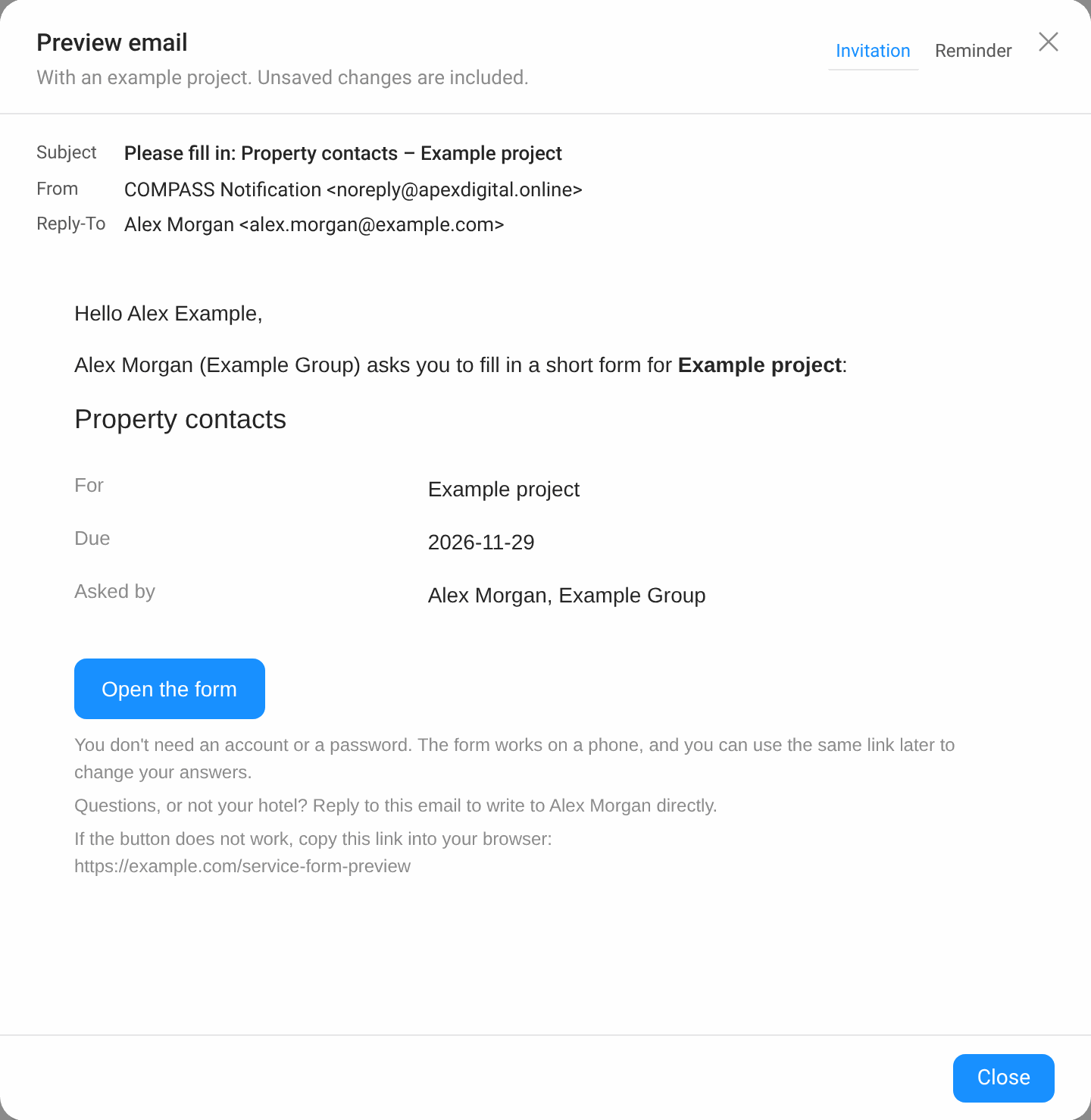
Changes to a template apply to forms you send from now on. A form that is already out keeps the version it was sent with.