Project Intake, Duplicates, and Merge
New projects feed plans, dashboards and reports from day one. Two things go wrong easily: a project is set up incompletely, or the same project exists twice, for example once created by hand and once arriving from an import. COMPASS has three tools for this.
| Tool | What it does | Think of it as |
|---|---|---|
| Intake | A new project shows Intake pending until someone has checked it and filled in what is missing. | A second pair of eyes before everyone relies on the project |
| Duplicate detection | COMPASS points out two projects that look like the same project. | Finding two contact cards for the same person |
| Merge | Combines the two projects into one. Nothing is deleted. | Moving everything into one folder and archiving the empty one |
- An administrator switches the tools on per project type: Projects → Blueprints → (project type) → Intake & duplicates.
- New projects of that type show Intake pending. A reviewer opens Projects → Intake, clicks Complete intake, fills in what is missing and completes it.
- Projects that look alike get a warning. A reviewer clicks Review and merge and merges them in three steps.
All three are off until an administrator switches them on. In COMPASS a project type is called a Project Blueprint.
Set It Up (Administrators)
Open Projects → Blueprints, open the project type, and select the tab Intake & duplicates. You need the role capability Can Manage Blueprint Base. The tab has three cards. Change what you need and click Save.
Intake Review
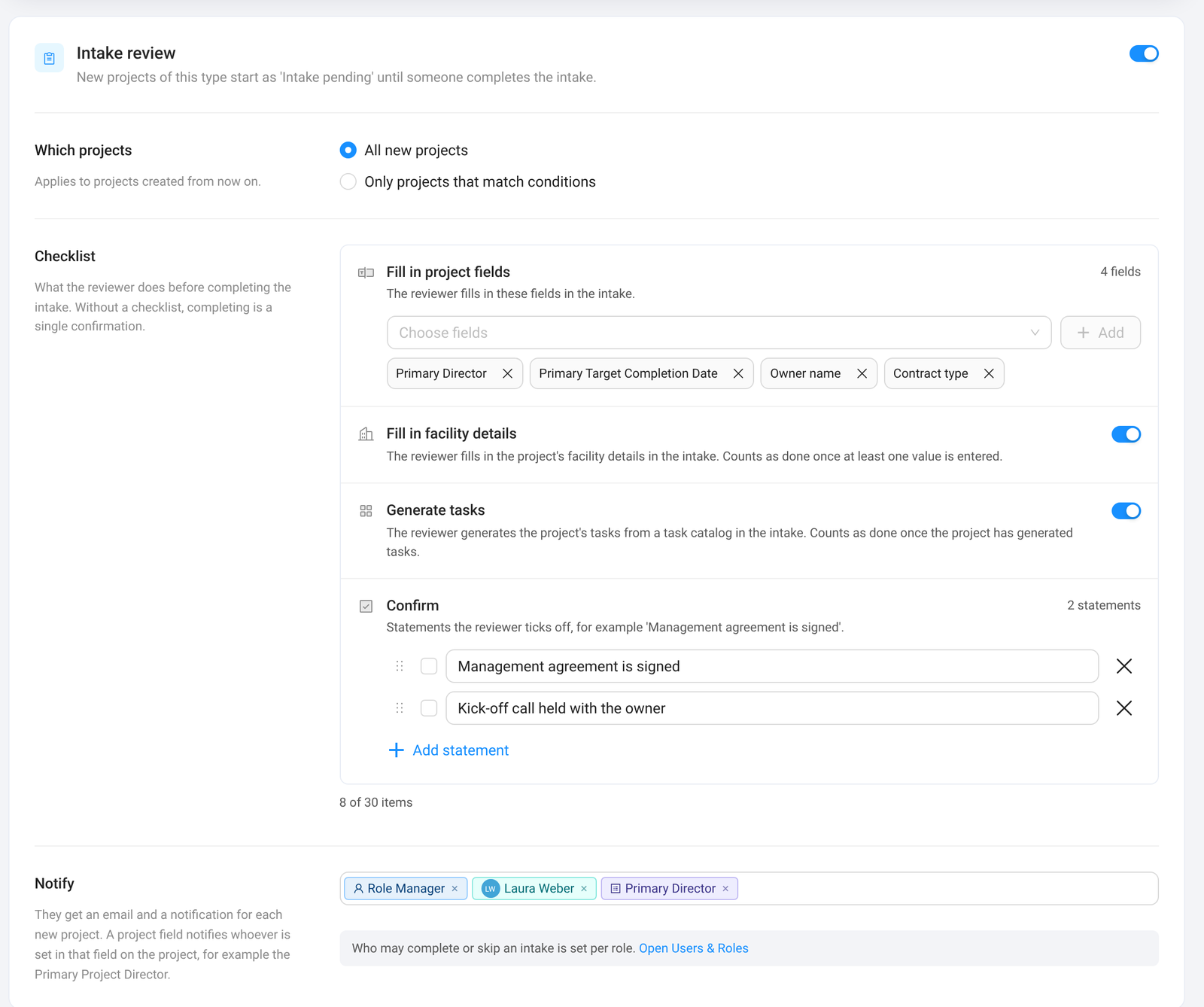
| Option | What it means |
|---|---|
| Intake review (switch) | On: new projects of this type start as Intake pending. Projects that already exist get no intake. |
| Which projects | All new projects, or Only projects that match conditions you set on the project's fields. |
| Fill in project fields | Fields the reviewer must fill in during the intake, for example the Primary Director or a target date. Done as soon as the field has a value. |
| Fill in facility details | The reviewer adds the project's facility details. Done as soon as one value is entered. Only available when the project type has facility fields. The link in the card takes you to the Facility Details tab to add them. |
| Generate tasks | The reviewer creates the project's tasks from a task catalog during the intake. Use it when the intake is also the moment to set up the task list. Done once the project has tasks from a task catalog. |
| Confirm | Statements the reviewer ticks off by hand, for example "Management agreement is signed". Drag the handle to change the order. |
| Notify | People, roles, or project fields that hold a person (for example Primary Director). They get an email and a notification for every new project that needs an intake. |
A checklist can have up to 30 items. Without a checklist, completing the intake is a single click.
Duplicate Detection and Merging
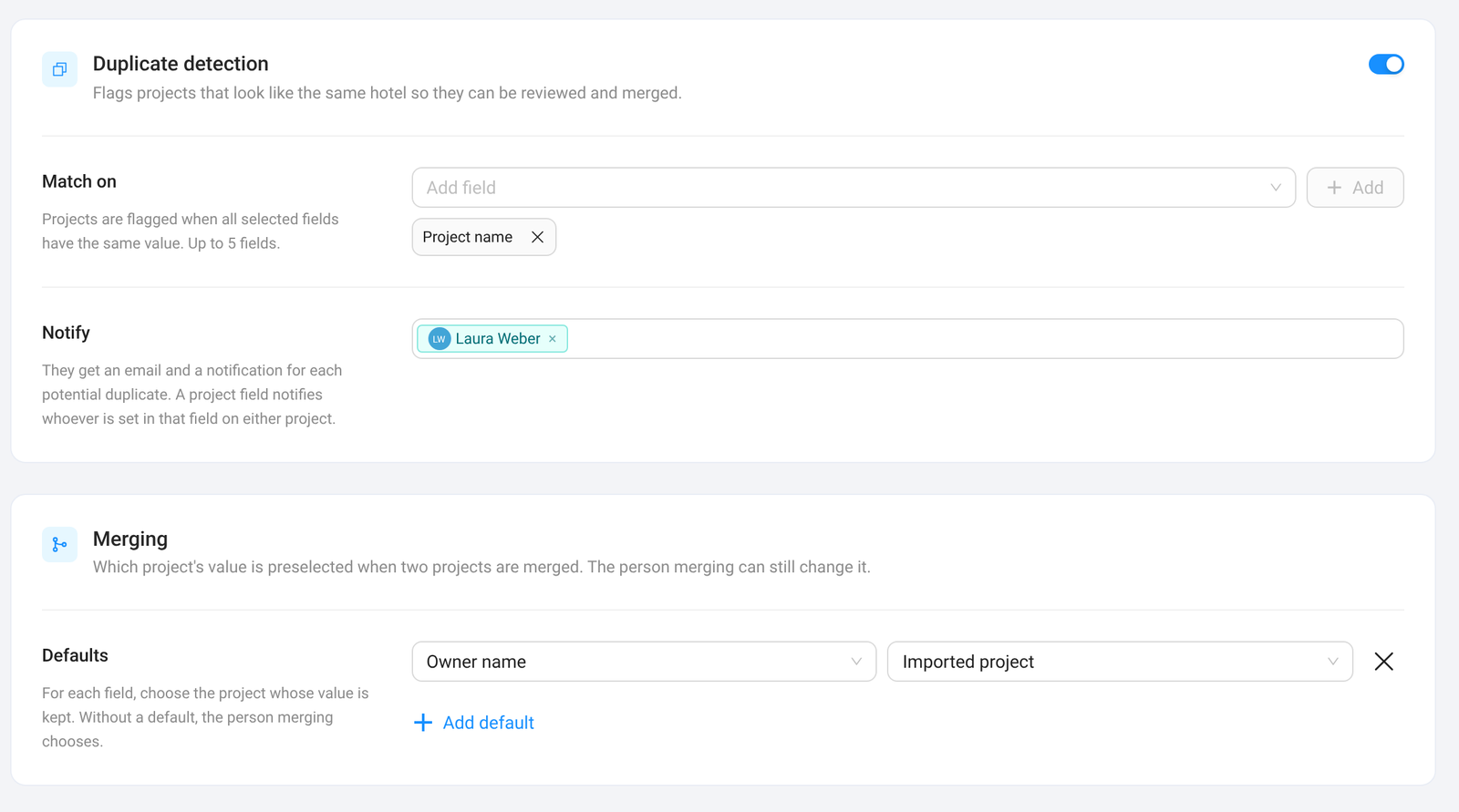
| Option | What it means |
|---|---|
| Duplicate detection (switch) | On: COMPASS compares new and changed projects of this type with the other projects of the same type. |
| Match on | Up to 5 fields. Two projects are flagged when all selected fields have the same value. Capital letters and extra spaces are ignored. An empty field never matches, so avoid External ID: a project created by hand has none. |
| Notify | Who gets an email and a notification for every potential duplicate. |
| Merging → Defaults | Optional. For a field, which value is preselected when two projects are merged: Project you keep, Merged project, Imported project, Manually created project, Most recently updated, Least recently updated, or Leave empty (custom fields only). The person merging can still change it. |
Switching on duplicate detection checks projects when they are created or changed. To check all existing projects once, open Projects → Duplicates and click Scan for duplicates. Do the same after you change the Match on fields: pairs that were still waiting for review are removed then, because they were found with the old fields.
Who May Do What
Open Users & Roles, open the role, then Module Permissions → Projects.
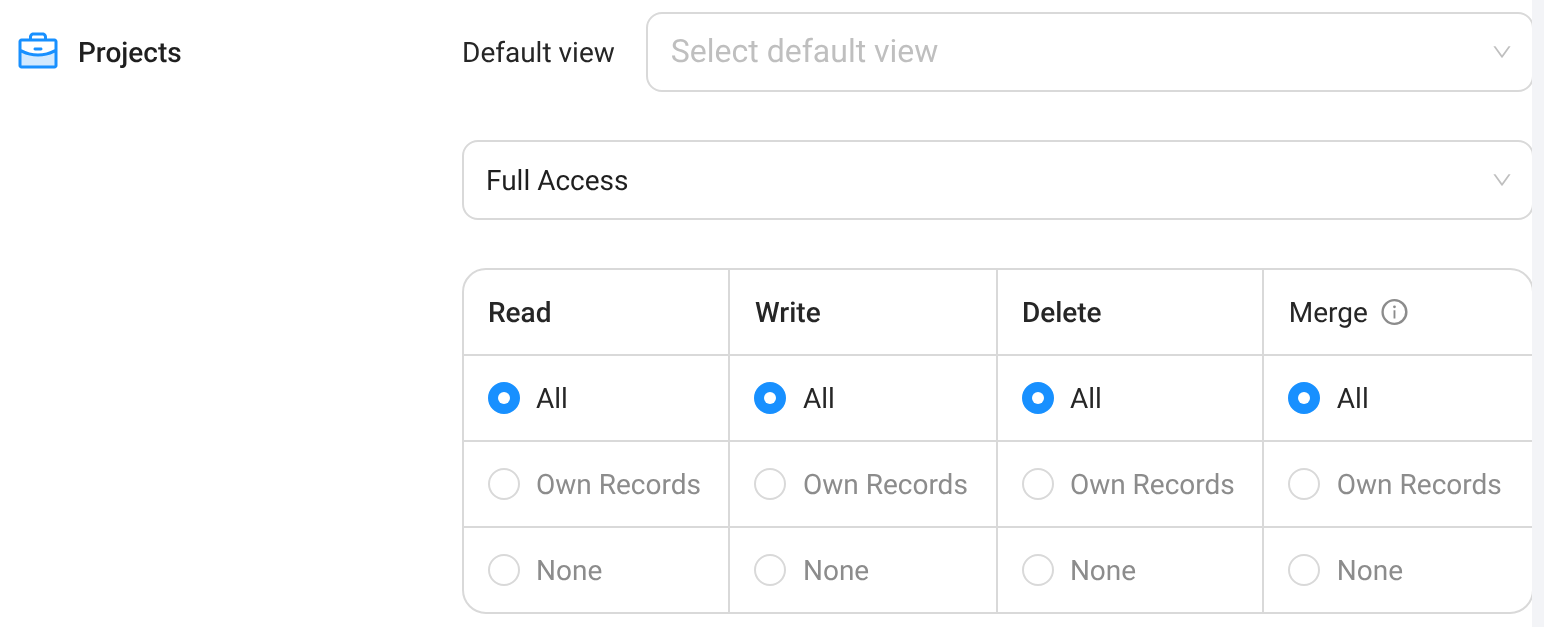

| To do this | The role needs |
|---|---|
| See the intake status | Read access to the project and the field permission Intake status |
| Complete or skip an intake | Write access to the project and Complete or skip intake (on by default) |
| Merge two projects | Merge in the Projects row (None by default, also for Full Access) and write access to both projects |
| Mark a pair as Not a duplicate | Write access to the project |
| Open Projects → Duplicates | Merge, Can Manage Blueprint Base, or Has Access to Settings |
| Click Scan for duplicates | Has Access to Settings |
Complete an Intake (Reviewers)
Find the Projects That Wait
The quickest way is the tab Projects → Intake. The number next to the tab shows how many intakes wait. Click Complete intake in a row.
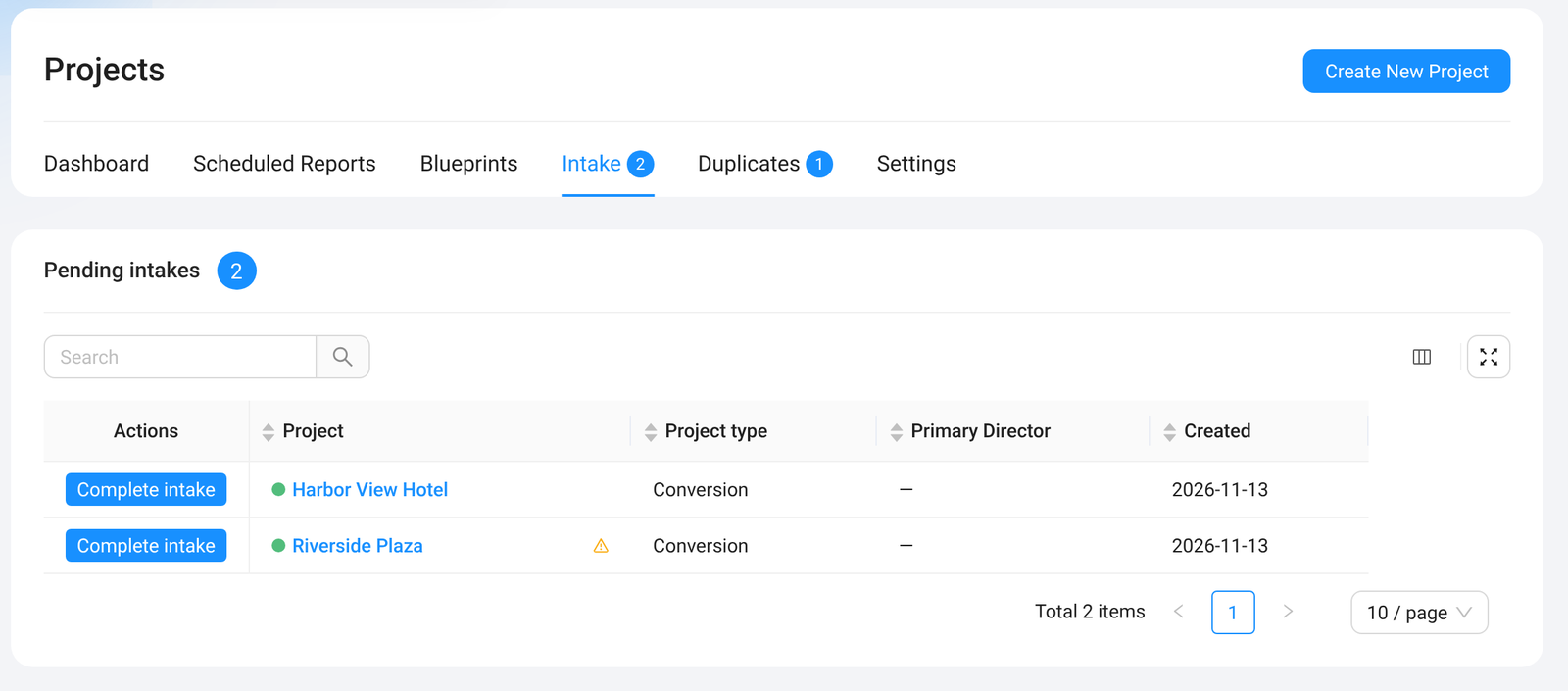
The tab appears for people who may complete intakes, once intake review is switched on for a project type or intakes are still waiting.
You also find pending intakes here:
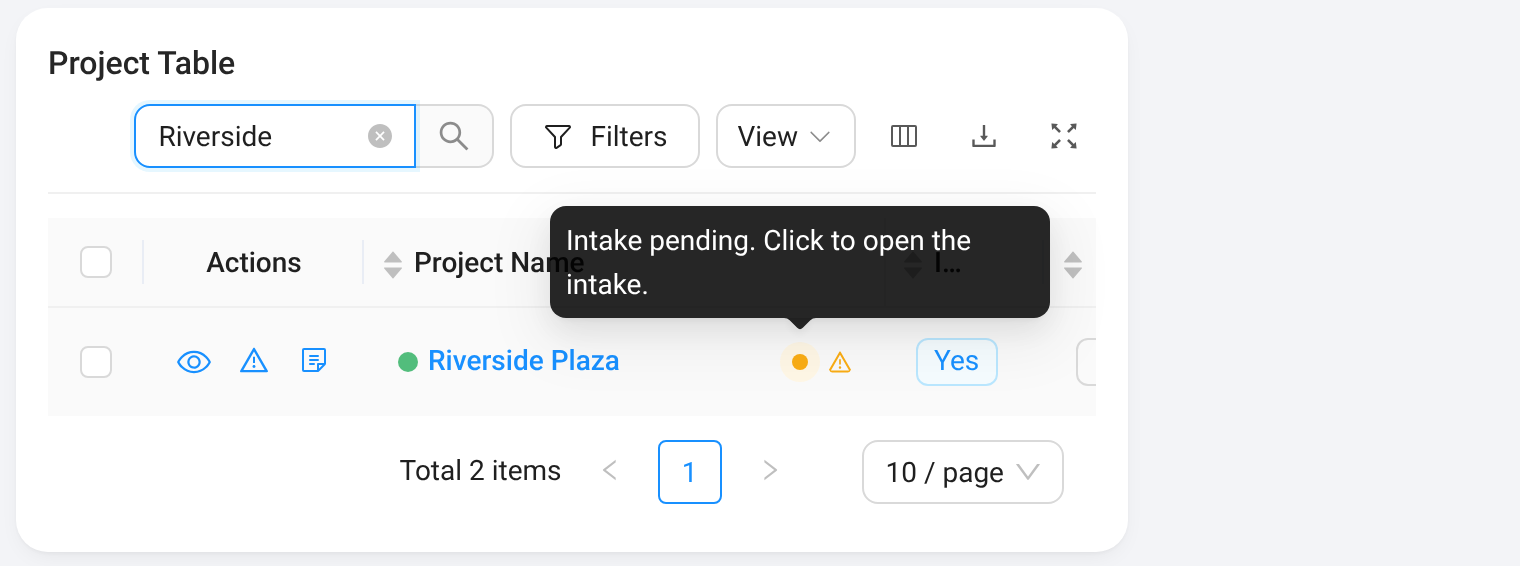
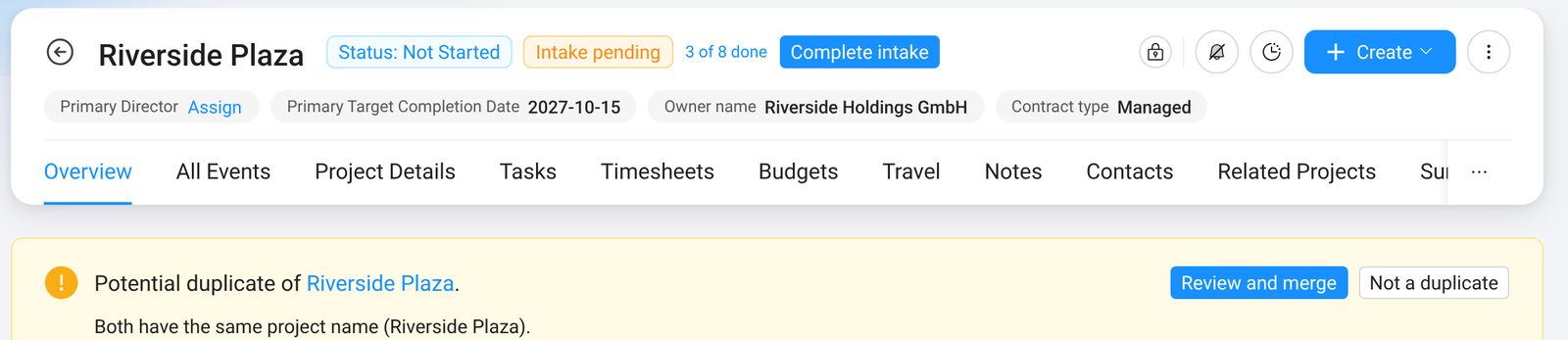
- In any projects table: an amber dot next to the project name means Intake pending. Click the dot to open the intake. A warning triangle means Potential duplicate.
- On the project page: next to the project name you see Intake pending, the progress, and the button Complete intake.

Work Through the Intake
Everything happens in one window. A green check mark means done, an empty circle means still open.
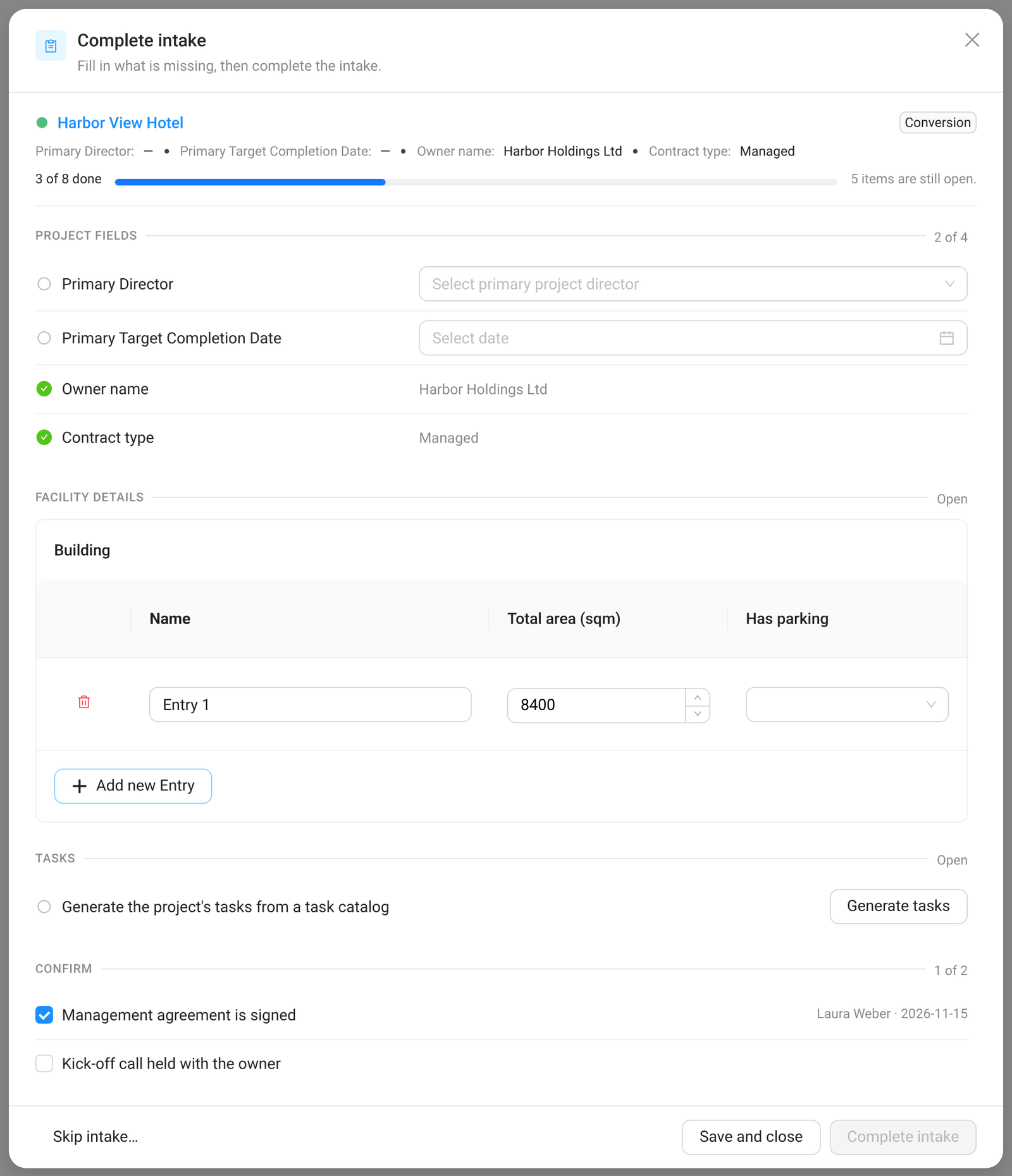
- Check the project at the top. You see its name, its project type, the key fields the project type shows in its header, and the progress.
- Fill in the open fields under Project Fields, right in the window.
- Add the facility details under Facility Details: click Add new Entry and fill in the values.
- Generate the tasks under Tasks: click Generate tasks. What you entered is saved first, because the task catalog reads the project's fields.
- Tick the statements under Confirm. A tick is saved at once, with your name and the date.
- Click Complete intake. The button works once every item is done or filled in. It saves what you entered and completes the intake. The project now shows Intake completed.
Not finished yet? Click Save and close. Your entries are saved and the intake stays pending.
Click Skip intake… at the bottom left and confirm. The project shows Intake not required. You also find Skip intake… in the ⋮ menu on the project page.
| Status | What it means |
|---|---|
| Intake pending | Nobody has completed the intake yet. |
| Intake completed | Someone checked the project. The label shows who and when. |
| Intake not required | Someone decided the project skips the intake. |
Completing and skipping are final. In the Projects table you can add the column Intake status and filter by it.
Review Duplicates and Merge (Reviewers)
Find Potential Duplicates
- On the project: a yellow notice names the other project and the values both share.
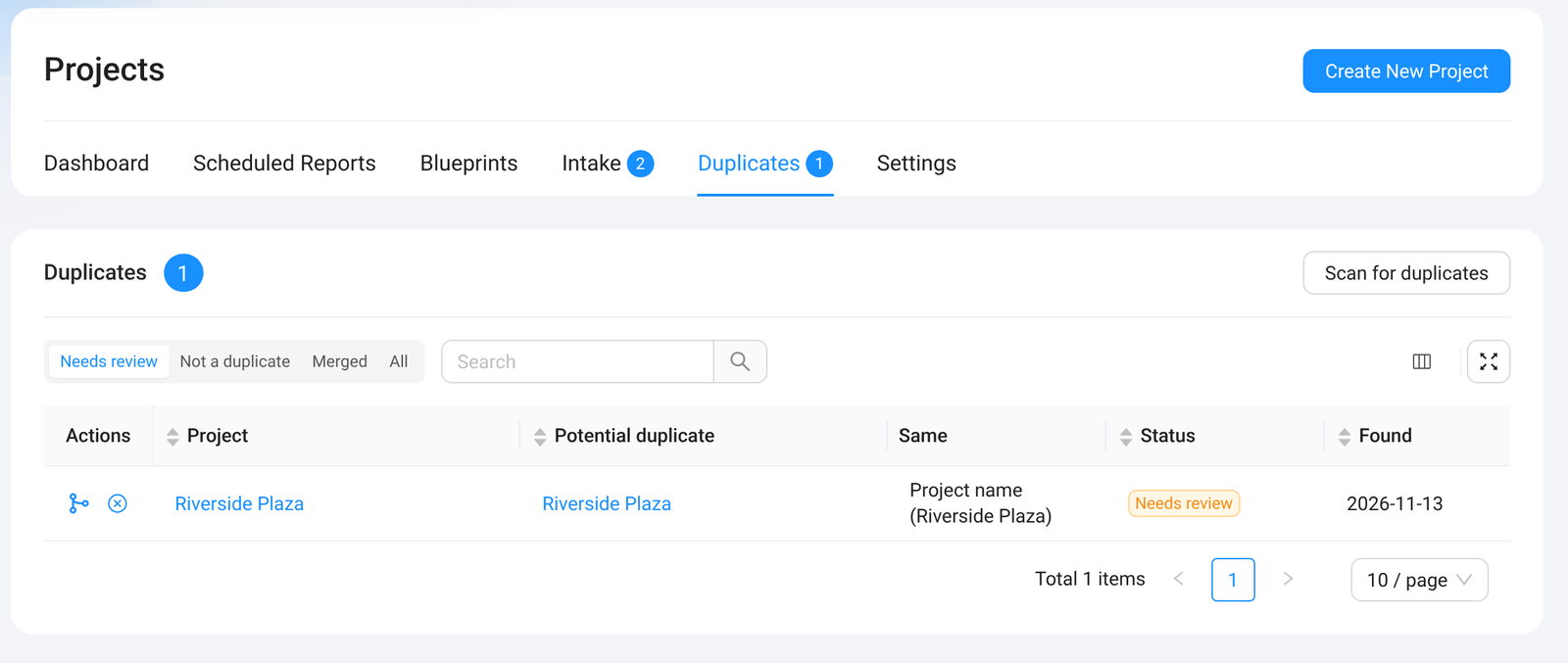
- On the Duplicates page: Projects → Duplicates lists every pair. Filter by Needs review, Not a duplicate, Merged, or All.
- In any projects table: a warning triangle next to the project name.
For each pair you decide:
- Not a duplicate: the two projects are different. COMPASS never flags this pair again.
- Review and merge: the two projects are the same. The merge window opens.
To merge two projects that were not flagged, open one of them and choose ⋮ → Merge with another project…. Both projects must have the same project type.
Merge in Three Steps
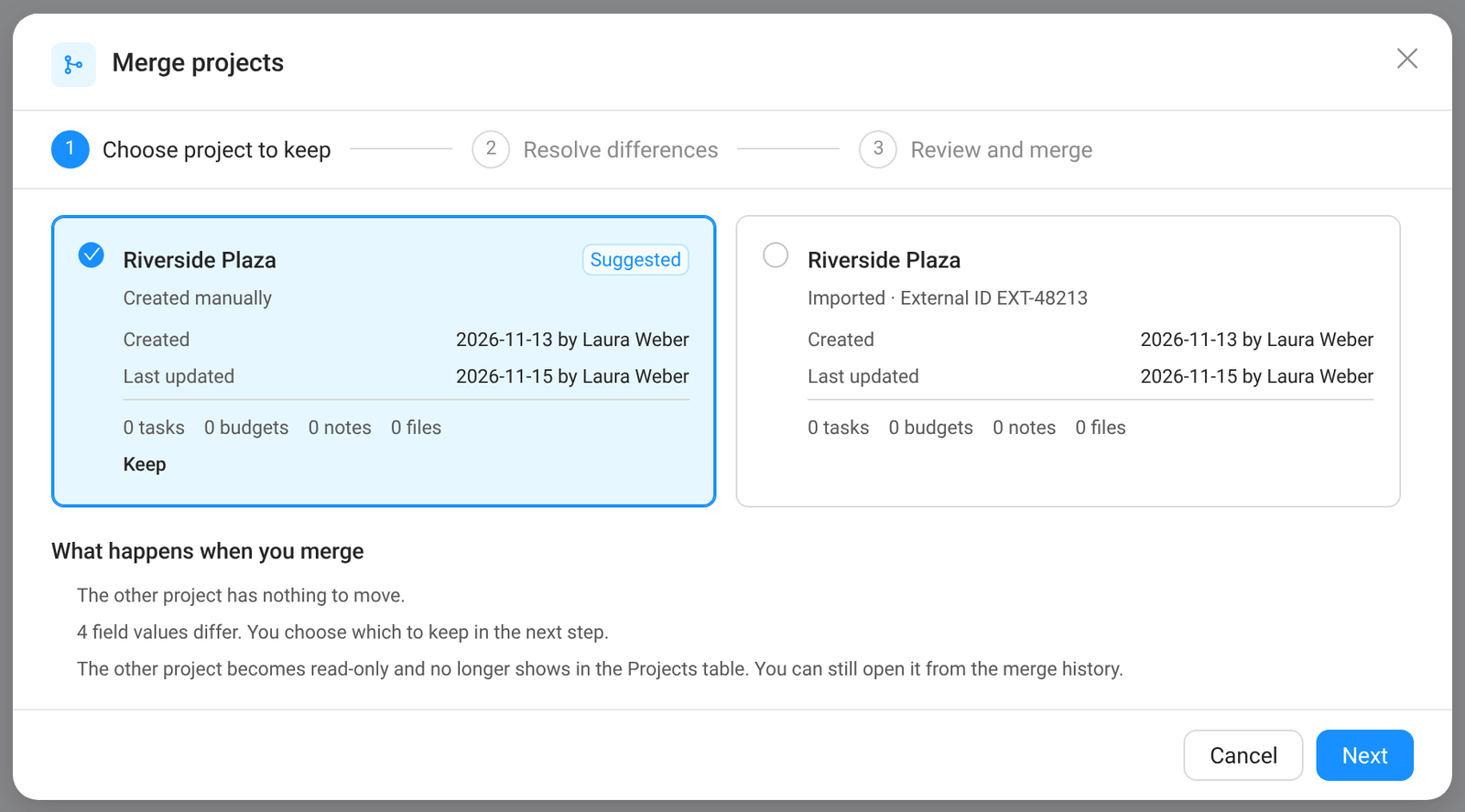
Step 1: Choose the project to keep. COMPASS suggests one. Each card shows where the project comes from (created manually or imported), when it was created and changed, and what it holds. Below the cards you read what will happen.
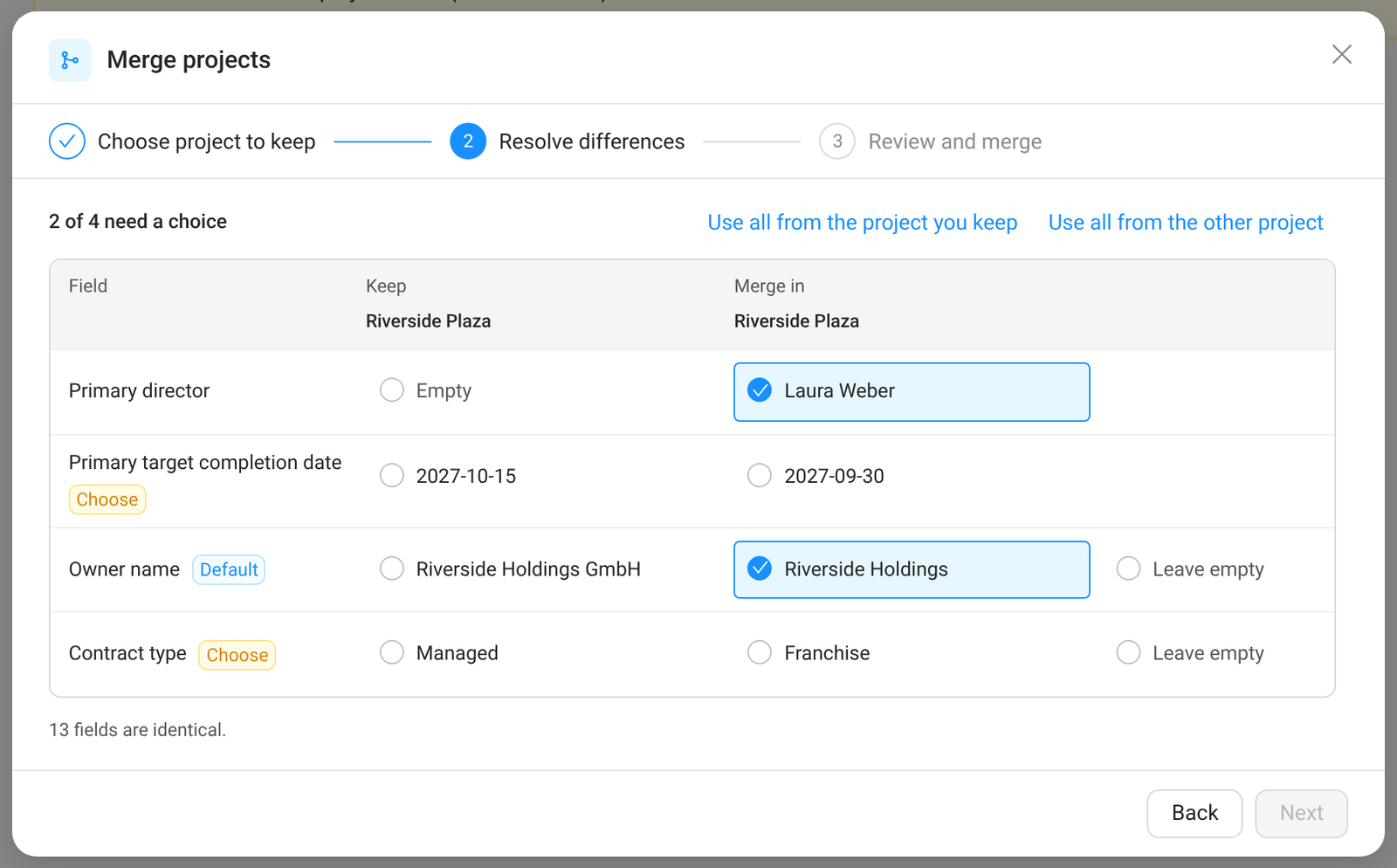
Step 2: Resolve differences. Only fields with different values are listed. Pick the value to keep in each row. Default marks a row preselected by the project type's defaults, Choose marks a row that still needs your choice. Use all from the project you keep and Use all from the other project fill every row at once.
Step 3: Review and merge. Check the summary and click Merge projects.
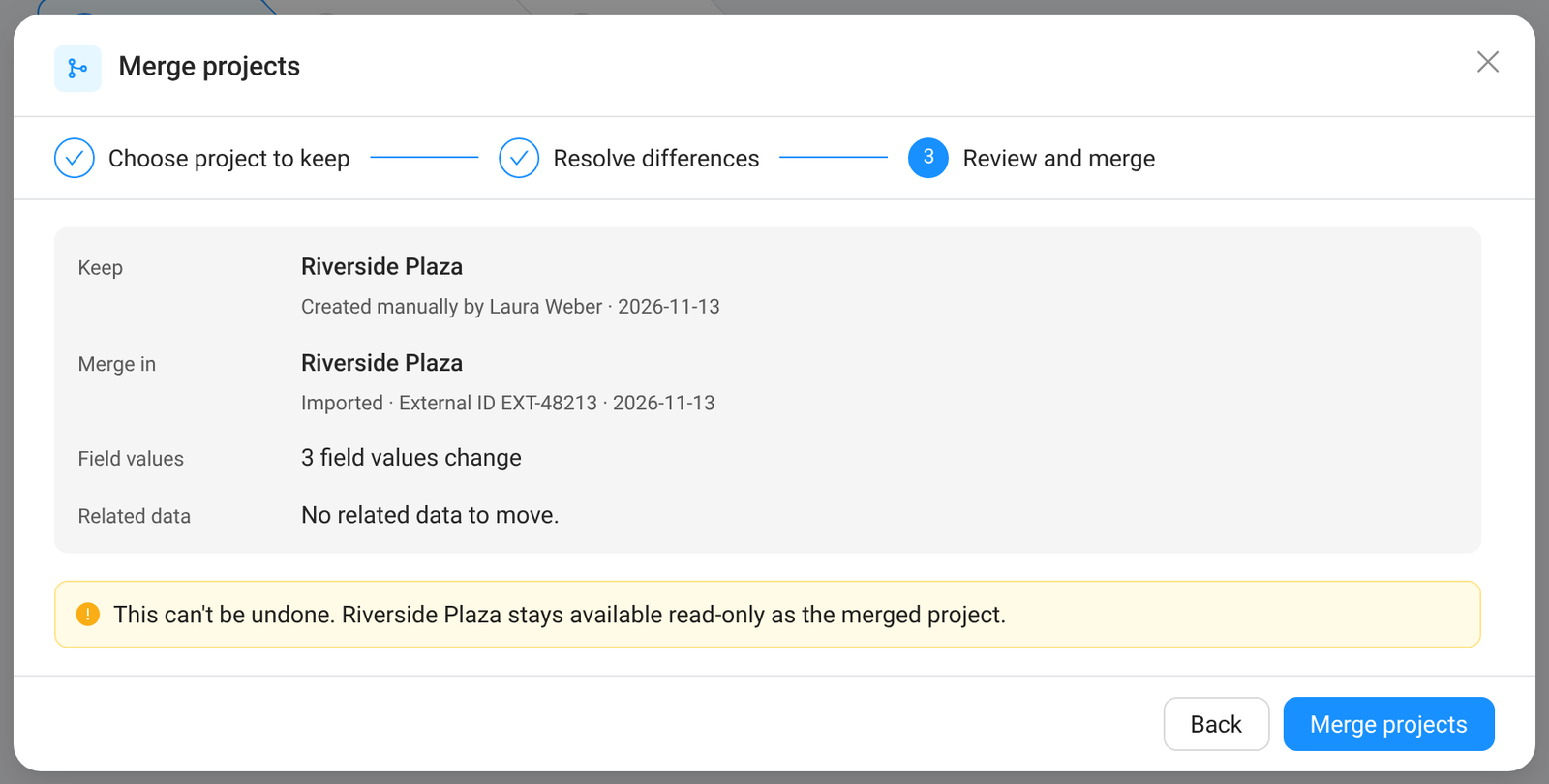
Check step 3 carefully. Nothing is deleted, but the merge itself can't be reversed.
What Happens After a Merge
- Everything moves to the project you keep: tasks, budgets, notes, files and the other related data. A budget or document whose name already exists gets "(merged)" added to its name. A task whose name the kept project already has stays on the merged project.
- The External ID moves too, so the next import updates the project you kept.
- The merged project becomes read-only. It no longer shows in the Projects table, in pickers or in reports. A notice links to the project it was merged into. ⋮ → Merge history shows who merged, when, and which values were chosen.

Questions
I don't see the Intake or Duplicates tab. The tabs appear only when the tool is switched on for at least one project type, or when items still wait there. Your role also needs the permissions listed in Who May Do What.
Complete intake is greyed out. Some items are still open. Look for empty circles and unticked statements. If you just ticked a statement, wait a second until it is saved.
I can't fill in a field in the intake. Either your role can't edit that field, or the field type can't be edited there (formula and upload fields). Use the link Edit in project details. The External ID comes from the import or from a merge and can't be typed in.
Two projects are the same but COMPASS doesn't flag them. Check that both have the same project type, that duplicate detection is on for it, and that every Match on field is filled in on both projects. A pair marked Not a duplicate is never flagged again. Projects that existed before detection was switched on are only checked after Scan for duplicates. When more than 5 projects share the same values, COMPASS skips that group.
I don't see Review and merge. Your role needs Merge in the Projects row and write access to both projects.
Do existing projects get an intake when I switch it on? No. Only projects created afterwards get an intake.