Follow Up on Forms
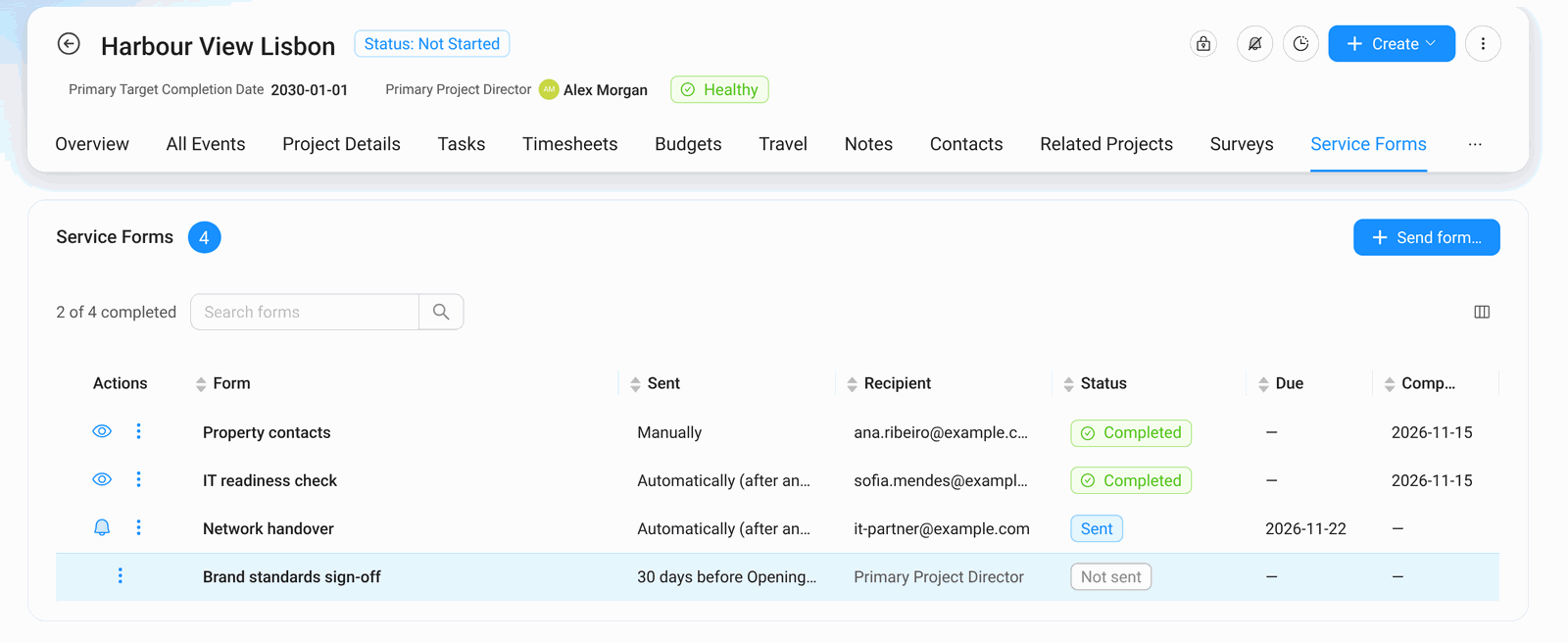
Service Forms keep track of every form for you. You see at a glance who answered and who is late, and you can act from the same row.
The Overview: Every Project at a Glance
The Overview tab starts with four counters: Completed, Waiting for reply, Overdue and Not sent yet. Below, Forms by project lists every project with each of its forms. Search for a project, or use Filters to show, for example, only overdue forms.
The icon in the Actions column is the next useful step for that row:
| Icon | Action | When |
|---|---|---|
| ✈ paper plane | Send | The form has not been sent yet |
| 🔔 bell | Send reminder | The form is waiting or overdue (only for forms sent by email) |
| 👁 eye | View answers | The form is completed |
| ⋮ | More: Copy link, Open form, Send again, Expire link | Depends on the status |
What Each Status Means
| Status | Meaning |
|---|---|
| Not sent | Nothing has been sent for this project yet. |
| Planned | Compass sends it on a set day (send later, or on a date). |
| Sent | The recipient has the form; Compass is waiting for the answers. |
| Overdue | The due date has passed without answers. Reminders and the overdue alert keep running. |
| Completed | The answers are in. |
| Not needed | A next form that the answers did not ask for (sent "only for certain answers"). |
| Expired | Someone closed the link. Use Send again for a new one. |
| Send failed | The email could not be delivered. Check the address and use Send again. |
Read the Answers
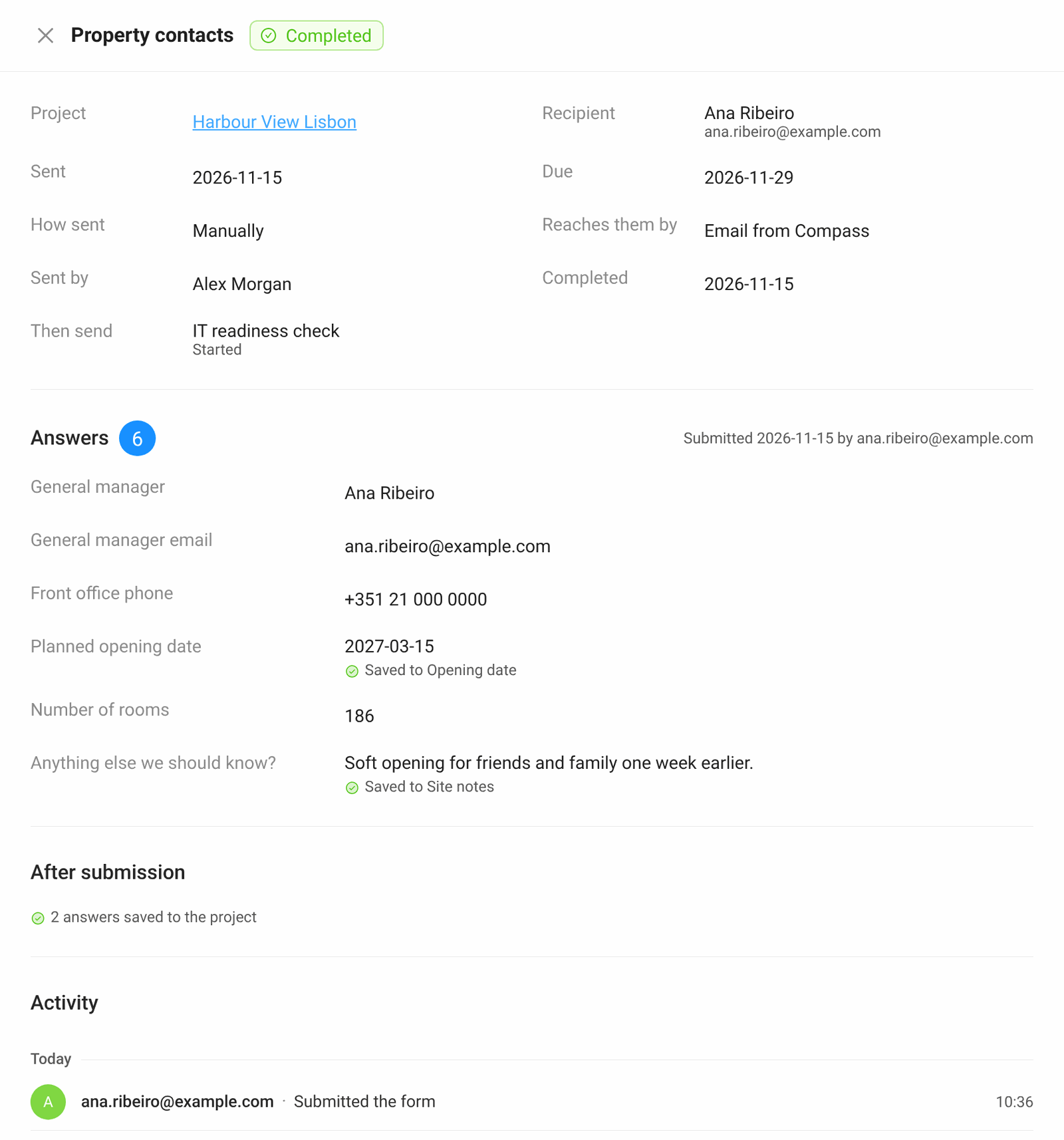
Click the eye icon, or a form row, to open the form. On top you see the facts: project, recipient, due date, how it was sent. Below are the Answers. An answer that was written into the project says so, for example Saved to Site notes. After submission sums up what Compass did, and Activity shows the history.
Files that a recipient uploads also appear in the project's Files, marked External upload with the form's name.
Needs Attention
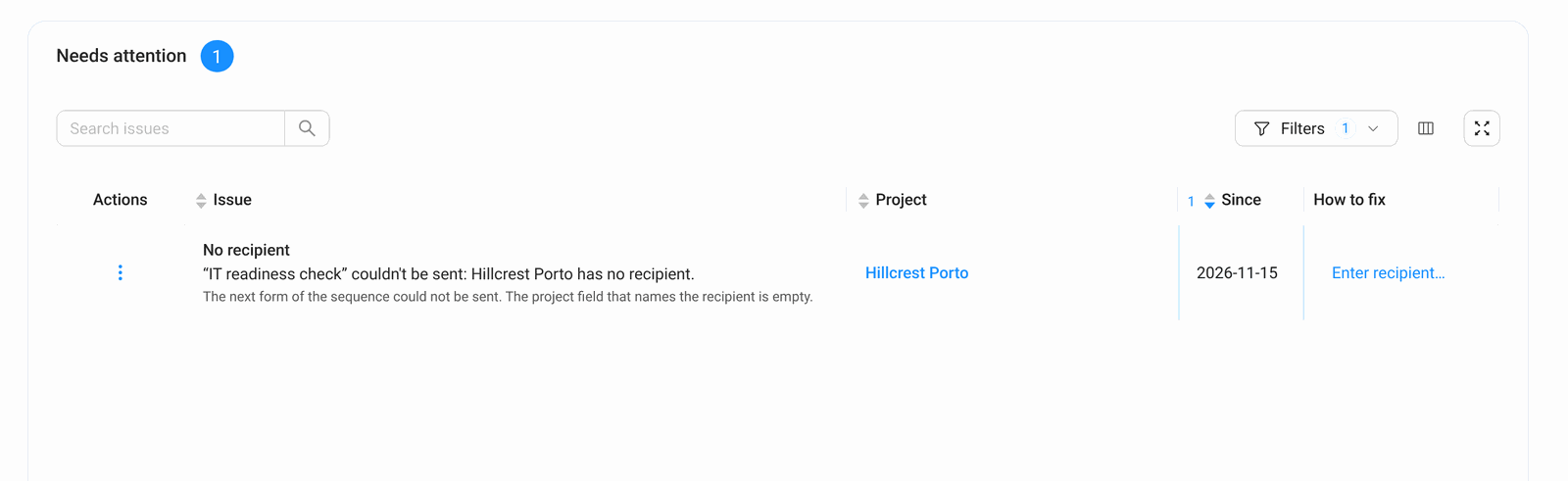
Some problems Compass cannot solve on its own, for example a next form with nobody to send it to. They are listed under Needs attention, with a counter on the tab. Each row says what happened and offers a How to fix action, such as Enter recipient….
The Service Forms Tab of a Project
Inside a project, the Service Forms tab shows only that project's forms, with the same statuses and actions. Send form… sends a form for this project.