Absence Requests
Absence Requests are the records people create when they need time away, want to carry holidays forward, earn days in lieu, or record sick leave. The request type decides what information COMPASS asks for and whether approval is needed.
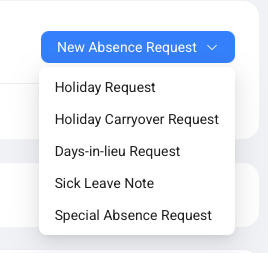
Open Absence Management, then use New Absence Request in the top right corner. The dropdown shows the available request types for your workspace.
Which Request Type Should I Use?
Absence Management has five request types, and each one has a different job.
| Request Type | Use It When | Approval |
|---|---|---|
| Holiday Request | An employee wants to book normal holiday time. | Usually required, based on settings. |
| Holiday Carryover Request | An employee wants to move unused holiday days into the next contractual year. | Based on carryover settings. |
| Days-in-Lieu Request | An employee earned extra time off from work outside the normal schedule. | Based on days-in-lieu settings. |
| Sick Leave Note | An employee is sick and the team needs the absence visible in COMPASS. | No approval by default. Notifications can still be sent. |
| Special Absence Request | An employee needs special leave that should not reduce contractual holiday allowance. | Usually required, based on settings. |
How To Create A Holiday Request
A Holiday Request is the normal request for annual leave.
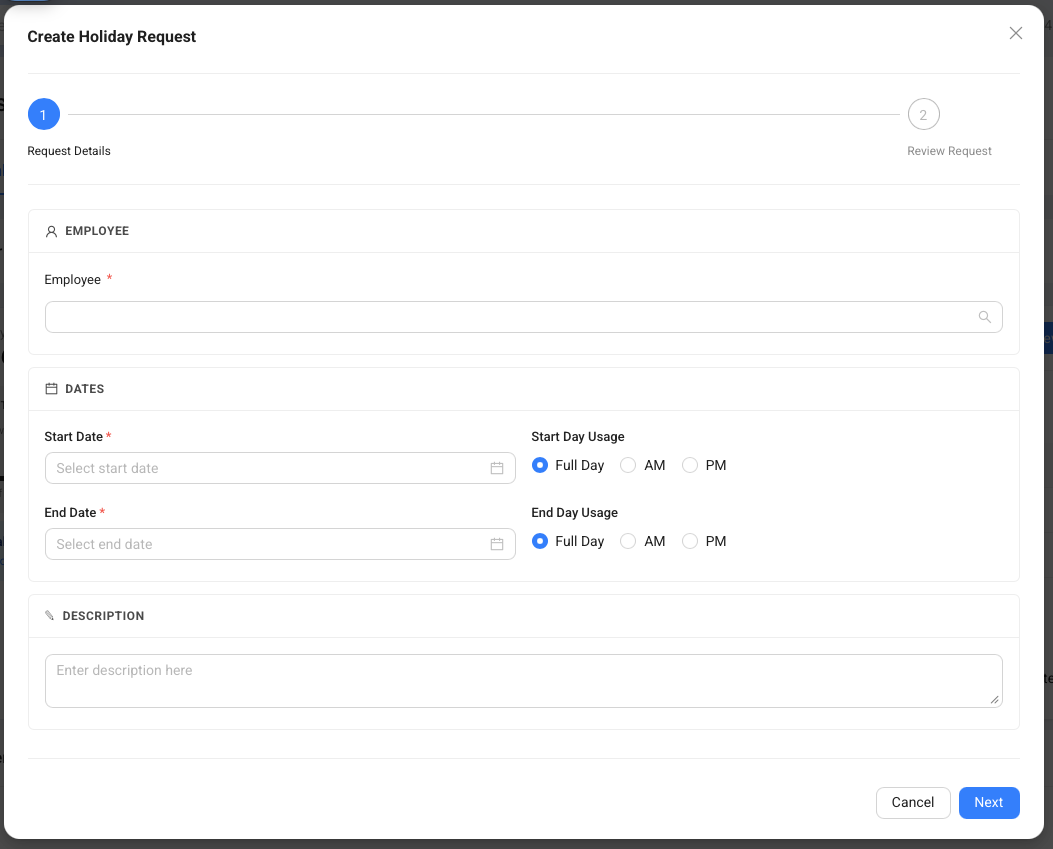
- Open Absence Management.
- Click New Absence Request.
- Select Holiday Request.
- Select the Employee.
- Enter the Start Date.
- Choose the Start Day Usage.
- Enter the End Date.
- Choose the End Day Usage.
- Add a Description when helpful.
- Click Next.
- Review the holiday usage, warnings, and conflicts.
- Click Submit Request.
What The Holiday Review Step Shows
The holiday review step shows the practical effect of a holiday request before the employee submits it.
COMPASS shows the requested dates, the last workday before the holiday, and the first workday after the holiday. It also shows how many holiday days the request consumes. This helps the employee confirm the request before it goes to the approver.
The usage card shows the same budget logic as the Holiday Summary widget. A holiday can use contractual allowance, days in lieu, and carried-over days when those buckets are available for the selected period.
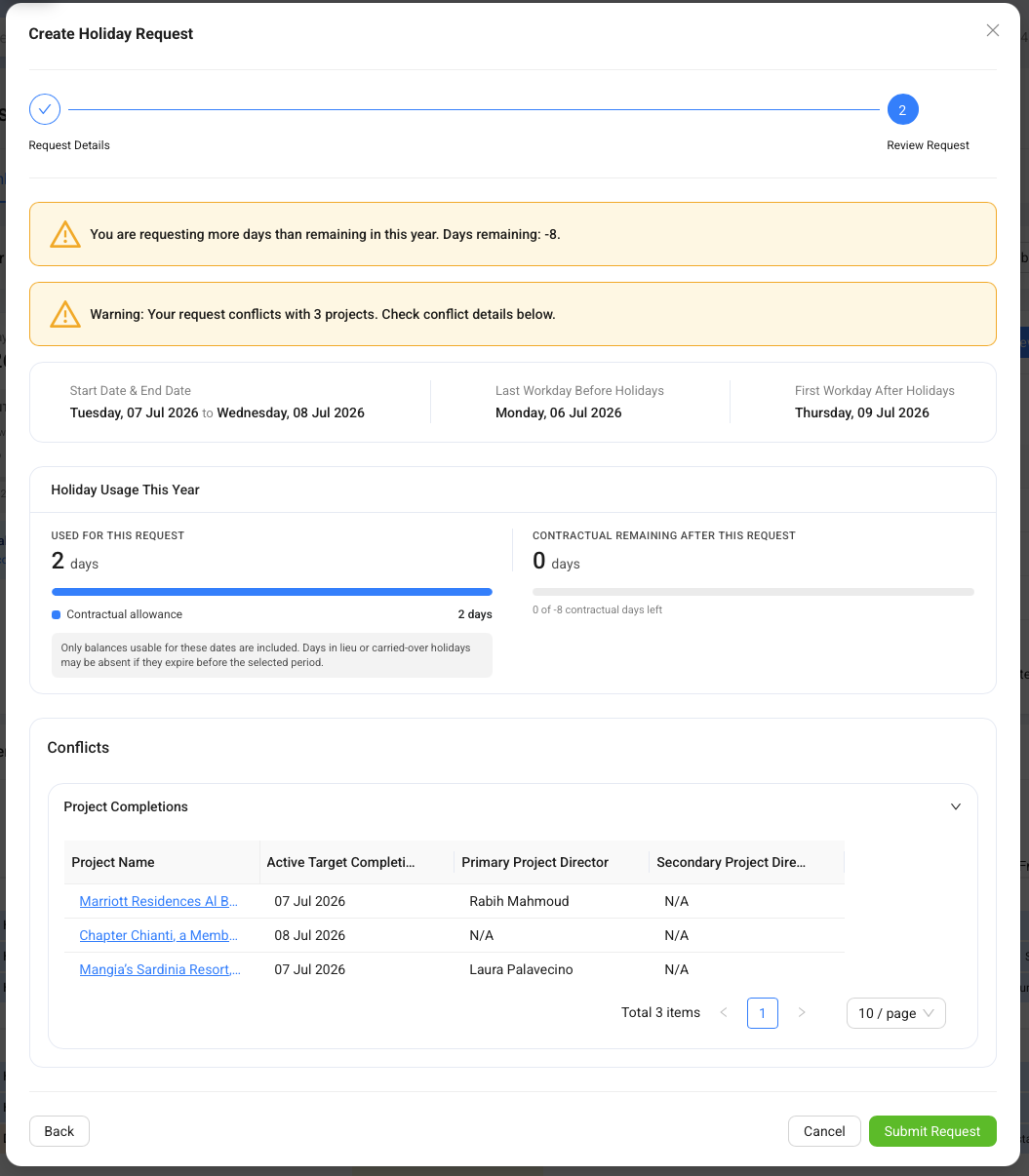
Review the usage card before submitting. It is the best place to confirm whether a request uses contractual allowance, days in lieu, or carried-over days.
How Conflict Warnings Work In Absence Requests
Conflict warnings help employees and approvers spot possible problems before a request is submitted or approved.
There are three common conflict signals. Project completion conflicts show hotel openings or other project deadlines that fall inside the requested period. These are warnings, not hard blockers. Other absence conflicts show overlapping holidays from colleagues who work on the same tasks. Blocked period conflicts show date ranges where holidays are not allowed for the selected user or role.
Project and colleague conflicts are there to support planning. A blocked period is stronger because an administrator created it to prevent holidays for a specific period, user, or role.
What Approvers See In A Request
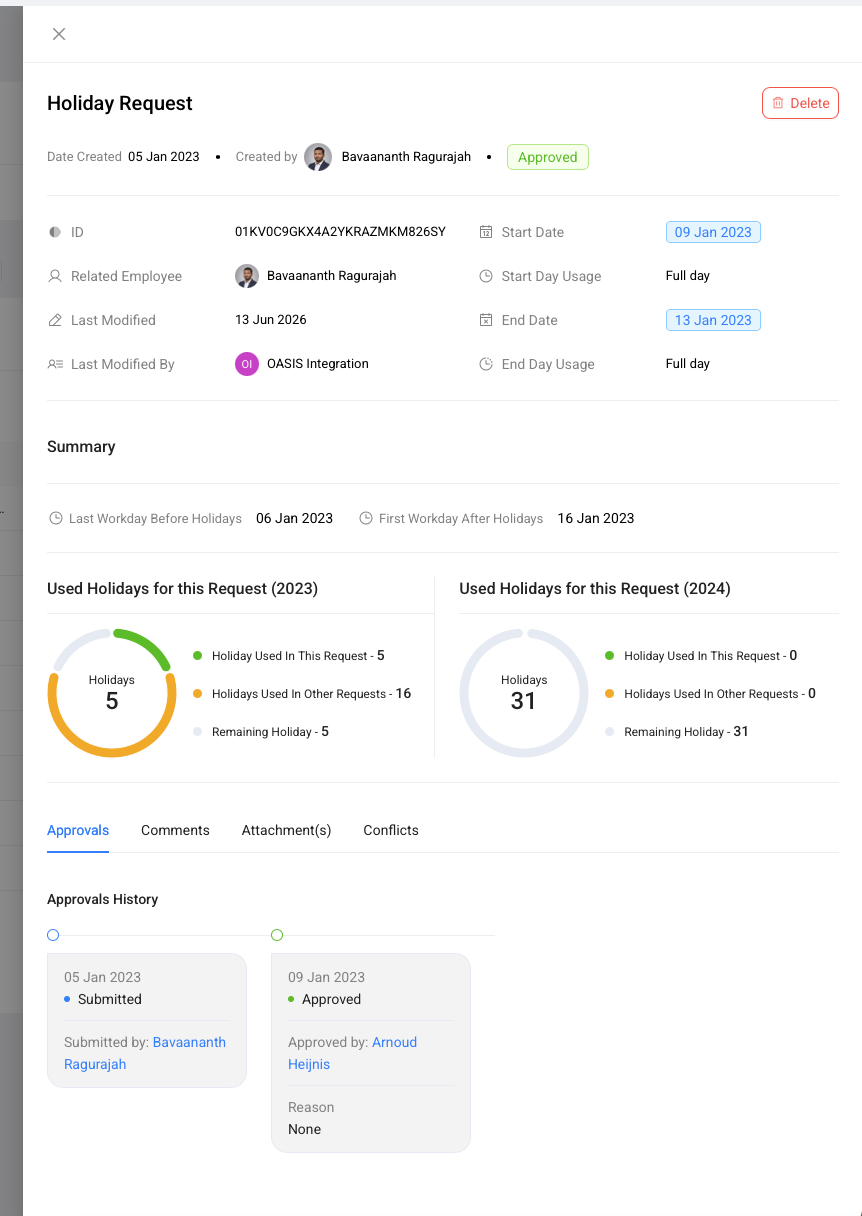
Approvers can open a request to review request details, usage, comments, attachments, conflicts, and approval history.
The detail drawer shows the request status, related employee, start and end dates, day usage, summary, and the people who submitted or approved the request. For holiday requests, the drawer also shows how many days were used by this request, how many were used by other requests, and how many remain.
The Approvals History tab is a timeline. It shows when the request was submitted, who approved or declined it, and any reason that was entered.
How Each Request Type Affects Holiday Balances
Each absence request type affects the employee's holiday balances in a different way.
- Holiday Request reduces the available holiday budget for the selected year. COMPASS can use contractual allowance, days in lieu, and carried-over days.
- Holiday Carryover Request adds approved carried-over days to the next contractual year. These days may expire after the usage period set by administrators.
- Days-in-Lieu Request adds approved days in lieu. These days can later be used by holiday requests before contractual allowance is consumed.
- Sick Leave Note records sickness and calendar availability. It does not use holiday allowance.
- Special Absence Request records special leave such as marriage, bereavement, or another jurisdiction-specific entitlement. It does not reduce contractual holiday allowance.
Common Mistakes
Use these fixes when an absence request does not behave as expected.
- Problem: A holiday request shows fewer available days than expected.
Fix: Check whether carried-over days or days in lieu expired before the selected dates. - Problem: The request warns about project completions.
Fix: Review the listed projects and discuss the timing with the approver or project lead. - Problem: The employee cannot submit a request for another person.
Fix: Ask an administrator to check Module Permissions -> Absence Management for that role.