Sign Up for COMPASS
Signing up for COMPASS means creating your account for the first time. Most users start from an invitation email. Some users receive an access code instead.
After sign-up is complete, you can sign in normally at https://client.compass.apexdigital.online.
- You need either a COMPASS invitation email or a COMPASS access code.
- Use the same email address that received the invitation.
- Single Sign-On (SSO) users still need to complete the sign-up form once.
Sign up with an invitation email
Signing up with an invitation email is the normal way to create your COMPASS account. Go to your email inbox, open the COMPASS invitation email, and click the blue Sign Up button.
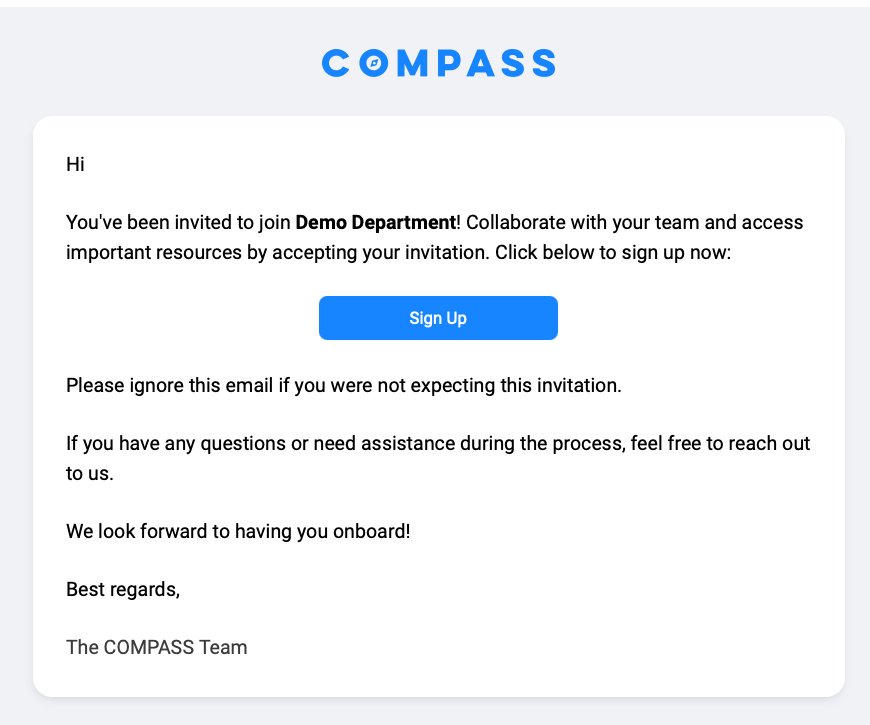
The button opens the COMPASS Sign Up form. Complete the form, agree to the terms and conditions, and click Sign Up. When the form is accepted, your COMPASS account is ready.
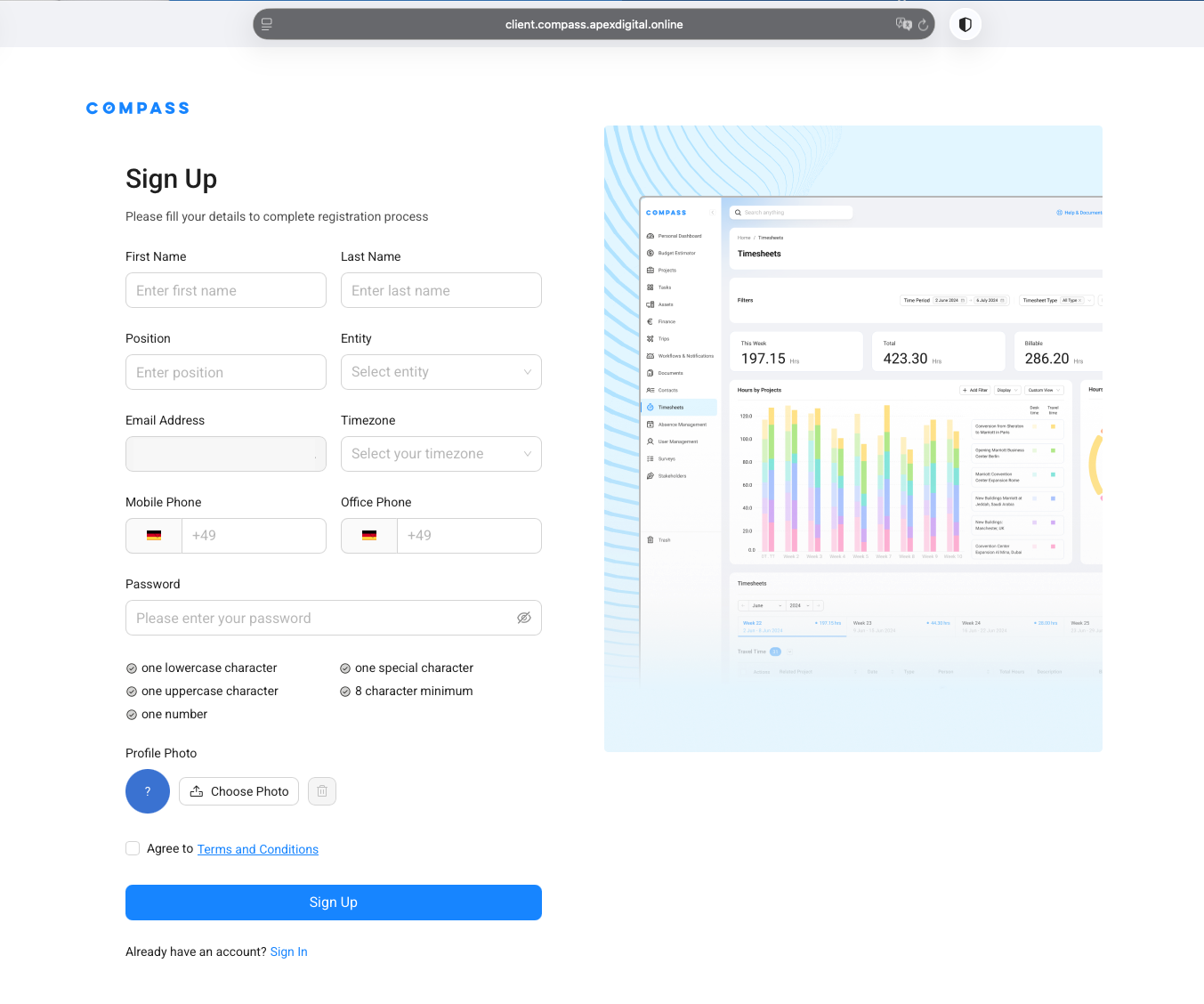
After sign-up is complete, go to https://client.compass.apexdigital.online and sign in with the method your organization uses.
If you cannot find the invitation email, search your inbox for COMPASS Notification or You are invited to join a COMPASS workspace.
Sign up with an access code
Signing up with an access code is slightly different because you do not start from an email invitation. Go to https://client.compass.apexdigital.online, click Sign-up using Access Code, enter the code, and click Verify Code.
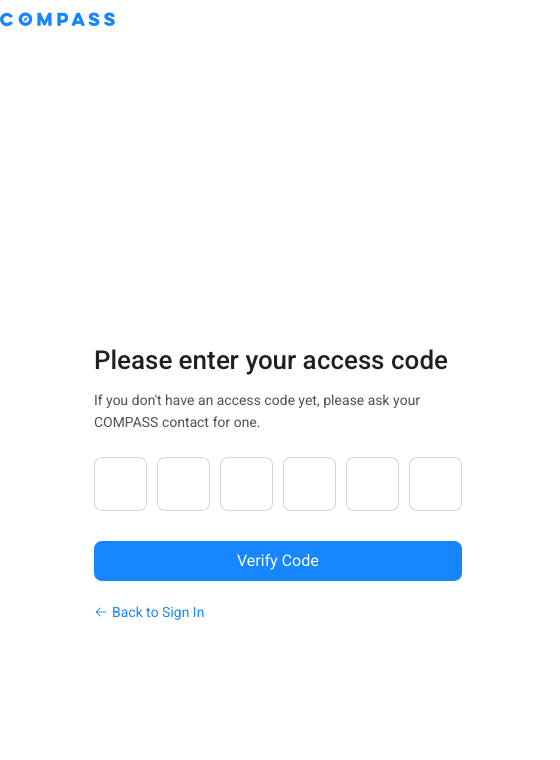
If the code is valid, COMPASS opens the same Sign Up form. Complete the form, agree to the terms and conditions, and click Sign Up. After sign-up is complete, return to the sign-in page and log in.
Think of the access code as your door key. It opens the sign-up form, but you still need to fill in the form to create your account.
Why SSO does not work before sign-up
Single Sign-On (SSO) can only sign you in after your COMPASS account exists. Even if your organization uses SSO, you need to complete the COMPASS sign-up form once first.
Do not start with the SSO button if you have not filled in the COMPASS sign-up form yet. Open your invitation email and click Sign Up, or use Sign-up using Access Code if you received a code.
After your account is created, you can use SSO if your organization has enabled it for your account.
If you try SSO before sign-up, COMPASS may not recognize you yet. This does not mean your invitation is wrong. It usually means the sign-up form has not been completed.
Result
After you sign up for COMPASS, you have an active account in the invited workspace. You can open https://client.compass.apexdigital.online and sign in.
Depending on your organization, you may sign in with email and password or with Single Sign-On (SSO). If you are not sure which method to use, ask your COMPASS Administrator or COMPASS contact.
Common Mistakes
-
Problem: I clicked SSO before filling in the sign-up form. Fix: Go back to the invitation email and click Sign Up, or use your access code to open the sign-up form.
-
Problem: I used a different email address from the one in the invitation. Fix: Sign up with the email address that received the COMPASS invitation.
-
Problem: My access code does not work. Fix: Check the code carefully and try again. If it still does not work, ask your COMPASS contact for a new code.
-
Problem: The password field does not accept my password. Fix: Check the password rules shown below the password field. Your password needs lowercase and uppercase letters, a number, a special character, and at least eight characters.
Still Not Working?
If sign-up still does not work, contact your COMPASS Administrator or the COMPASS Support Team.
Include this information in your message:
- The email address you are trying to register with
- Whether you used an invitation email or an access code
- A screenshot of the page where you are stuck
- The date and time when you tried to register