Task Module Settings
The Task module has a Settings tab where workspace administrators configure how tasks work across the entire workspace. This is where you define priority levels, add custom fields to tasks, and control whether users can submit feedback on tasks.
Go to Tasks → Settings to find these options.
Priority Levels
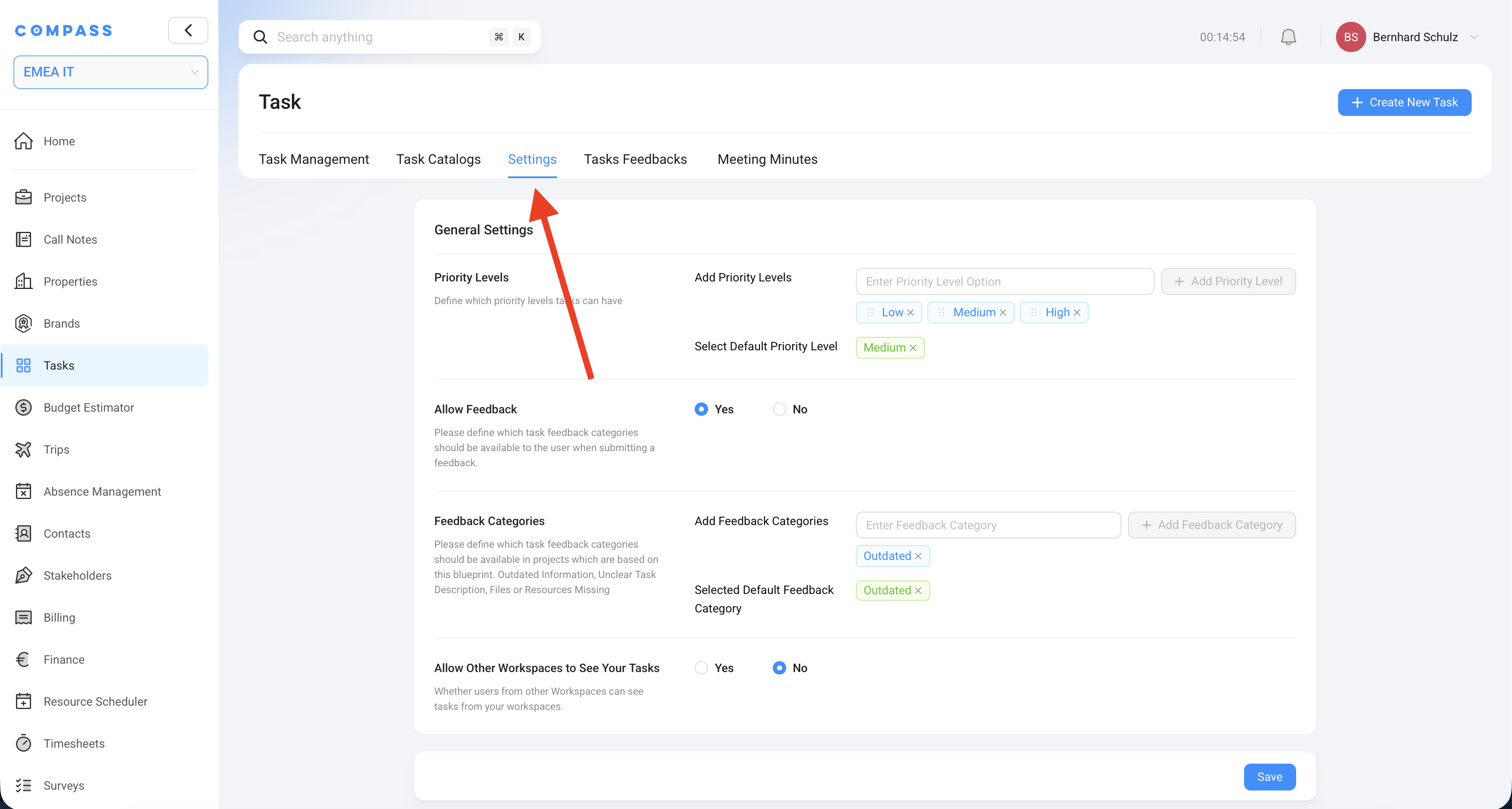
Priority levels are the urgency labels you assign to tasks — things like Low, Medium, High, or Critical. You define them here for your workspace, and they appear as options whenever someone sets a task's priority.
You can:
- Add as many levels as you need
- Rename them to match your organization's language
- Set one as the default — new tasks will use this priority unless someone changes it
Example: Your workspace might use Low, Medium, High with Medium as the default. Another team might prefer Routine, Urgent, Showstopper.
Allow Feedback
The Allow Feedback toggle controls whether users can submit feedback on individual tasks.
When feedback is turned on, anyone who opens a task sees a Feedback tab where they can leave a comment about the task itself — not about the work, but about the task definition. For example:
- "The description doesn't explain what form to submit"
- "The linked resource is an old version"
- "The subtasks listed don't match the current brand standards"
This feedback is visible to catalog owners and helps them improve Task Catalog Items over time. It's a lightweight way for the broader team to flag issues without needing edit access to the catalog.
Turn feedback off if you don't want this channel, or if the feature creates noise for your team.
Feedback Categories
When feedback is enabled, you can define Feedback Categories — labels that users choose when submitting feedback to describe the type of issue.
Examples: Outdated, Unclear Description, Wrong Assignee, Missing Resource, Not Applicable.
You can set one category as the default so it's pre-selected when someone opens the feedback form.
Categories are optional — feedback still works without them — but they make it easier to sort and act on feedback when you have a lot of it.
Custom Fields
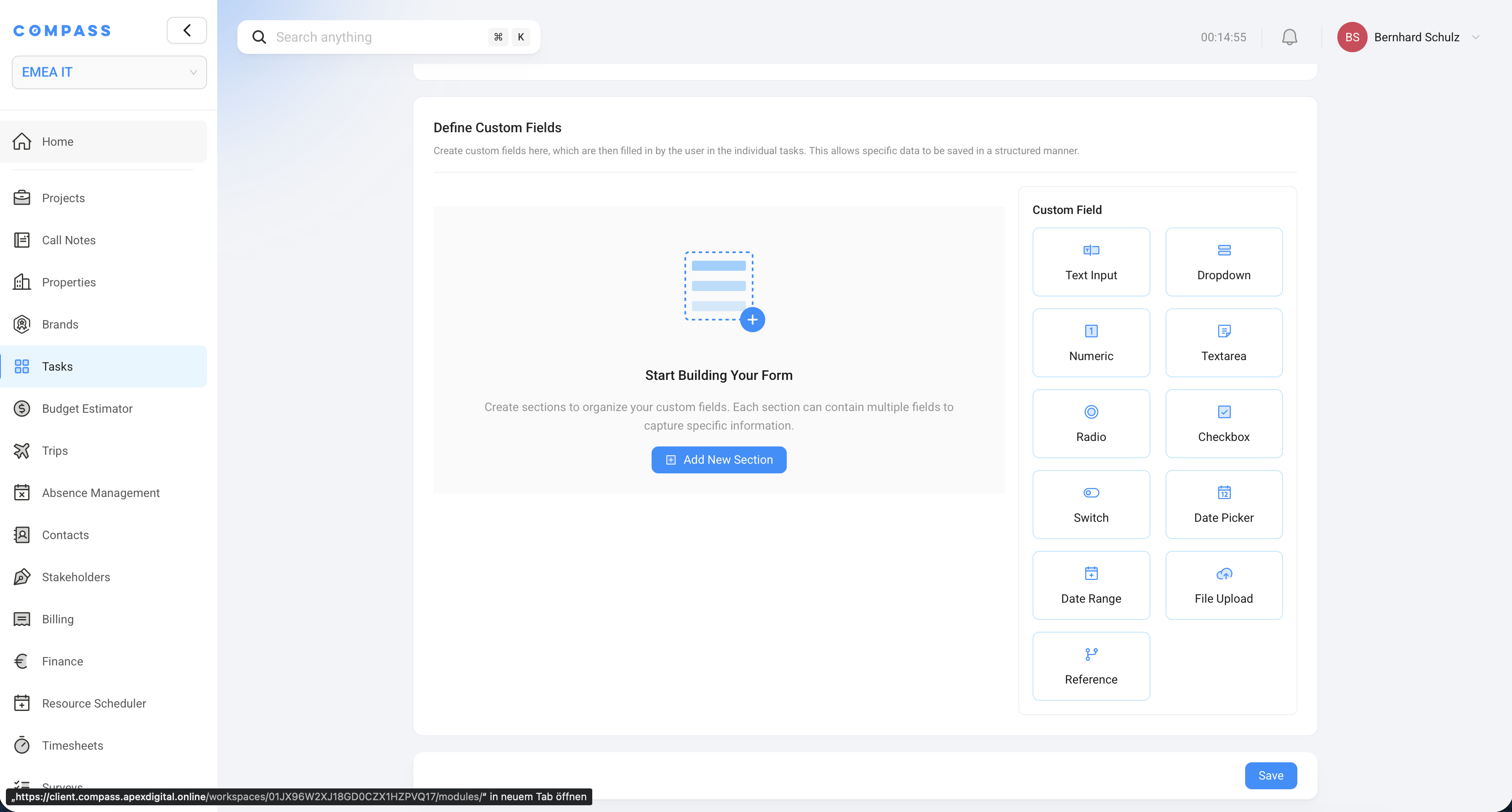
Custom fields let you add extra information fields to every task in your workspace. If the standard task fields (title, description, status, due date, priority, etc.) don't cover everything your team needs to track, you create additional fields here.
Custom fields you define in Settings appear on:
- Task Catalog Items — you can fill in a default value in the template, so generated tasks come pre-filled
- Individual project tasks — team members fill them in when working on the task
Example uses:
- A Contract Reference text field to link a task to a contract number
- A Vendor Name dropdown for tasks that involve an external supplier
- A Sign-off Date date picker for tasks that need a formal completion date recorded
- A Compliance Required yes/no toggle for tasks that fall under regulatory requirements
Organizing fields into sections
Custom fields can be grouped into sections — named groups that appear as collapsible panels on the task. Sections help when you have many custom fields and want to keep them organized.
Example: You might have a Regulatory section with compliance-related fields, and a Vendor section with supplier-related fields.
Click Add New Section to create a section, then add fields inside it.
Field types
| Field type | What it's for |
|---|---|
| Text Input | A short text answer — a name, a reference number, a URL |
| Textarea | A longer text answer — a description, notes, or instructions |
| Numeric | A number — a budget figure, a count, a measurement |
| Dropdown | A pick-one list — choose one option from a predefined list |
| Radio | Same as dropdown but displayed as buttons |
| Checkbox | A pick-multiple list — choose one or more options |
| Switch | A yes/no toggle |
| Date Picker | A single date |
| Date Range | A start and end date |
| File Upload | Attach a file directly to the field |
| Reference | A link to another record in Compass (e.g., a specific user or contact) |
Field options
Each field can be configured with:
- Placeholder text — hint text shown inside the field before it's filled in
- Help text — a short explanation shown below the field to guide the user
- Default value — a value that's pre-filled when the task is created
- Required — if turned on, the field must be filled in before the task can be saved
If most tasks of a certain type will have the same value in a custom field, set a default value in the Task Catalog Item. Generated tasks come pre-filled, and users only need to change it when it differs.