Importing Tasks
Compass lets you bulk-import tasks from Excel — no need to create items one by one. There are two separate import flows depending on what you want to do:
| What you want to import | Where to go |
|---|---|
| Task Catalog Items — task definitions to add to a catalog template | Inside the Task Catalog → Import Catalog Items button |
| Tasks for a specific project — actual tasks to add to an existing project | Inside the project → Tasks tab → Import Tasks button |
Both work the same way: download a template, fill it in, upload it back.
Import 1: Task Catalog Items
Use this when you want to add multiple task definitions to a Task Catalog at once — for example, when setting up a new catalog for the first time or adding a batch of new tasks from a spreadsheet someone prepared offline.
How to do it
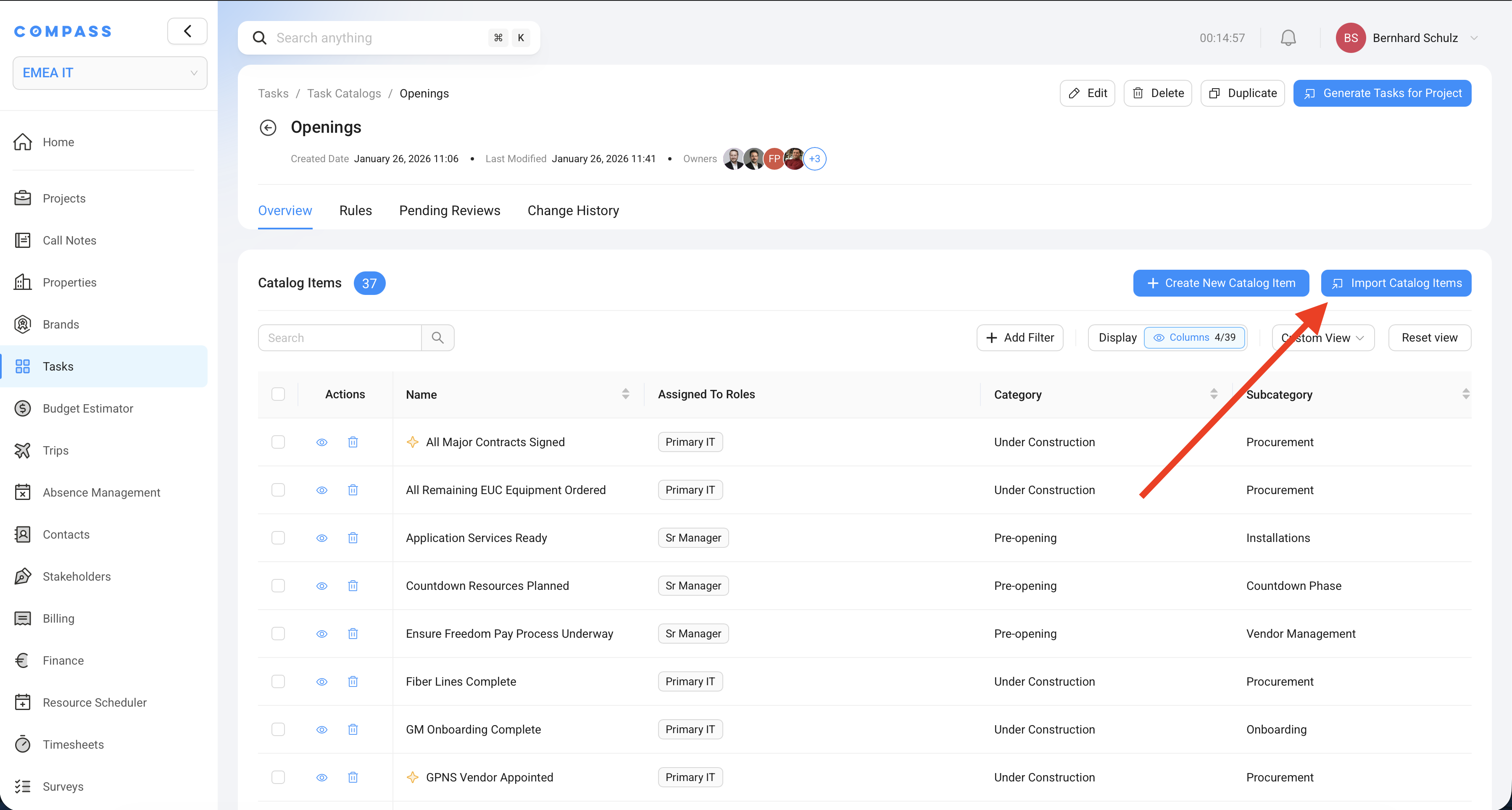
- Go to Tasks → Task Catalogs and open the catalog you want to add items to
- On the Overview tab, click Import Catalog Items in the top right corner
- In the dialog that opens, click Download File Template to get the Excel template
- Fill in the template (see below for what it contains)
- Upload the completed file — Compass validates it and imports the items
What the template contains
The downloaded Excel file has multiple sheets:
Main data sheet — one row per task catalog item. Columns include:
- Title, description, category, subcategory
- Priority
- Assigned to Roles, Assignees, Owners, Approvers
- Will Delay Project Completion, Major Milestone, Delay Will Raise Flag
- Due Date Relative To, Lead Time, Duration
- Departments, Disciplines, Teams
- Task Creation Trigger
- Related Milestone (referenced by item number within the same import file)
- Custom field values
Reference sheets — pre-filled sheets to help you fill in the main sheet correctly:
- Column Descriptions — explanation of every column in the main sheet
- Available Categories & Subcategories — the values you can use in those columns
- Departments, Disciplines, Teams — available options
- Due Date Options — valid values for the Due Date Relative To column
- Users — all workspace users (name + email) you can reference as assignees, owners, or approvers
- Roles — all assignment roles available in the workspace
If you enter a category, department, or discipline name that doesn't exist yet in Compass, it will be created automatically during import. You don't need to set them up in advance.
If you are a Collaborator (not an Owner) on the catalog, imported items go through the normal review process — they are created with Pending status and must be approved by a catalog Owner before they become Active. If you are an Owner, items are created as Active immediately.
If an imported item has the same name as an existing item in the catalog, Compass automatically renames it by appending a number — e.g., "Site Inspection (1)". No items are silently overwritten.
Import 2: Tasks for a Project
Use this when you want to add tasks directly to a specific project that already exists — for example, adding a batch of one-off tasks that don't belong in the standard catalog, or migrating tasks from a spreadsheet into a new project.
How to do it
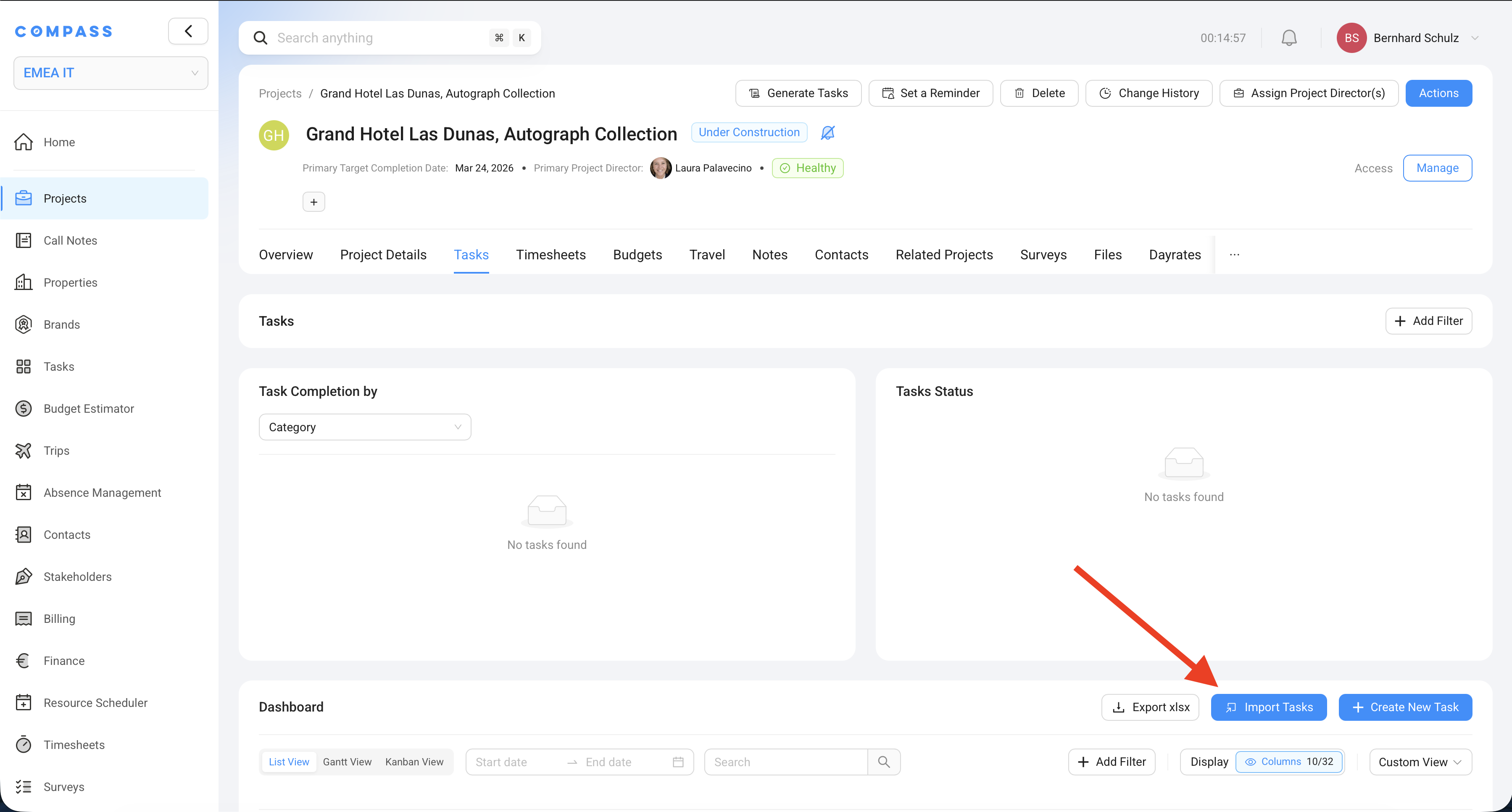
- Open the project in the Projects module
- Go to the Tasks tab
- Click Import Tasks at the bottom right
- In the dialog, click Download File Template to get the Excel template for this project
- Fill in the template and upload it
What the template contains
The task import template is generated specifically for this project, so it already includes the relevant options for your context:
Main data sheet — one row per task. Columns include:
- Title, description, category, subcategory
- Priority, status
- Assignees, Owners
- Start Date, Due Date, Duration
- Due Date Relative To (with lead time)
- Will Delay Project Completion, Major Milestone, Delay Will Raise Flag
- Related Milestone — choose from milestones that already exist on this project
- Departments, Disciplines, Teams
- Files and links (resource URLs)
Reference sheets — same structure as the catalog item template:
- Column Descriptions
- Available Categories, Subcategories
- Departments, Disciplines, Teams
- Due Date Options — including any custom date fields from this project's blueprint
- Milestones — all existing milestones on the project, so you can link imported tasks to them
- Users — all workspace users (name + email)
- Roles
You can use the same relative date logic as in the Task Catalog — set a task's due date relative to the project's primary completion date, a milestone, or a custom date field. The template's reference sheet shows all available options for this specific project.