How to Switch On the Opening Forecast
This guide shows you how to switch on the Opening Forecast for your workspace. You do it yourself in Workspace Settings. Nobody has to change anything for you behind the scenes.
At the end, the forecast is on for your workspace, you have an opening configuration, and every type of project that has an opening gets a forecast. In COMPASS, a type of project is called a Project Blueprint.
- You need a role that can manage the Tasks settings. Only people with this permission see the Opening Forecast block.
- Your task catalogs contain a milestone that marks the opening, for example the official opening announcement or the handover to operations.
- To choose that milestone, you need access to task catalogs. Without it, the editor shows "You need access to task catalogs to choose a milestone."
Step 1: Open the Opening Forecast Block
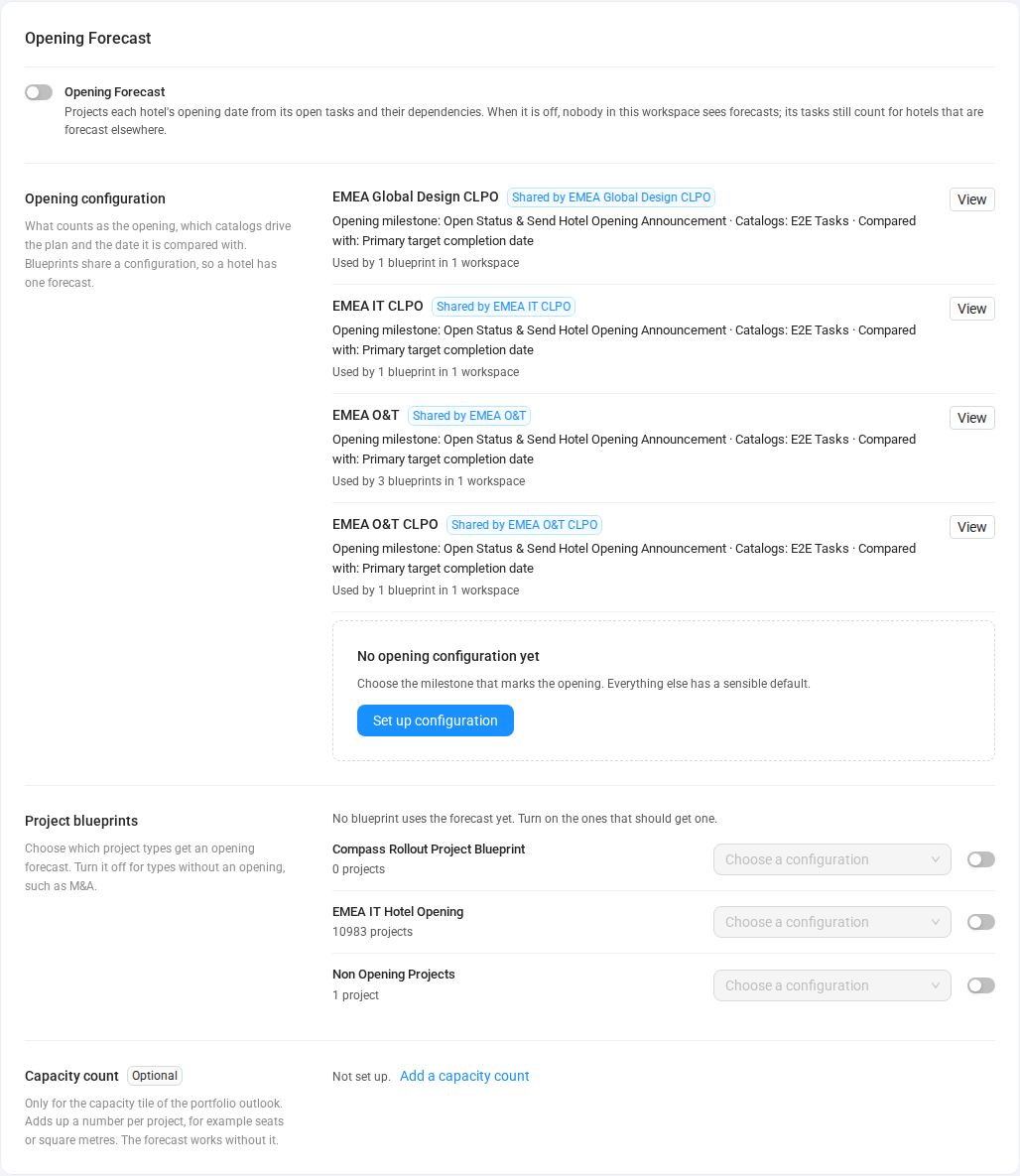
The Opening Forecast is set up in one place: the Opening Forecast block of Workspace Settings. Click Workspace Settings at the bottom of the left sidebar and scroll down to the block Opening Forecast.
The block is there even while the forecast is off, so you can switch it on. If you cannot open Workspace Settings, open Tasks → Settings instead. You find the same block there.
Step 2: Switch On the Forecast for the Workspace
The switch Opening Forecast at the top of the block is the main switch for your workspace. Turn it on. It saves at once, and COMPASS confirms with the message Opening Forecast is on.
While this switch is off, nobody in this workspace sees forecasts. The tasks of this workspace still count for properties that are forecast in another workspace.
You can switch the forecast off and on again at any time. Your configurations and the settings of your Project Blueprints stay as they are.
Step 3: Create an Opening Configuration
An opening configuration is the rule book of the forecast. Think of it as a recipe card: it says which task marks the opening, which task catalogs to follow, and which date to compare with. Several Project Blueprints can share one configuration, so every property gets one forecast.
- Under Opening configuration, click Set up configuration. If your workspace already has a configuration, click New configuration instead.
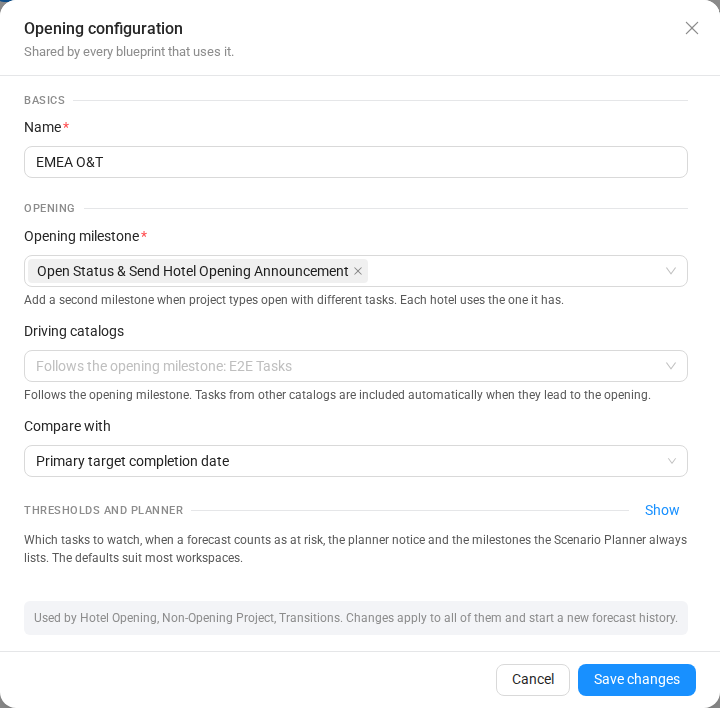
- The window Opening configuration opens. Under Name, COMPASS fills in a name that your workspace does not use yet. Change it to a name everybody recognizes, for example
EMEA Openings. - Under Opening milestone, search for the milestone that marks the opening and select it. This is the only field you must fill in.
Different project types sometimes open with different tasks. In that case, add a second milestone. Each property uses the milestone it has. You can add up to 10 milestones.
Step 4: Check the Driving Catalogs and the Comparison Date
Two more fields in the opening configuration have good defaults. You can leave both as they are.
Driving catalogs are the task catalogs whose tasks set the forecast. Leave the field empty, and it follows the opening milestone: the catalog that contains the opening milestone drives the plan. Tasks from other catalogs are added automatically when they lead to the opening. Choose catalogs here only when the plan of your projects comes from more than one catalog.
Example: Your opening milestone comes from the catalog
E2E Tasks. Leave Driving catalogs empty, and the field reads Follows the opening milestone: E2E Tasks.
Compare with is the date the forecast is measured against. It tells COMPASS whether a project is on time or late.
| Choice | The forecast is compared with |
|---|---|
| Primary target completion date | The primary target completion date of the project. This is the default. |
| Secondary target completion date | The secondary target completion date of the project. |
| Risk-adjusted completion date | The risk-adjusted completion date of the project. |
| A project date field… | A date field you choose under Project date field. |
Step 5: Adjust the Thresholds If You Need To
The section Thresholds and planner holds four settings for advanced use. They are hidden at first, because the defaults suit most workspaces. Click Show next to Thresholds and planner to see them.
| Setting | Default | What it does |
|---|---|---|
| Watch from | 10 days | Tasks off the critical chain with this much slack or less are listed as tasks to watch. |
| At-risk buffer | 0 days | A forecast this many days or less before the target date counts as at risk. |
| Planner notice | 2 days | How many days ahead a task changed in the Scenario Planner can start at the earliest. |
| Focus milestones | None | Milestones the Scenario Planner always lists in its default rows. |
Slack means how many days a task can still slip before it moves the opening.
Step 6: Save the Configuration
Click Create configuration at the bottom of the window. When you edit an existing configuration later, the button reads Save changes. The opening configuration window is the only part of the Opening Forecast setup with a save button. Everything else saves at once.
Your first configuration goes into use right away. COMPASS turns it on for every Project Blueprint that uses one of its driving catalogs. The message tells you how many, for example "“EMEA Openings” created and turned on for 2 blueprints."
When no Project Blueprint fits, the message reads "“EMEA Openings” created. Turn on the blueprints that should get a forecast." Continue with the next step.
Step 7: Turn On the Forecast for Each Project Blueprint
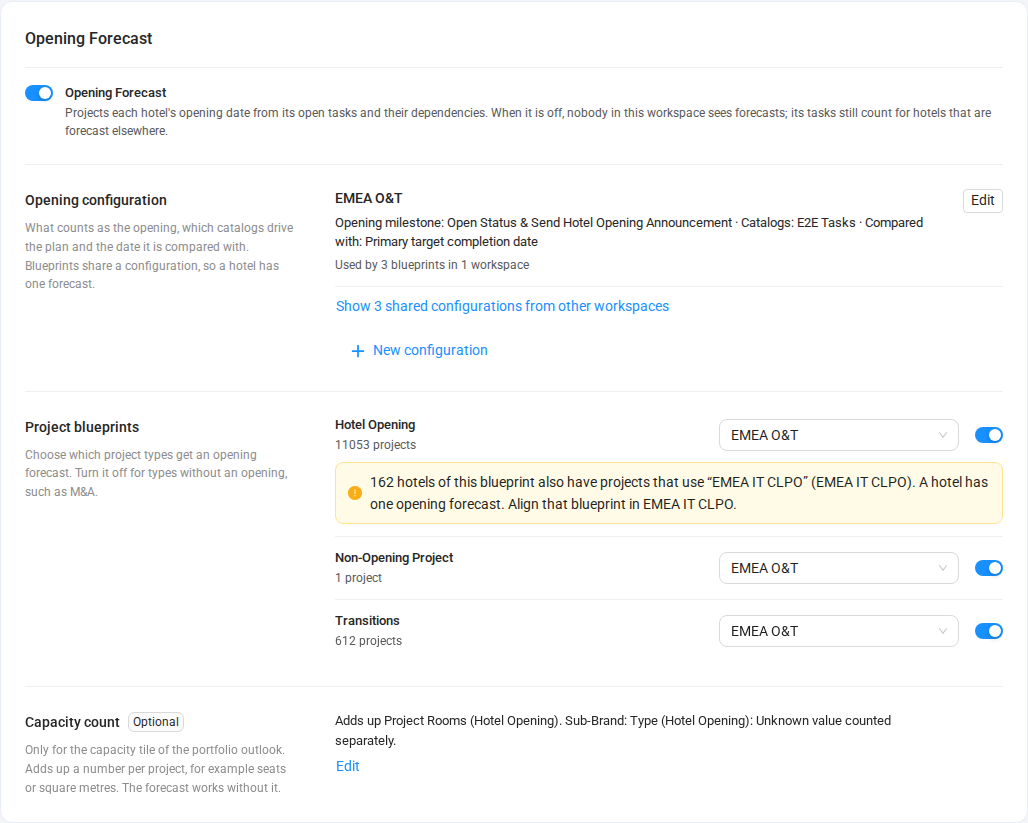
The list Project blueprints decides which types of project get a forecast. Each Project Blueprint of your workspace has one row: its name, its number of projects, a configuration picker, and a small switch.
- Turn on the switch of every Project Blueprint whose projects have an opening.
- Leave the switch off for project types without an opening, for example M&A.
- To change the configuration of a Project Blueprint, pick another one in its picker.
Each change saves at once. COMPASS confirms with a message, for example Opening Forecast is off for Non-Opening Project or "Hotel Opening now uses “EMEA Openings”".
New Project Blueprints start with the forecast off. A copied Project Blueprint keeps the setting of the blueprint it was copied from. A row that shows Managed in followed by a workspace name belongs to a blueprint that another workspace manages. You cannot change it here.
What Happens When You Turn On a Project Blueprint
When you turn on the switch of a Project Blueprint, COMPASS picks a configuration for you whenever it can. This saves you clicks and keeps one forecast per property.
- The blueprint already has a configuration. It keeps it.
- Its properties already use a configuration. Some properties may already have projects in another workspace with a forecast. The blueprint then joins that configuration. The message reads, for example, "Opening Forecast is on for EMEA IT Hotel Opening. It uses “EMEA O&T”, like its hotels in EMEA O&T."
- There is exactly one configuration. COMPASS uses it.
- There are several configurations. The picker opens and asks: "Choose a configuration to turn on this blueprint’s forecast."
- There is no configuration yet. The row says "Set up an opening configuration first. It says which milestone marks the opening." Click Set up configuration in the row.
In the picker, the configurations that the properties of this blueprint already use come first. The one most of them use shows the hint used by most of this blueprint’s hotels. A configuration from another workspace shows shared by and the name of that workspace.
Change the Setting in the Blueprint Editor
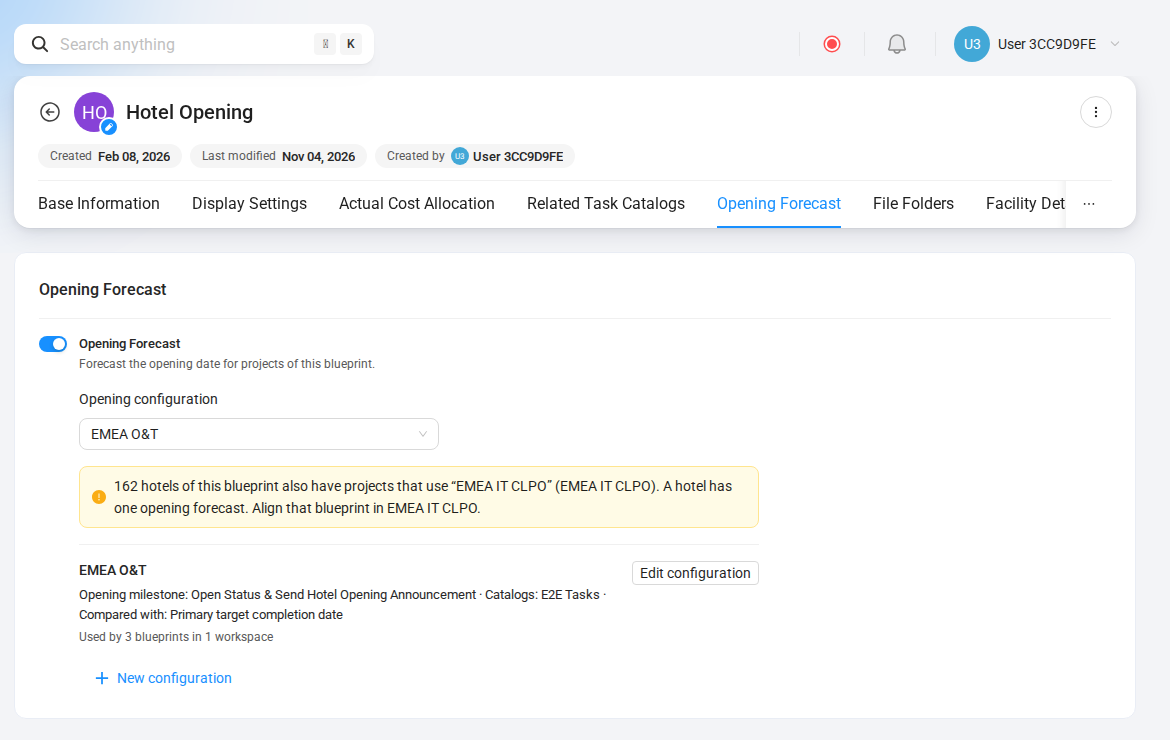
Every Project Blueprint has its own Opening Forecast tab with the same switch and picker. Use it when you are already working on a blueprint. Both places show the same setting, so a change in one place appears in the other.
- Open Projects and select Blueprints in the top navigation.
- Open the Project Blueprint.
- Select the tab Opening Forecast.
The switch Opening Forecast reads "Forecast the opening date for projects of this blueprint." Below it, choose the Opening configuration. A short summary of the chosen configuration follows, with Edit configuration. For a configuration of another workspace, the button reads View configuration. Click New configuration to create one from here.
While the forecast of the workspace is off, the tab says Opening Forecast is off for this workspace. with a link to Workspace Settings. A draft Project Blueprint shows "This blueprint has no Opening Forecast settings. Draft blueprints get them once they are published."
Use a Configuration Shared by Another Workspace
Other workspaces can share their opening configuration with you. This happens when they work on the same properties as you, or use the same task catalogs. A shared configuration carries a blue tag, for example Shared by EMEA O&T.
- Click View to open a shared configuration. It is read-only and says Managed in with the name of its workspace. Only that workspace can change it.
- To use it, pick it in the configuration picker of a Project Blueprint.
- Shared configurations that none of your blueprints use wait behind the link Show 3 shared configurations from other workspaces. A workspace without a configuration of its own sees them right away.
Each configuration shows a summary line, for example "Opening milestone: … · Catalogs: E2E Tasks · Compared with: Primary target completion date". Below it, you see where it is used, for example Used by 3 blueprints in 1 workspace, or Not used yet.
A configuration can be used by several Project Blueprints, also in other workspaces. When you edit it, the window lists them. It warns you: "Changes apply to all of them and start a new forecast history." Afterwards, COMPASS does not compare new forecasts with forecasts from before the change.
When a Notice Offers Use “…”
A property can only have one opening configuration, even when its projects sit in different workspaces. COMPASS treats projects with the same External ID as the same property. The notices say hotel for this.
When a choice would give a property a second configuration, COMPASS does not save it. A yellow notice appears under the row instead, with a button that fixes it:
Example: "17 hotels of this blueprint already use “EMEA O&T E2E” (EMEA O&T E2E). A hotel has one opening forecast." Click Use “EMEA O&T E2E”, and the blueprint turns on with that configuration.
Older data can already contain such a conflict. The notice then reads "… also have projects that use …". Every affected row suggests the same configuration, so a few clicks clear all notices.

Sometimes your own configuration is the one to keep. The notice then ends with "Align that blueprint in" and the other workspace, and shows no button. Someone in that workspace has to switch over. Learn more in Why do I see a notice about opening configurations?
Add a Capacity Count (Optional)
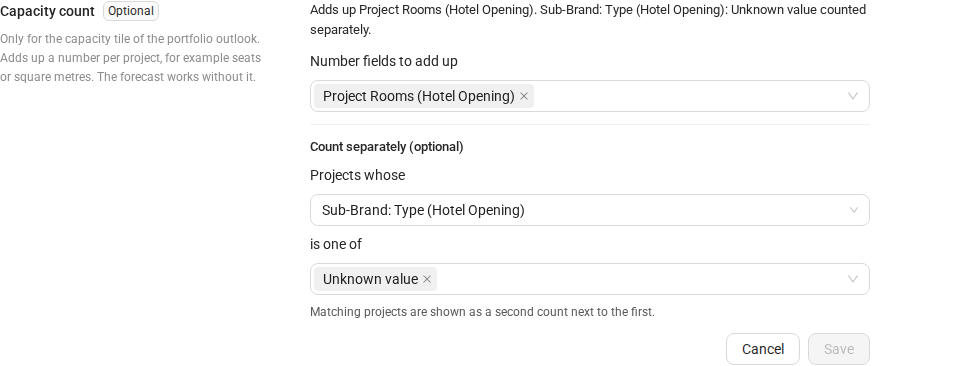
The Capacity count adds up a number per project, for example rooms, seats, or square meters. It is optional and only feeds the capacity tile of the portfolio outlook in the Opening Forecast widget. The forecast works without it.
- Under Capacity count, click Add a capacity count. While nothing is set up, the block says Not set up.
- Under Number fields to add up, pick the number fields of your projects that should be added up. You can pick up to 10.
- Optional: under Count separately (optional), choose a dropdown field under Projects whose, then pick its values under is one of. Matching projects are shown as a second count next to the first.
- Click Save. COMPASS confirms with Capacity count saved.
To change the capacity count later, click Edit next to its summary.
Result
The Opening Forecast is now on for your workspace. Projects of every Project Blueprint you switched on get a projected opening date. Projects of switched-off blueprints show Opening Forecast is off for this project type. Their tasks still count for the other projects of the same property.
Common Mistakes
-
Problem: You cannot find the Opening Forecast block.
Fix: Your role cannot manage the Tasks settings. Ask your administrator for this permission.
-
Problem: Tasks → Settings only says "Opening Forecast is set up in Workspace Settings."
Fix: Click Open Workspace Settings. The setup lives there.
-
Problem: The configuration picker of a row is greyed out and reads No configuration yet.
Fix: Create an opening configuration first, see Step 3.
-
Problem: Deleting a configuration fails with "A blueprint still uses this configuration. Turn its forecast off or choose another configuration first."
Fix: Turn off the forecast of the Project Blueprints that use it, or give them another configuration. Then delete it. The button Delete only appears while no blueprint has its forecast on with this configuration.