Working with Tasks
The Task Dashboard is where your day-to-day task work happens. It shows you all the tasks across your projects in one place — and it's built to help you quickly find exactly what you need, whether that's a list of overdue items, tasks waiting on a specific person, or everything related to a single project.
Two ways to create tasks
1. Generate from a Task Catalog — the primary method for project tasks. Either open a project and click Generate Tasks, or open the Task Catalog and click Generate Tasks for Project. Compass evaluates the catalog's rules against the project and creates a tailored list automatically. See Creating Tasks for a Project for the full walkthrough.
2. Create manually — click + Create New Task in the top right of the Task Module at any time. This creates a standalone task, which can be assigned to a project or used as a personal task. Use this for ad-hoc work that doesn't come from a catalog, or for personal to-dos you want to track in Compass.
Two ways to access tasks
You can reach project tasks from two places:
From the project — open a project in the Projects module and go to the Tasks tab. You'll see only the tasks for that project. This is useful for a focused view when you're working on one project at a time.
From the Task Module — open Tasks from the sidebar. This shows tasks across all your projects in one place, with the full dashboard (charts, widgets, filters, multiple views). You can filter down to a single project using Filter by Projects at the top.
Even if you only care about one project's tasks, the Task Module gives you much more: completion charts, health breakdowns, timeline views, the Projects widget for project context alongside your tasks, and better filtering tools. Use the project's Tasks tab for a quick glance; use the Task Module for actual work.
The Task Dashboard
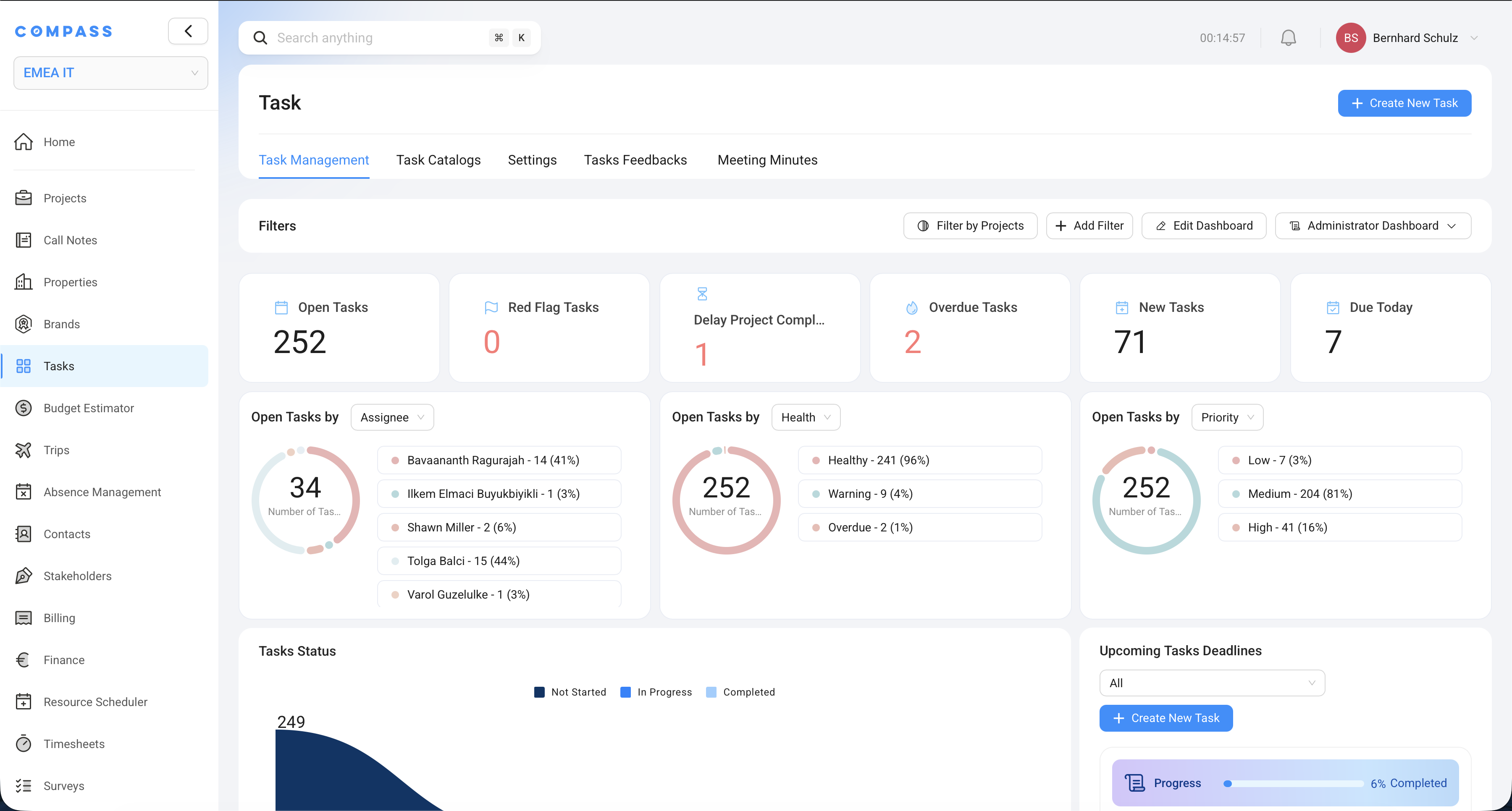
Filtering your task list
The task list can grow quickly across many projects and team members. These filtering options help you cut through the noise and see only what's relevant right now.
Quick Filters appear at the top of the dashboard as one-click buttons. Common examples: tasks assigned to you, tasks that are overdue, tasks due this week. Click one to instantly narrow the list — click it again to turn it off.
Project Filter lets you pick one or more specific projects and see only the tasks that belong to them. Useful when you're focused on a particular opening and don't want to see tasks from other projects.
Add Filter opens the advanced filter panel. This is where things get powerful. You can filter by:
- Any task property (status, priority, category, department, assignee, due date, and more)
- Any project field from the Project Blueprint — for example, show only tasks from projects where the Brand is "Marriott", or where the Project Type is "Full Service", or where the Region is "EMEA"
The project field filter is especially useful for regional managers or brand leads who only want to see tasks across their slice of the portfolio — without manually picking projects one by one.
Building your personal Task Dashboard
In the top right corner of the Task Dashboard, you can build a Personal Dashboard — a custom view made up of widgets you choose and arrange yourself. This works the same way as personal dashboards elsewhere in Compass.
You're not limited to one of each widget. You can add the same widget multiple times with different settings — for example, three "Task Completion by Category" widgets, each showing a different category. This lets you build a highly tailored view for your role.
Key task widgets
Task Completion Shows a summary of your task progress — how many are complete, in progress, overdue, and so on. Every number is clickable. If it says "3 Overdue", click it and the task list instantly filters to show you exactly those three tasks. No hunting required.
Task Completion by Category / by Department / by Team The same as Task Completion, but broken down along a specific dimension. Add it multiple times to compare across categories or departments at a glance.
Projects Related to Displayed Tasks This widget shows you project information for the projects whose tasks appear in your current view — without having to open each project separately.
You configure it (via the settings icon in the widget's top right corner) to show whichever project fields matter most to you: opening date, project manager, brand, region, current phase, or any custom field from the blueprint. It's a quick way to get project context right alongside your task list, all in one screen.
Working inside a single task
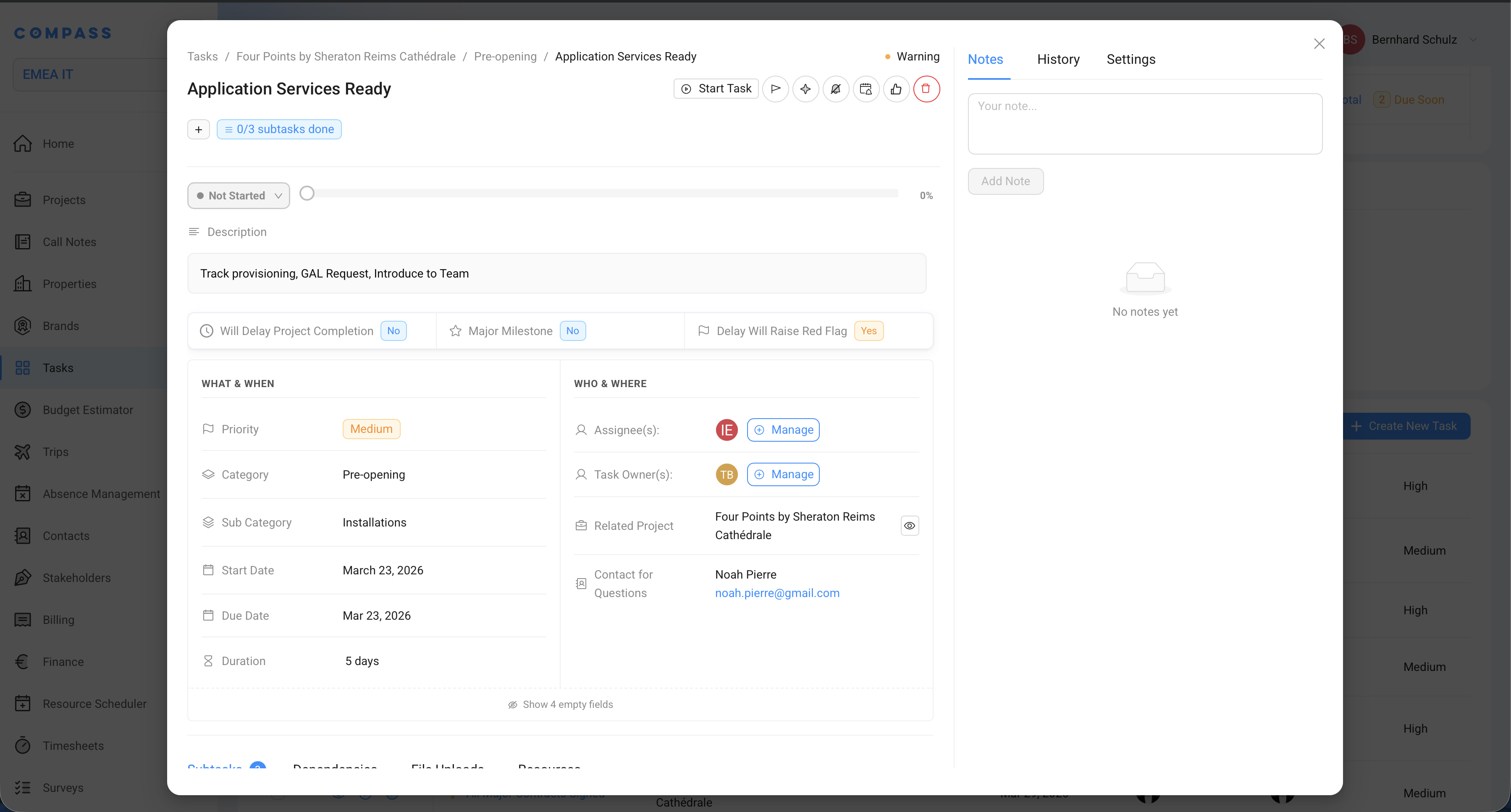
Click on any task in the list to open it. The task detail view has a left column for the main content and a right column for collaboration and history.
Left column: the task itself
Title, description, status, dates, priority — the core task details. You can edit these directly (if you're an Owner or Assignee — more on permissions below).
Status — moves the task through its lifecycle. Available statuses:
| Status | When to use |
|---|---|
| Not Started | Default — work hasn't begun yet |
| In Progress | You're actively working on it |
| Waiting on 3rd Party | Blocked by someone outside the team (vendor, contractor, authority) |
| Need Resources | Blocked internally — missing budget, people, or information |
| Awaiting Approval | A completion request has been submitted and is pending sign-off |
| Re-Opened | Was marked complete, then re-opened |
| Completed | Done and verified |
| Not Applicable | The task was generated but turns out not to apply to this project |
Only the task's Owners and Assignees can change its status. Other users can view the task but cannot update it.
Health — shows whether the task's due date needs attention. You do not pick this value manually. Compass calculates it from the task's due date and status.
| Health | What it means |
|---|---|
| Healthy | The task is still open, but it is not close to its due date. Tasks with no due date also appear as Healthy. |
| Warning | The task is still open and is due soon. In the standard Compass setup, this means the task is within 72 hours of the end of its due date. |
| Overdue | The task is still open and its due date has passed. |
Completed tasks and tasks marked Not Applicable do not need a health warning. They are closed, so Compass does not count them in the open-task health breakdown.
Subtasks — a checklist of smaller steps within the task. Check them off as you go. If a subtask is marked Required, you cannot mark the parent task as complete until that subtask is checked. See Task Catalog Items for how subtasks are set up in the catalog.
Dependencies — shows which tasks this task is waiting for, and which tasks are waiting for this one. See Task Dependencies for the full explanation.
Files and Resources — files and links attached to the task, usually coming from the Task Catalog Item template. These are reference materials to help you complete the task — things like brand standards checklists, submission form templates, or links to vendor portals. You can also upload files directly on the task itself.
If a task is a Major Milestone with related tasks, you cannot manually change its status or progress percentage. Both are calculated automatically based on the completion of the related tasks. See Major Milestones for how this works.
Right column: collaboration and history
Notes A shared notepad for the task. Add updates, decisions, questions, or context. You can @mention anyone in your organization — they'll receive an email with the note and a link to the task. Great for async communication without leaving Compass.
Task History A full, timestamped log of everything that has ever happened on this task: status changes, date edits, assignee updates, note additions, and more. You can always look back and see exactly who changed what, and when. Nothing is lost.
Settings tab Additional configuration for this specific task instance:
- Task Approvals — enable or adjust the completion approval workflow for this task. See Task Approvals for the full guide.
- Due Date Relativity — the same relative date options from the Task Catalog Item (e.g., "due 30 days before primary completion date"). You can adjust these on a per-task basis if this project needs different timing.
- Subtasks and Dependencies — manage the task's checklist items and dependency links from this tab as well.
Other task actions
Flag for later review
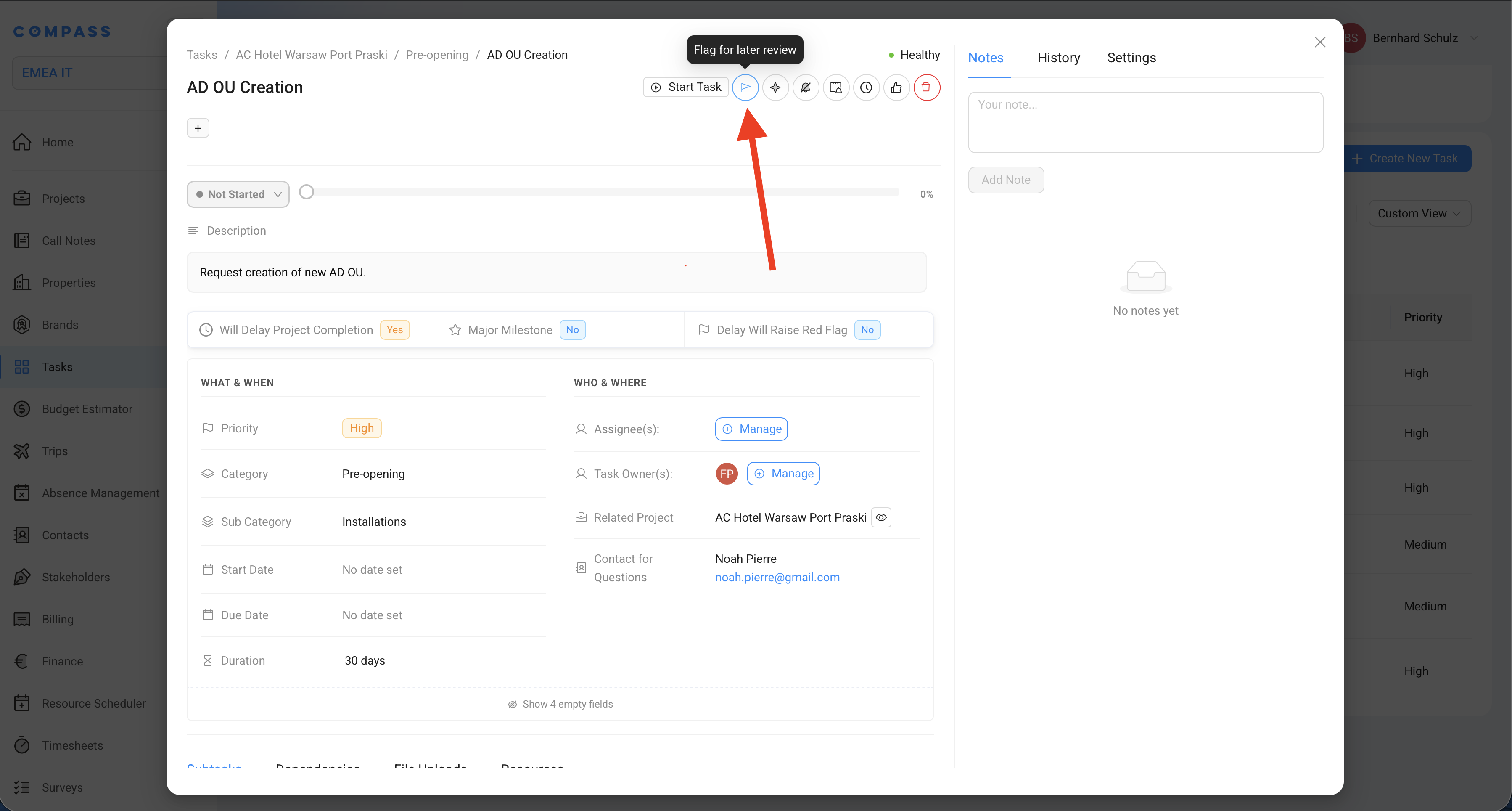
The Flag option marks a task with a flag icon in the task list. It's a personal "I need to come back to this" signal — useful when you notice something during a review but can't deal with it immediately.
Flagging doesn't change the task's status or notify anyone. It's purely a visual reminder for yourself. You can filter the task list to show only flagged tasks when you're ready to address them.
Personal Reminder
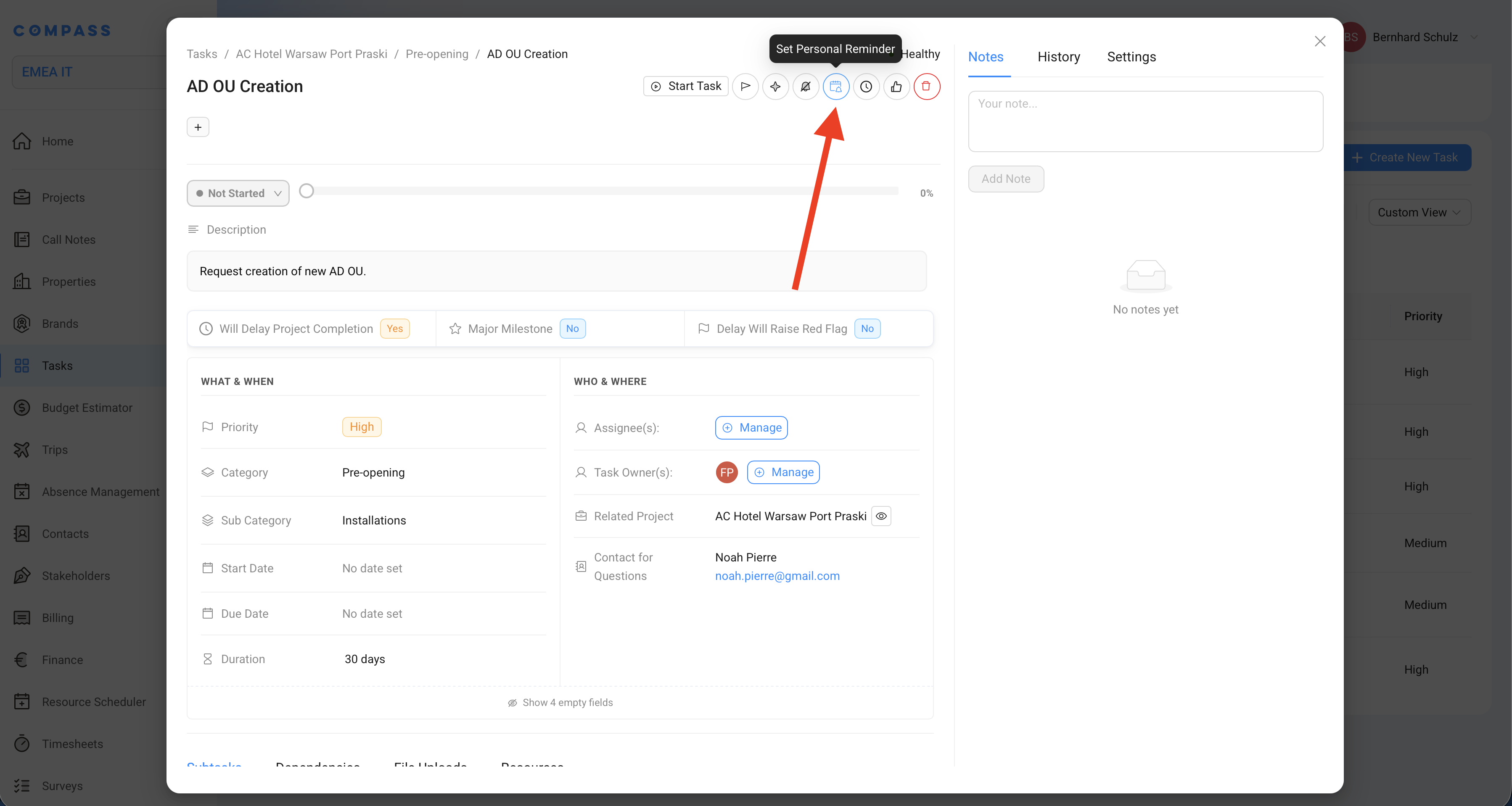
Set a Personal Reminder on any task to receive an email at a specific date and time. This is separate from the task's due date — it's just a nudge for yourself.
For example: the task isn't due until next month, but you want a reminder in two weeks to check in on the supplier. Set a personal reminder for that date and Compass will email you automatically.
Feedback
The Feedback tab on a task lets anyone leave structured feedback about the task itself — not about the work being done, but about the task definition. For example:
- "The description doesn't explain which form to submit"
- "The linked resource is outdated — this brand uses a new template"
- "The subtasks listed don't match current brand requirements"
This feedback flows back to the catalog maintainers (Task Catalog owners), who can use it to improve the Task Catalog Item for future projects. It's a lightweight way to keep your task templates accurate and useful over time without needing everyone to have catalog edit access.