Task Views — List, Gantt & Kanban
The task list at the bottom of the Task Dashboard can be displayed in three different ways. Switch between them using the List View, Gantt View, and Kanban View tabs at the top of the task list.
All three views work with the same filters — whatever you've filtered stays active when you switch between views.
List View
The default view. Tasks appear as rows in a table with sortable columns. This is the most compact and information-dense format — best for scanning many tasks, bulk-selecting, and taking quick actions.
Gantt View
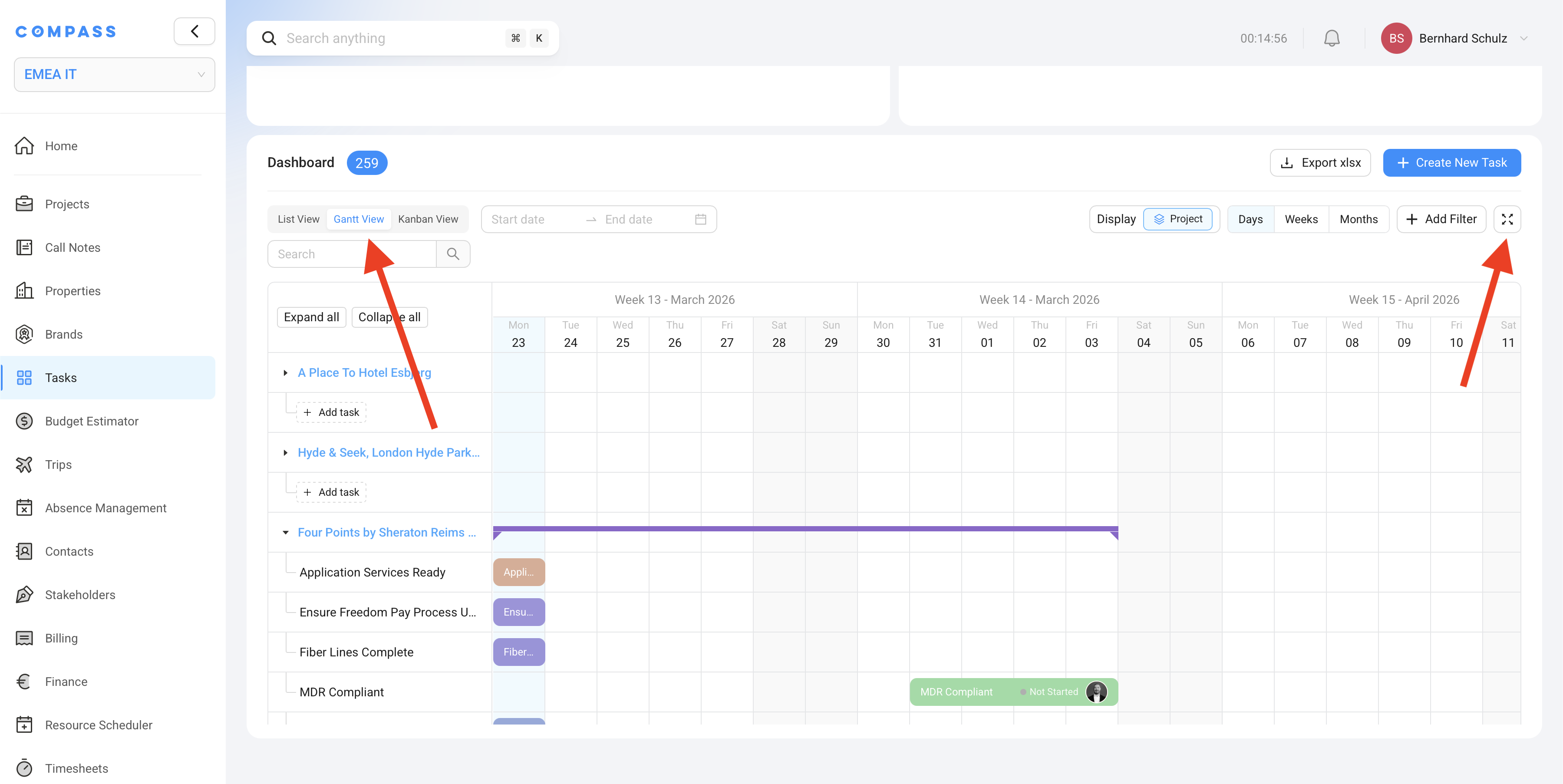
The Gantt View shows tasks on a timeline, making it easy to see what's happening when across your projects. Tasks appear as horizontal bars spanning their start and end dates.
Choosing a time scale
Use the Days / Weeks / Months buttons in the top right to zoom in or out:
| Scale | Best for |
|---|---|
| Days | Detailed view of what's happening this week |
| Weeks | A rolling 4–6 week look-ahead |
| Months | High-level view of the full project timeline |
Grouping
By default, tasks are grouped by Project — each project gets its own expandable row, and its tasks appear underneath when expanded.
Click the Display button to change the grouping. You can group by:
- Project
- Category
- Subcategory
- Department
- Discipline
- Team
- Assignee
You can also combine groupings — for example, group by Project and then by Category to see each project broken down by task type. This is useful for department leads who want to see all tasks in their discipline across every project at once.
Use Expand all and Collapse all to open or close all groups at once.
Date range filter
Use the Start date → End date picker at the top to focus the timeline on a specific window. This hides tasks that fall entirely outside that range, keeping the view clean.
Fullscreen mode
Click the ⤢ button in the top right corner to open the Gantt View in fullscreen. This gives you the most screen space for reviewing timelines without the surrounding dashboard widgets.
Kanban View
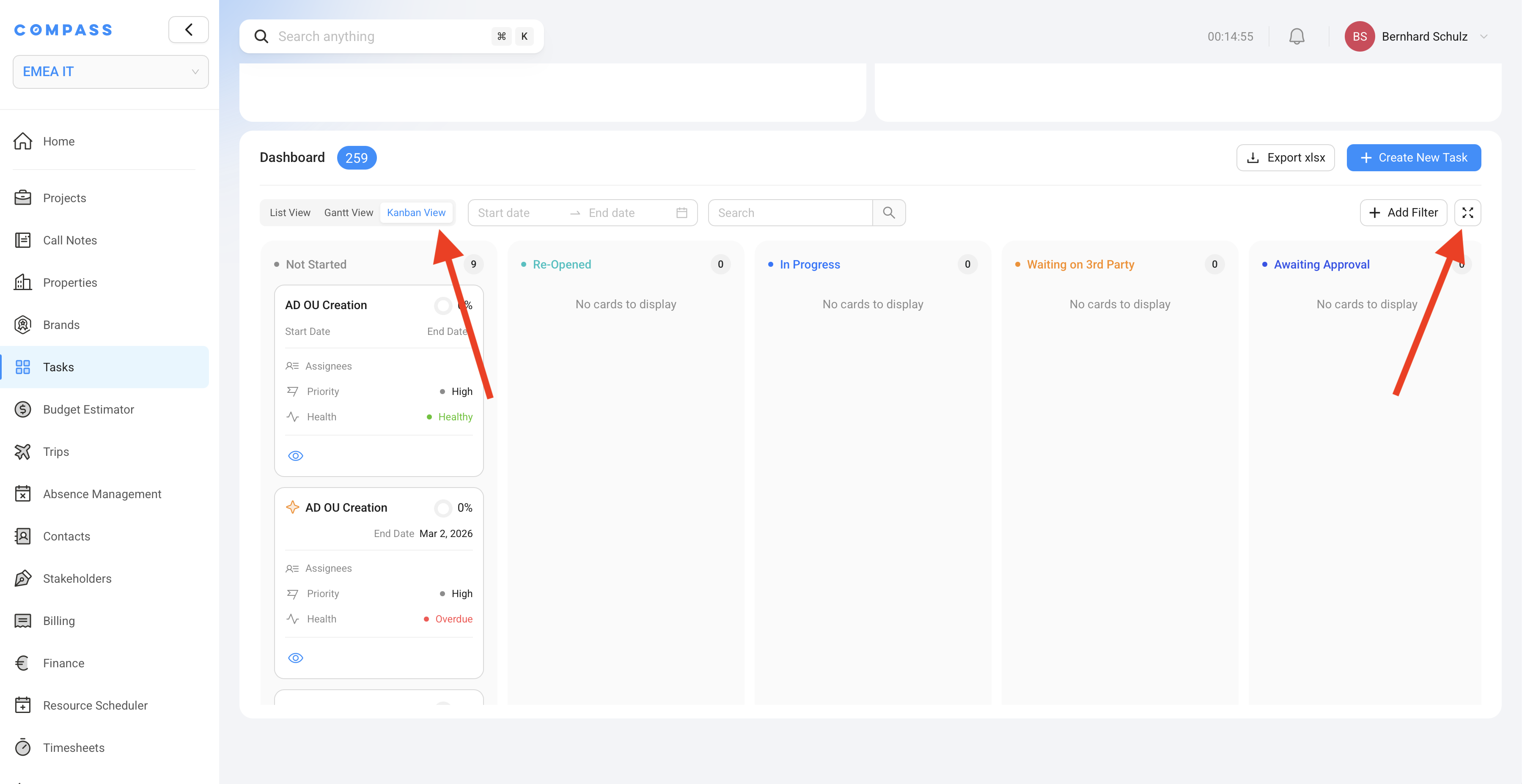
The Kanban View displays tasks as cards organized by status. Each status has its own column, and you can see at a glance how many tasks are in each stage.
Columns
Each column represents one task status:
- Not Started
- Re-Opened
- In Progress
- Waiting on 3rd Party
- Awaiting Approval
(And further to the right: Need Resources, Completed, Not Applicable)
Task cards
Each card shows:
- Task name
- Start and end dates (if set)
- Assignees
- Priority
- Health (Healthy / Warning / Overdue)
Click any card to open the full task detail view.
Fullscreen mode
Same as Gantt View — click the ⤢ button to go fullscreen for an uncluttered board view.
- List View — daily task management, bulk actions, exporting
- Gantt View — timeline planning, spotting scheduling conflicts, reviewing cross-project workload
- Kanban View — team standups, status reviews, seeing what's blocked at a glance