Project-Based Overrides (Matrices)
The Project-Based Override tab on a Task Catalog Item is only visible after you enable it. In the Task Information tab, go to Task Rules & Logic and set "Should this task adjust its details based on project details?" to "Task details depend on Project details." The tab will then appear.
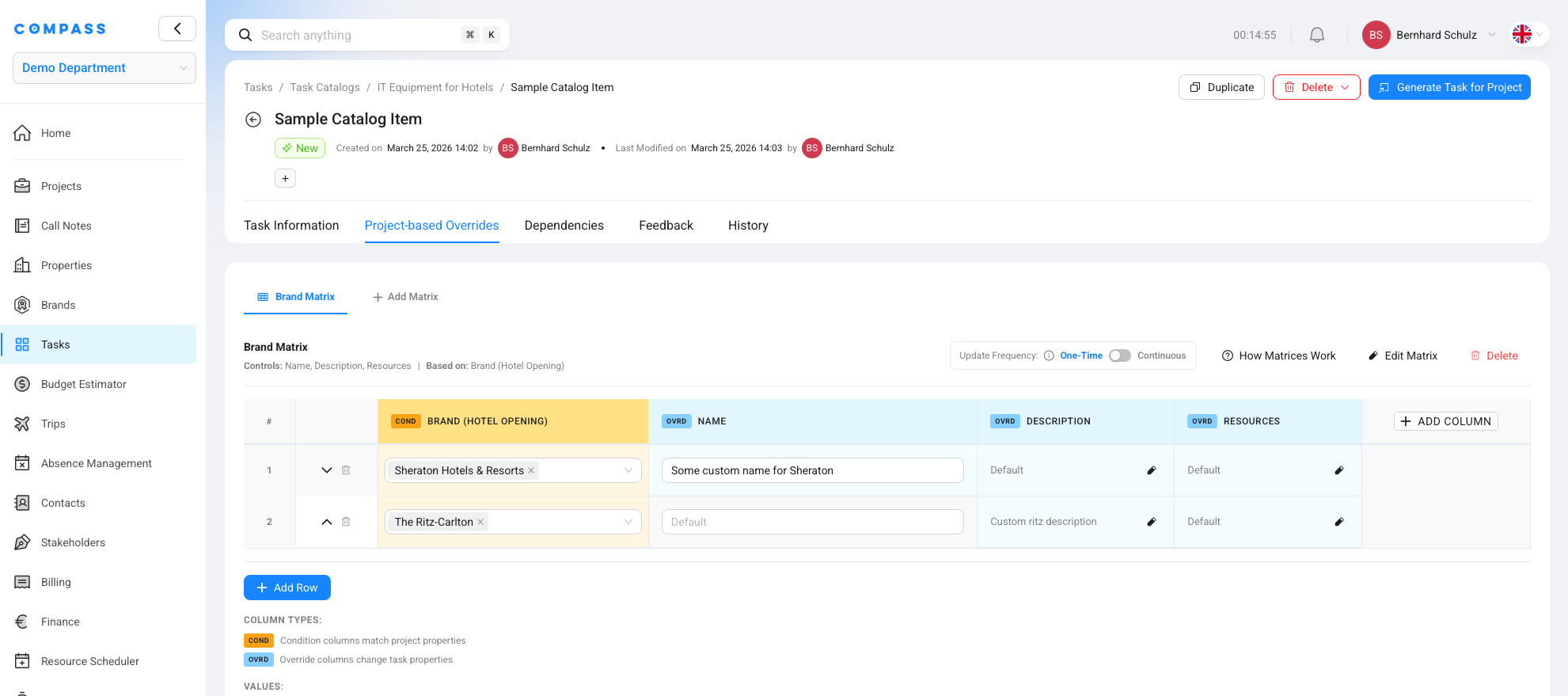
A Project-Based Override (also called a Matrix) is a table that automatically adjusts a task's details based on the properties of the project it's being created for. Instead of building a separate catalog item for every variation of a task, you build one item and use a matrix to make it adapt.
Think of it like a rate card: depending on what you put in (brand, region, project type), you get different outputs (different duration, different description, different subtasks).
When to use a matrix
Matrices are the right tool whenever the same fundamental task needs different settings depending on the project:
- A luxury hotel needs 60 days for a pre-opening review; a select-service property only needs 14 days → override Duration and Lead Time
- Different brands require different compliance documents → override Resources
- Leased properties need extra approval steps that owned properties don't → override Completion Approval
- Certain brands require additional pre-opening subtasks → override Subtasks
- The task description should differ by region to include local regulatory references → override Description
Without matrices, you'd need a separate catalog item for every combination. With matrices, one item handles all of them.
How a matrix works
Every matrix is attached to a Task Catalog Item and has three parts:
Condition Columns — the project fields you're checking. These are the "if" side. When a task is generated, Compass reads the project's values for these fields and looks for a matching row.
Override Columns — the task properties you want to change. These are the "then" side. When a matching row is found, Compass applies the values from these columns to the task.
Rows — each row is one scenario. A row says: "if the project matches these condition values, set the task's properties to these override values."
Before you start: enable the setting first
The Project-Based Override tab on a Task Catalog Item is only visible when you've told Compass that this task's details can vary by project.
To unlock it:
- Open the Task Catalog Item and go to the Task Information tab
- In the Task Rules & Logic section, find the question "Should this task, if it applies, adjust its parameters based on project details?"
- Select "Task details depend on Project details"
Once that's set, the Project-Based Override tab appears alongside Task Information, Task Applicability & Timing, Dependencies, etc. If you don't see the tab, go back and check this setting first.
Setting up a matrix
Open a Task Catalog Item, go to the Project-Based Override tab, and click Add Matrix to create one, or Edit Matrix on an existing one.
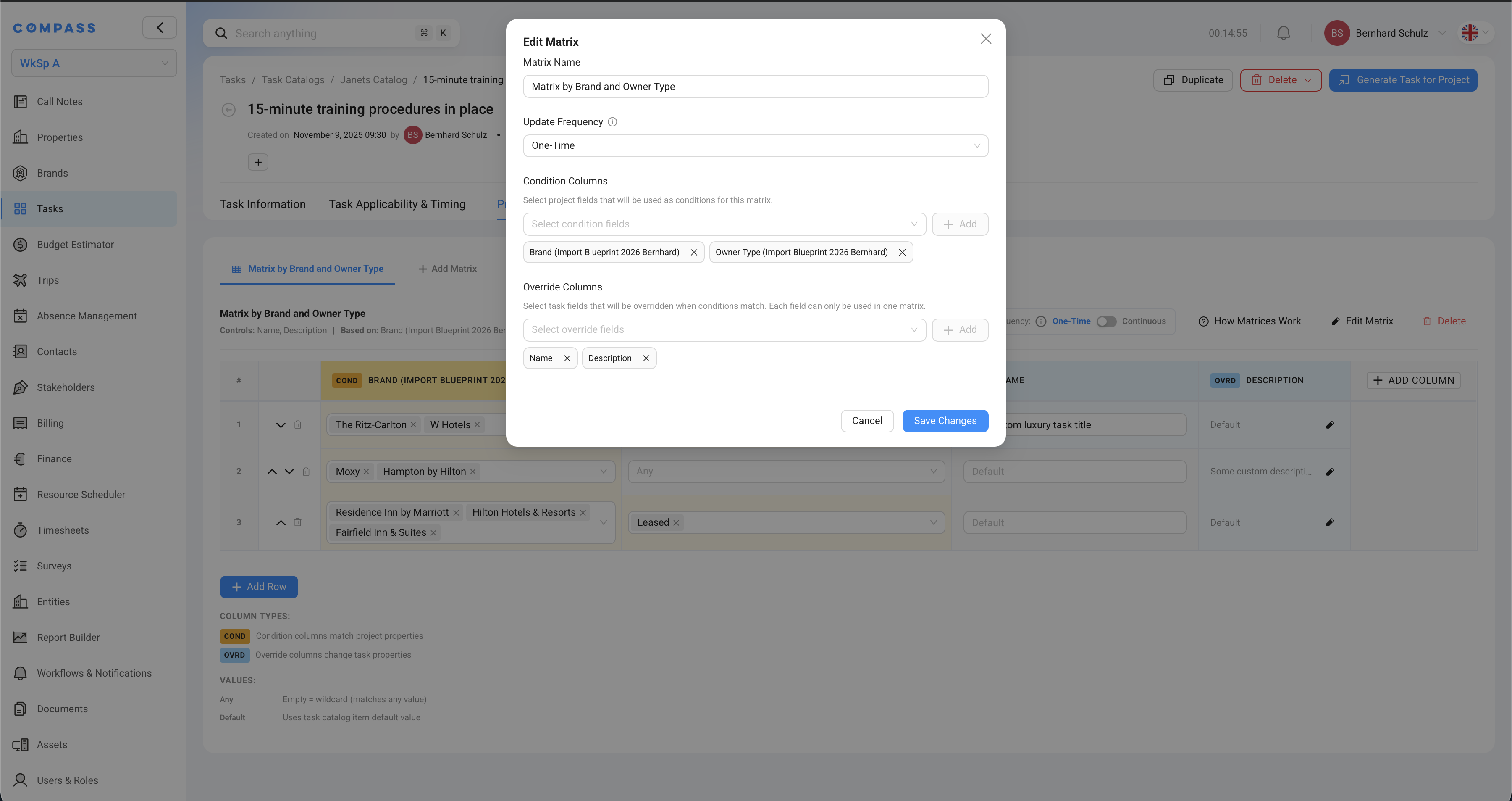
Matrix Name
Give the matrix a clear, descriptive name. Since a catalog item can have multiple matrices, the name helps you tell them apart. Examples: Matrix by Brand, Matrix by Owner Type, Luxury vs. Select Service Duration.
Update Frequency
This controls whether the override is applied once or kept in sync over time.
One-Time — the override is applied when the task is first created. After that, the task's values are locked in. Even if the project's fields change later, this matrix won't update the task again.
Use One-Time for project properties that are set once and don't change — like the brand, property category, or project type. These are decided at the start and stay constant.
Continuous — the matrix re-evaluates whenever the relevant project fields are updated. If a non-completed task's conditions still match, its properties are automatically updated to reflect the current values.
Use Continuous for project properties that can change during execution — like risk level, current project phase, or ownership type. When these change, affected tasks update automatically to stay aligned.
Condition Columns
Select the project fields that define which row applies. You can use:
- Built-in project fields — such as Brand, Region, or Property Category
- Custom fields from the Project Blueprint — any field you've added to the blueprint (dropdowns, text fields, switches, references, etc.)
Not all custom field types can be used as conditions. Supported types: text, dropdown, radio, checkbox, switch, and reference. Date fields and numeric fields cannot be used as conditions.
You can add multiple condition columns — for example, both Brand and Owner Type. All condition columns must match a row for it to be selected.
Override Columns
Select the task properties to change when conditions match. The full list of what can be overridden:
| Category | What you can override |
|---|---|
| Basic | Name, Description, Priority, Category, Subcategory |
| Timing | Duration, Lead Time to Reference Date |
| Flags | Will Delay Project Completion, Major Milestone, Delay Will Raise Flag |
| Assignment | Assignees, Owners, Assigned to Roles, Departments, Teams, Disciplines |
| Completion | Task Completion Requires Approval, Approval Roles, Approval Users |
| Content | Subtasks, Resources (files and links) |
| Custom fields | Any custom task field defined in Task Module Settings |
Each task property can only be overridden by one matrix. If you add Duration as an override in Matrix A, you cannot also add it to Matrix B on the same catalog item. This prevents conflicting overrides.
Filling in the rows
Once the matrix structure is saved (name, frequency, columns), you fill in the rows. Each row represents one project scenario.
Condition cells
For each condition column in a row, enter the values that must match:
- Enter one or more values — multiple values in a single cell are treated as OR. Example: a cell containing "The Ritz-Carlton" and "W Hotels" matches if the project's brand is either of those.
- Leave it empty (Any) — an empty condition cell is a wildcard. It matches any value for that column. Use this when a row should apply regardless of what that field contains.
Override cells
For each override column in a row, enter the value the task should use:
- Enter a specific value — this value is applied to the task when the row matches. Example: Duration = 60 days.
- Leave it as Default — this means "don't override this column; use the task catalog item's default value instead." Use Default when a row applies but you don't want to change a particular property.
Special values at a glance
| Cell value | What it means |
|---|---|
| Any (empty condition cell) | This row matches any value for that condition column — a wildcard |
| Default (override cell) | Don't override this property; use the catalog item's default |
How Compass picks the right row
When a task is generated, Compass checks every row against the project's field values. Multiple rows might match — Compass picks the most specific one.
Specificity is calculated by counting how many condition cells in a row have specific values (not "Any"). A row where Brand = Ritz-Carlton and Owner Type = Leased (specificity 2) beats a row where Brand = Ritz-Carlton and Owner Type = Any (specificity 1). Both match a Ritz-Carlton/Leased project, but the more specific row wins.
Example with three rows:
| Brand | Owner Type | → Duration |
|---|---|---|
| The Ritz-Carlton, W Hotels | Any | 60 days |
| The Ritz-Carlton | Leased | 90 days |
| Any | Any | 30 days |
For a project: Brand = The Ritz-Carlton, Owner Type = Leased:
- Row 1 matches (Ritz-Carlton AND any owner type) — specificity 1
- Row 2 matches (Ritz-Carlton AND Leased) — specificity 2
- Row 3 matches (any AND any) — specificity 0
Compass picks Row 2 — Duration = 90 days.
For a project: Brand = W Hotels, Owner Type = Owned:
- Row 1 matches (W Hotels AND any) — specificity 1
- Row 2 doesn't match (Ritz-Carlton only)
- Row 3 matches (any AND any) — specificity 0
Compass picks Row 1 — Duration = 60 days.
For a project: Brand = Moxy, Owner Type = Owned:
- Rows 1 and 2 don't match
- Row 3 matches (any AND any) — specificity 0
Compass picks Row 3 — Duration = 30 days (the fallback row).
Add a row with all condition cells set to "Any" as the last row. This acts as a catch-all default for any project that doesn't match a more specific row.
Multiple matrices on one item
A single catalog item can have more than one matrix — as long as each matrix controls different override columns. You might have:
- Matrix A — conditions: Brand; overrides: Duration, Lead Time
- Matrix B — conditions: Owner Type; overrides: Subtasks, Completion Approval
- Matrix C — conditions: Brand, Region; overrides: Resources
All three matrices are evaluated independently. Each one checks its own conditions and applies its own overrides. The constraint is that no two matrices can target the same override column.
Relationship to Task Catalog Item defaults
The catalog item's standard settings — the values you set in the Task Information tab — are the defaults. A matrix only changes specific properties; everything else stays as the default.
When an override cell is set to "Default," it explicitly says "use whatever the catalog item's default is for this property." This is useful in rows that apply to some projects but don't need to change every property the matrix controls.
Related
- Task Catalog Items — Overview of all catalog item settings, including how matrices fit in
- Applicability & Creation Rules — Rules that control whether and when a task is created (separate from how it's configured)
- Task Catalogs — How catalogs are structured and managed