Create a Budget
Use this guide when you want to create a project budget in the Budget Estimator module. By the end, you will have a tailor-made draft budget with generated budget items that you can review, adjust, approve, and lock.
Compass is designed to turn budget logic into project-specific budgets with only a few clicks. The intelligence sits in the Budget Catalogs: they store the standard lines, calculation rules, project drivers, and category logic that Compass uses to shape the budget for one specific project.
Compass can create three budget types: Capital Expenditure (CapEx), Operating Expenditure (OpEx), and Service Revenue. CapEx is usually for one-time purchases, OpEx is usually for time-based or recurring costs, and Service Revenue represents project income that Compass can use in Finance forecasts and external Billing.
- You need access to Budget Estimator.
- The budget must be linked to a Related Project.
- If you want budget items to be generated automatically, the project needs matching Budget Catalogs.
How Budget Creation Works In Compass
Budget creation in Compass starts with a project, a budget type, and a set of catalogs or blueprint defaults. Compass then creates a draft budget and prepares the budget items for review.
Think of the budget setup like choosing a smart recipe. The Budget Catalogs provide the reusable lines, such as equipment, services, fees, or recurring costs. They also contain the logic that adapts those lines to the selected project. The Budget Blueprint can pre-fill the recipe choices, such as catalogs, currency, percentages, and approvals. The final Budget is the project-specific result.
When Compass generates the budget items, it also copies the current project assumptions onto the budget. For example, if the project has 300 rooms, the budget can keep that room count as the value used for calculations. This matters later because a locked budget should remain auditable, even if the project details change.
Step 1: Open Create New Budget
Open Budget Estimator from the left navigation, then click Create New Budget. Compass opens a two-step creation flow.
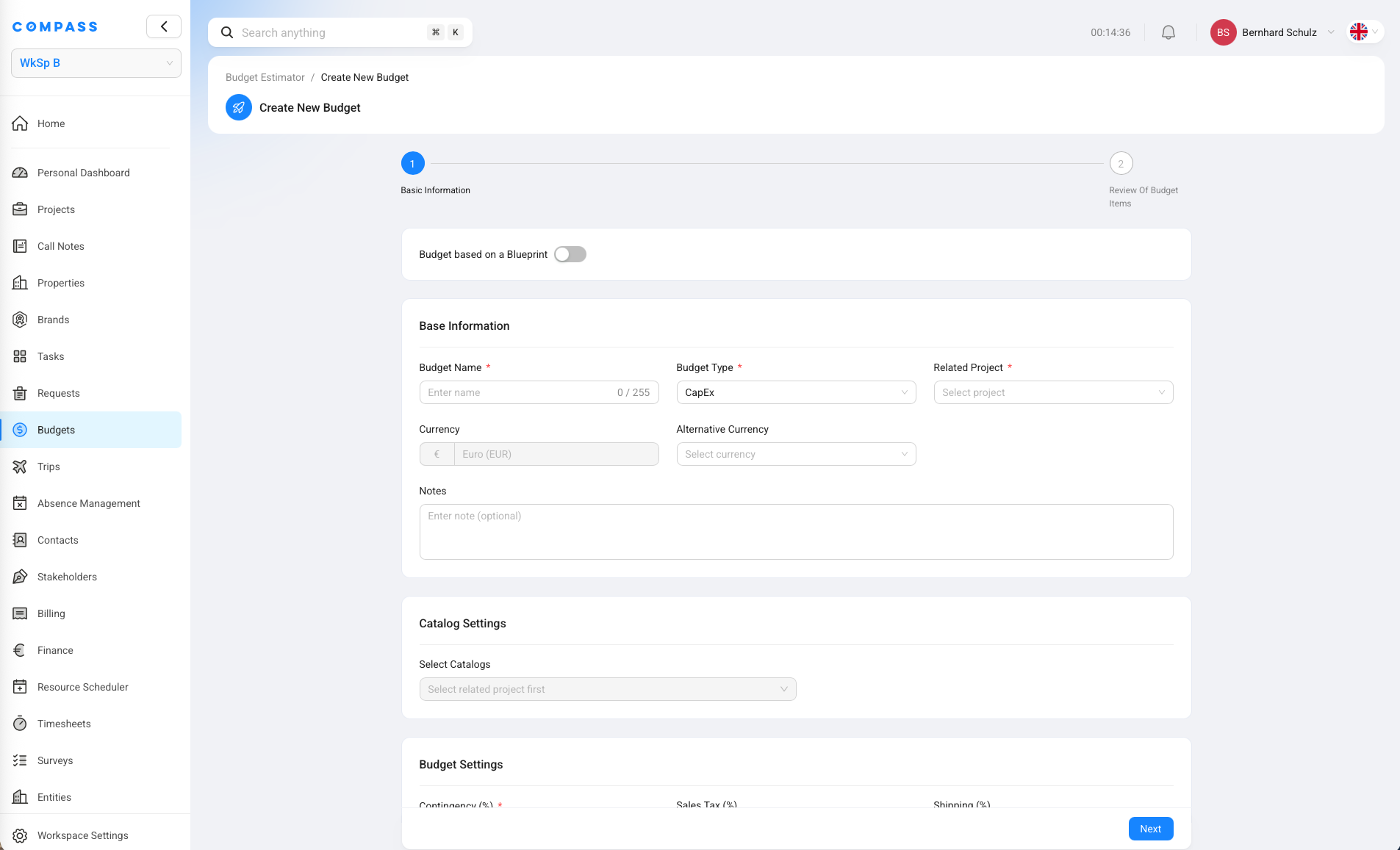
In step 1, called Basic Information, you choose the main setup for the budget. This is where you decide what kind of budget you are creating and which project it belongs to.
You can also start from a project if a budget preset has been configured. In that case, open the project and click Create Budget in the project header. Presets are covered later in this guide.
Step 2: Choose Whether To Use A Budget Blueprint
Use Budget based on a Blueprint when an administrator has already prepared the standard setup for this kind of budget.
If you switch it on and select a Budget Blueprint, Compass fills in many fields for you. This can include the budget type, alternative currency, selected catalogs, budget settings, approval settings, and internal approvers.
Use a blueprint when your team creates the same kind of budget often. It saves you from entering the same settings again and again. You still review the form before continuing, so the blueprint is a starting point rather than a final decision.
If you are not sure which blueprint to use, choose the one that describes the budget result. A name like Standard IT CapEx Budget is easier to trust than an internal code.
Step 3: Enter The Base Information
Enter the Budget Name, choose the Budget Type, and select the Related Project. These fields define what the budget is and where it belongs.
The available budget types are:
| Budget type | Use it for |
|---|---|
| CapEx | One-time project purchases, such as FF&E, OS&E, IT equipment, hardware, or installation materials. |
| OpEx | Operating or time-based costs, such as pre-opening payroll, subscriptions, temporary services, or monthly costs. |
| Service Revenue | Income that your team expects to earn from project services, TSA fees, opening support, or other chargeable work. |
The Currency field is the workspace base currency. Compass keeps this fixed because project budgets, trips, timesheets, actuals, and finance plans need one comparable currency. If every module used a different base currency, totals could not be compared reliably.
Use Alternative Currency when you also need to view or explain the budget in another currency. Compass keeps the budget base currency as the workspace currency and stores the current exchange rate available in Compass when the alternative currency is applied.
Step 4: Select The Budget Catalogs
Select the Budget Catalogs that should generate budget items for this budget. A catalog is the reusable list of lines Compass can copy into the project budget.
For example, an IT Equipment and Supplies catalog might contain 100 catalog items. If you include that catalog, Compass can create 100 project-specific budget items from those catalog items.
You can include more than one catalog when the budget needs several groups of items. For example, a CapEx budget may include one catalog for hardware and another catalog for installation materials.
If the catalog list is empty or disabled, first check that you selected the Related Project. Catalog availability can depend on the project setup and the selected budget type.
Step 5: Enter The Budget Settings
Budget settings depend on the budget type. Compass shows the fields that matter for the type you selected.
For CapEx budgets, you can enter percentages such as Contingency, Sales Tax, Shipping, Installation Surcharge, and Warehousing Surcharge.

For OpEx budgets, you enter Contingency, Budget Period, and Start Date. The budget period tells Compass how long the operating cost should run.
For Service Revenue budgets, you can enter Contingency, Risk Factor, Income Source, Billing Schedule, and settlement defaults. The Income Source switch controls whether this budget can feed expected income into the Finance module. Settlement determines whether and how the concrete Budget can feed Billing.
The Risk Factor helps Finance show a risk-adjusted income forecast. For example, if there is a chance the project is delayed or canceled, the risk factor reduces the forecast value.
Step 6: Set The Service Revenue Billing Schedule
This step only applies to Service Revenue budgets. If you are creating a CapEx or OpEx budget, skip this section and continue with the approval settings.
The Service Revenue Billing Schedule tells Compass which project year should receive the expected income. This is mainly important for Finance forecasts.
It does not schedule customer invoices or generate invoice installments. Invoice timing is managed in Billing after the Budget has been configured for external invoicing.
For example, if the project target completion year is 2026 and the billing schedule says Project Completion Year at 100%, Finance treats the full income as expected in 2026.
You can also split the income across years. For example:
| Billing schedule row | Percentage |
|---|---|
| 1 Year Before Project Completion Year | 50% |
| Project Completion Year | 50% |
In that example, half of the expected income is counted one year before completion, and half is counted in the completion year. The total billing schedule must add up to 100% when the budget is used as an income source.
Step 7: Configure Approval Settings
Use Approval Settings when the budget must be reviewed before it becomes the active budget version.
Requires Internal Approval means Compass sends the budget to internal approvers. Approvers can be specific users or users in selected roles. Depending on the setup, either one approver can be enough, or all configured approvers may need to approve.
Requires External Approval is only for tracking approval that happens outside Compass. It does not send the budget to external people. Instead, Compass gives you a way to record who approved externally, when it was approved, and which approval document supports it.
If no approval is required, you can lock the budget directly after review. If approval is required, finish the approval steps before locking.
Step 8: Click Next And Review Budget Items
Click Next to move to step 2, Review Of Budget Items. Compass shows the budget items generated from the selected catalogs.
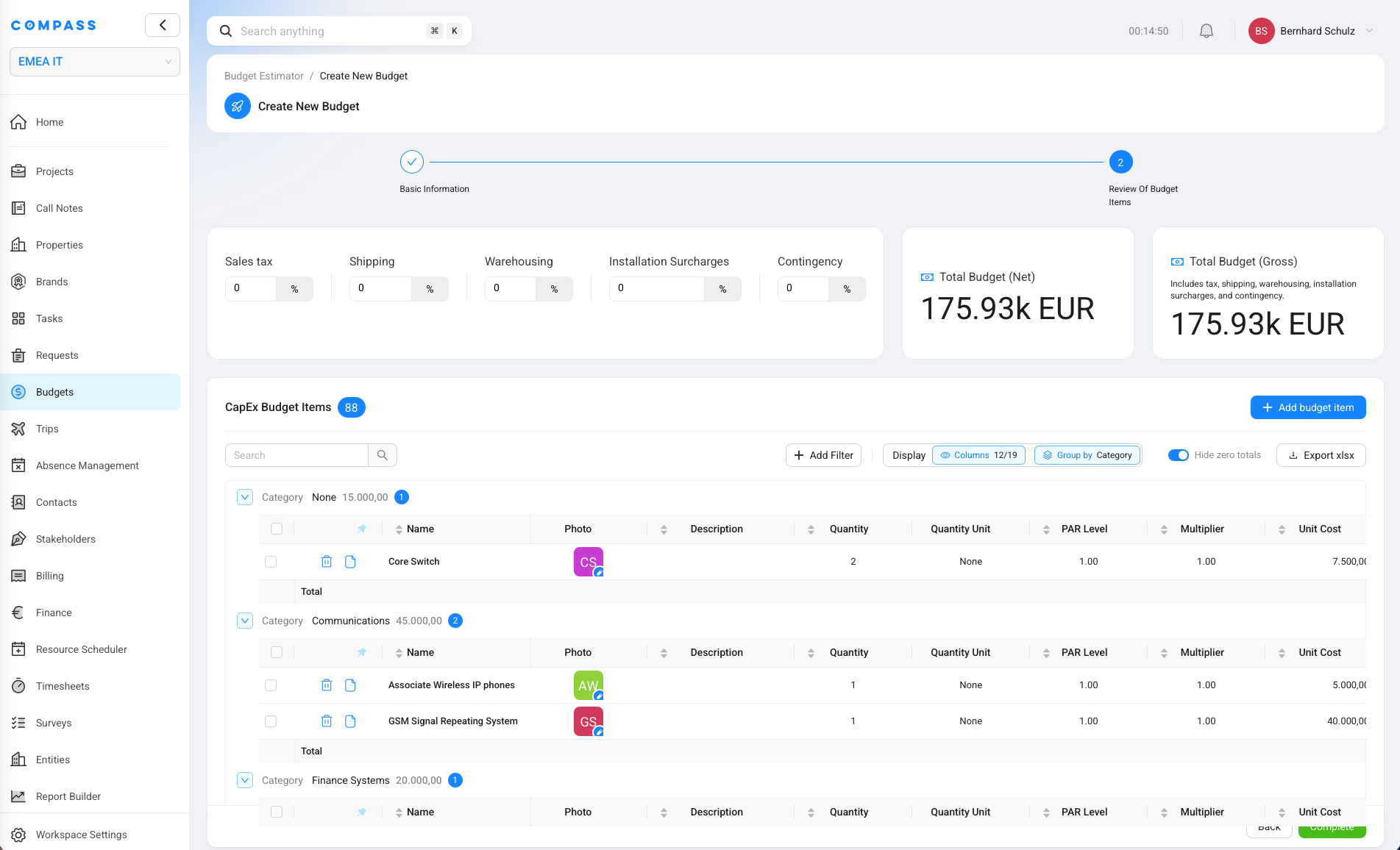
By default, budget items are grouped by Category. You can change the grouping to Catalog or Subcategory when that makes review easier.
Use the table tools to search, filter, choose visible columns, export to XLSX, and decide whether zero-total items should be shown. Zero-total items are hidden by default so the review list stays focused. Switch off Hide zero totals when you need to review or edit those lines.
Review the generated items before you complete the budget. This is the best moment to check quantities, quantity units, unit costs, categories, and any values that came from project assumptions.
Step 9: Edit Or Add Budget Items During Review
You can edit many budget item values directly in the review table while the budget is still a draft. This is called inline editing, which means you change the value in the table cell itself instead of opening a separate edit window.

Double-click an editable cell, such as Quantity or Quantity Unit, and enter the corrected value. Compass updates the draft budget item from the table, so you can continue reviewing the next line without leaving the review screen.
You can also add more budget items from the Add budget item button.
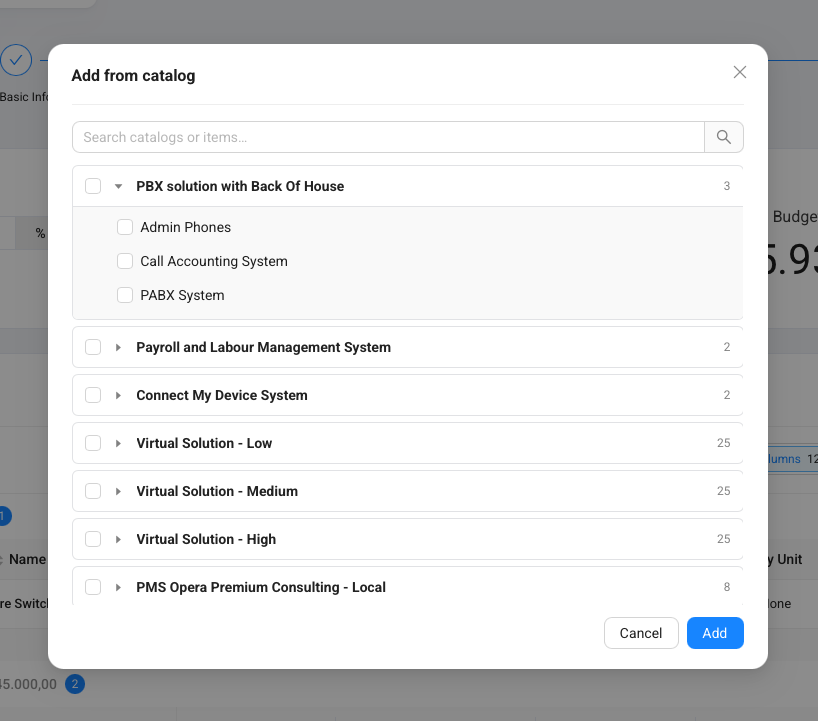
Choose Create manually when the line is unique to this budget and does not come from a catalog. Choose Add from catalog when you forgot a catalog or need extra catalog items that were not included in the first setup.
When you add from catalog, Compass lets you search catalogs and items, expand catalog groups, select the needed lines, and add them to the budget.
Step 10: Complete The Budget Creation Flow
Click Complete after you have reviewed the budget items. Compass opens the budget overview page.
The budget starts as a draft. A draft budget can still be edited, regenerated, sent for approval, or locked depending on your permissions and approval setup.
On the budget overview page, review the main cards and tabs:
| Area | What to check |
|---|---|
| Total Budget | The current budget total. |
| Actual | Actual costs or actual values tracked against budget items. |
| Variance | The difference between budget and actual. |
| Base Information | Owner, related project, budget blueprint, and income-source details. |
| Currency, Tax & Allowances | Base currency, alternative currency, exchange rate, contingency, tax, and surcharges. |
| Approval Settings | Whether internal or external approval is required. |
| Budget Items | The full editable item list while the budget is still draft. |
Step 11: Send For Approval Or Lock The Budget
After review, send the budget for approval if approval is configured. If no approval is required, lock the budget directly when it is ready.
Locking is the point where the budget becomes an active version. Compass assigns the next version number, freezes the budget item setup, and keeps the project assumptions that were used for the calculations.
For example, if the budget was calculated with 300 rooms, that room count stays with the locked budget. If the project later changes to 330 rooms, the old locked budget does not silently change.
After a budget is locked, budget items are no longer editable. You can still track actuals against the budget items. If the planned budget needs to change later, duplicate the locked budget and prepare the new draft as the next version.
Do not lock a budget until the setup and generated items have been reviewed. After locking, changes should happen through a new duplicated version, not by changing the old version.
Faster Option: Create Budgets From A Project Preset
Budget Presets are the fastest way to create budgets when an administrator has already set them up for the project.
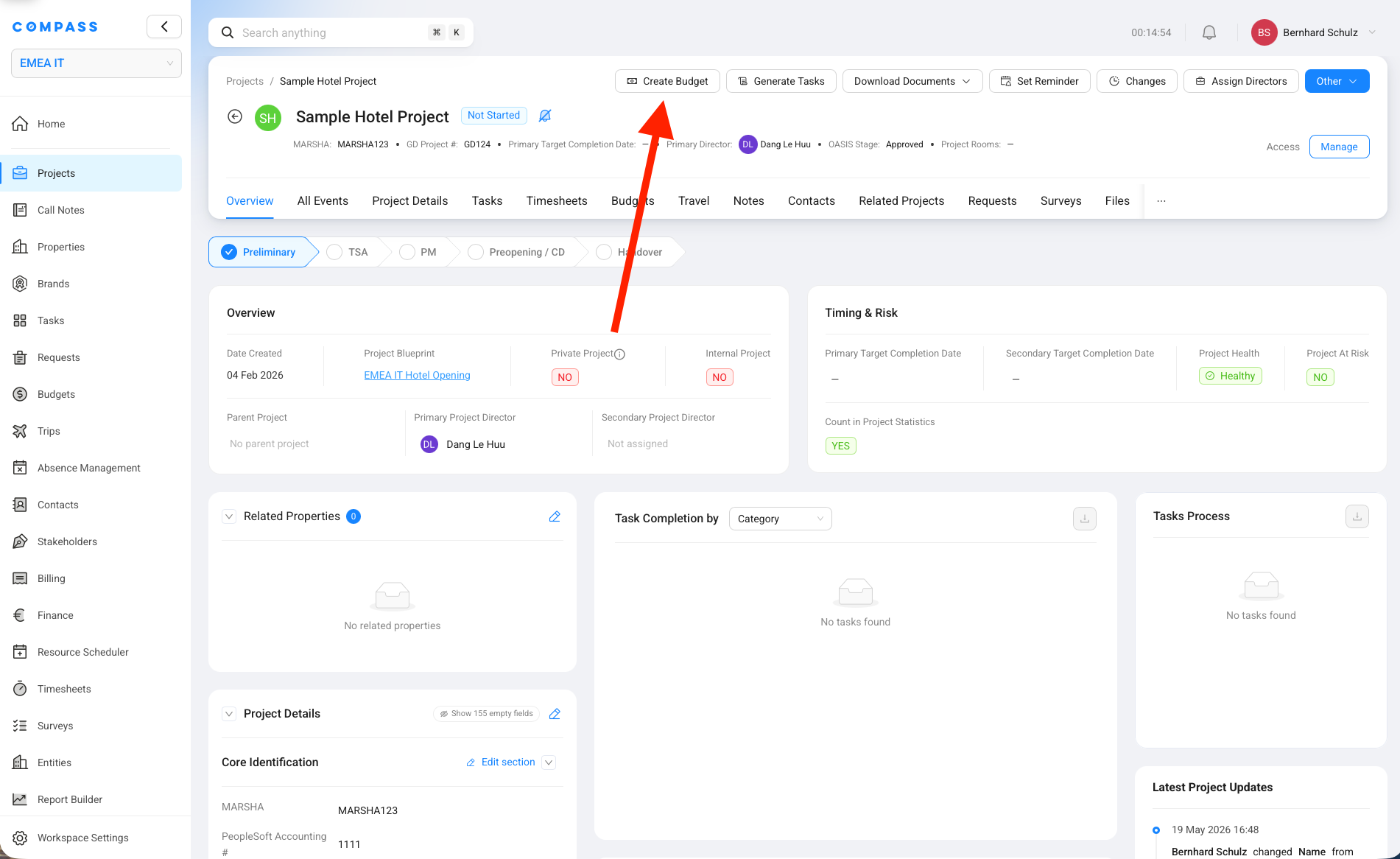
Open the project and click Create Budget in the project header. Choose the preset you want to run. Compass then creates the configured budget or budgets from the preset.
A preset can create multiple budgets at once. For example, one preset can create a CapEx budget and a Service Revenue budget for the same hotel opening project. The preset can also fill in blueprint settings, catalogs, currency choices, contingencies, approval settings, and post-creation actions.
Use the standard Create New Budget flow when no preset is available, when the budget is a one-off case, or when you need to choose the setup manually.
Common Mistakes
Problem: The catalog dropdown is empty.
Fix: Select the Related Project first and confirm that the selected Budget Type matches the catalog type. CapEx budgets use CapEx catalogs, OpEx budgets use OpEx catalogs, and Service Revenue budgets use Service Revenue catalogs.
Problem: The billing schedule cannot be saved.
Fix: Check that the Service Revenue budget is marked as Income Source and that all billing schedule rows add up to 100%.
Problem: A catalog item looks missing, but Compass says it already exists when you try to add it.
Fix: Switch off Hide zero totals in the budget item review table. Zero-total items are hidden by default, so the item may already be in the budget with no calculated cost yet.
Problem: Internal approval cannot be enabled.
Fix: Add at least one internal approver user or approver role. Compass needs to know who should approve the budget.
Problem: The same blueprint budget already exists on the project.
Fix: Open the existing budget or duplicate it if you need a new version. Compass protects projects from creating the same Budget Blueprint budget twice by accident.
Problem: You need to change a locked budget.
Fix: Duplicate the locked budget and edit the new draft. When the new draft is locked, Compass gives it the next version number and marks the older active version as deprecated.