Budget Catalogs
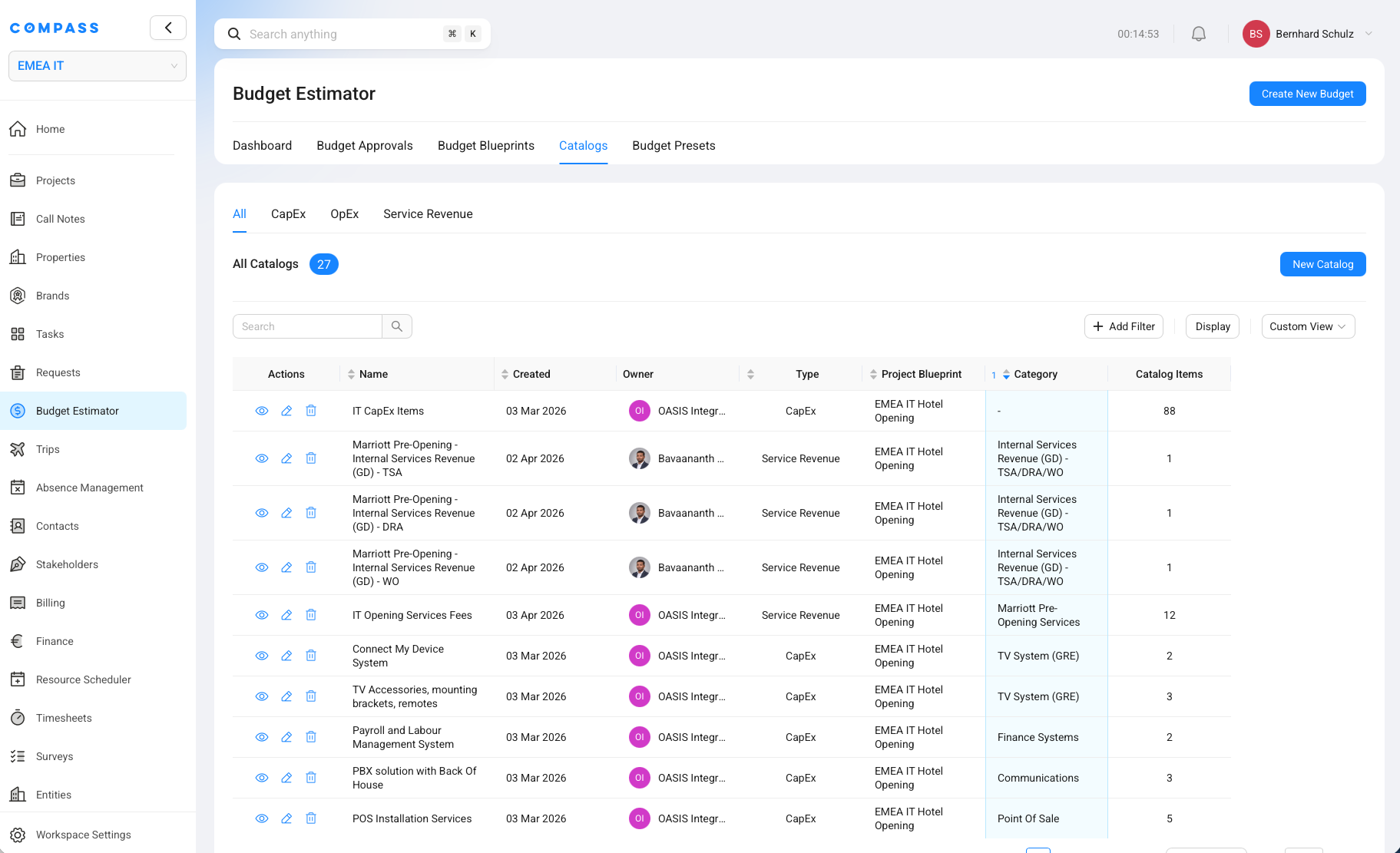
A Budget Catalog is a reusable budget template. It is the master list Compass uses when it creates a budget for a specific project.
Instead of building every project budget from scratch, you maintain the standard budget logic once in a catalog. When a project needs a budget, Compass can use that catalog to generate the right budget items for that project.
Think of it like a smart master spreadsheet. A normal spreadsheet usually has to be copied again and again: one file for a luxury hotel in India, another for a standard hotel in Germany, another for a resort, and so on. Over time, the files repeat the same lines and become hard to maintain.
In Compass, the goal is different. You usually keep one well-maintained catalog and let rules handle the differences between projects.
Where Budget Catalogs Sit In Compass
Budget Catalogs live in Budget Estimator under the Catalogs tab.
The Catalogs page has four sub-tabs:
- All
- CapEx
- OpEx
- Service Revenue
You only see Catalogs if your role has permission to access Budget Estimator catalogs. If the tab is missing, it usually means your permissions do not include that area.
Why Budget Catalogs Exist
Hotel budgets are often highly standardized. An OS&E budget, an IT budget, a pre-opening budget, or a service revenue budget usually follows a known structure.
The exact result still depends on the project. A budget may change because of:
- the country where the hotel is located
- the brand
- the hotel type
- the number of rooms
- the restaurants, meeting spaces, or other facilities
- the services that will be charged to the owner
A Budget Catalog lets Compass combine both needs:
- Standardization: keep the master budget structure in one place.
- Variation: adjust the generated budget based on project details.
This is why Budget Catalogs are more than a list of lines. They are rule-based templates that help Compass generate a tailored budget with much less manual work.
How Budget Catalogs Differ From Excel Files
In Excel, teams often solve variation by creating more files:
| Spreadsheet approach | Compass approach |
|---|---|
| One file per variation | One catalog can cover many variations |
| Repeated lines across many files | Shared master list maintained once |
| Hard to know which file is the latest | One controlled catalog in Compass |
| Manual copying into each budget | Budget items can be generated from the catalog |
| Differences are hidden in separate workbooks | Differences are controlled by rules and project data |
The main benefit is maintenance. If a standard budget assumption changes, you do not want to update the same item in twenty spreadsheet versions. You want to update the catalog logic once and let future generated budgets use that standard.
The Three Types Of Budget Catalogs
When you create a Budget Catalog, you choose its type. Compass supports three catalog types.
| Catalog type | What it is for | Typical examples |
|---|---|---|
| CapEx | One-time capital investment. These are things that need to be bought. | OS&E items, FF&E items, IT equipment, installation hardware |
| OpEx | Operating or recurring costs over a period of time. | Pre-opening payroll, temporary services, monthly subscriptions, recurring operating costs |
| Service Revenue | Revenue-generating services that you charge for. | Technical services agreement fees, project support fees, opening services charged to an owner |
The catalog type matters because a generated budget must match the catalog type. A CapEx catalog feeds a CapEx budget, an OpEx catalog feeds an OpEx budget, and a Service Revenue catalog feeds a Service Revenue budget.
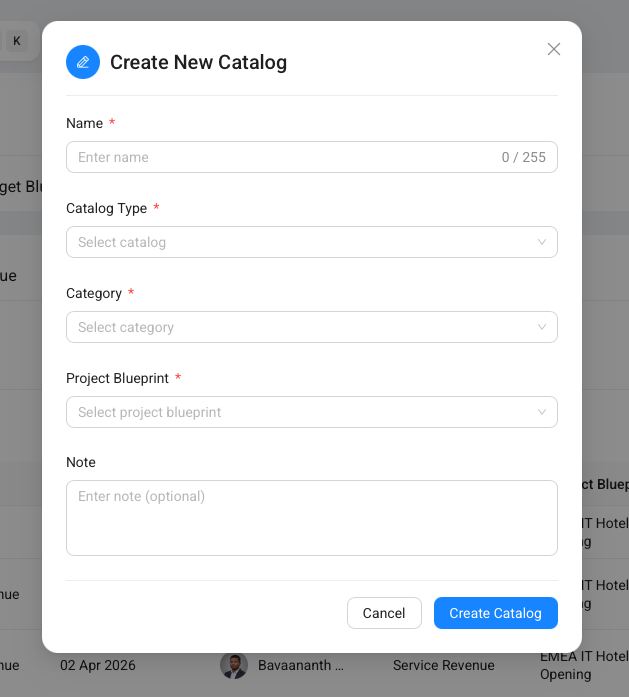
The Create New Catalog dialog shows the core setup fields: Name, Catalog Type, Category, Project Blueprint, and Note. The most important choices are the catalog type and the project blueprint, because they decide what kind of budget the catalog can generate and which project details the catalog can use.
Why Every Catalog Is Linked To A Project Blueprint
Every Budget Catalog is tied to a Project Blueprint.
A Project Blueprint defines the structure of a project type. It controls which project details Compass tracks, such as custom fields and facility information. Those details are the inputs that make a Budget Catalog intelligent.
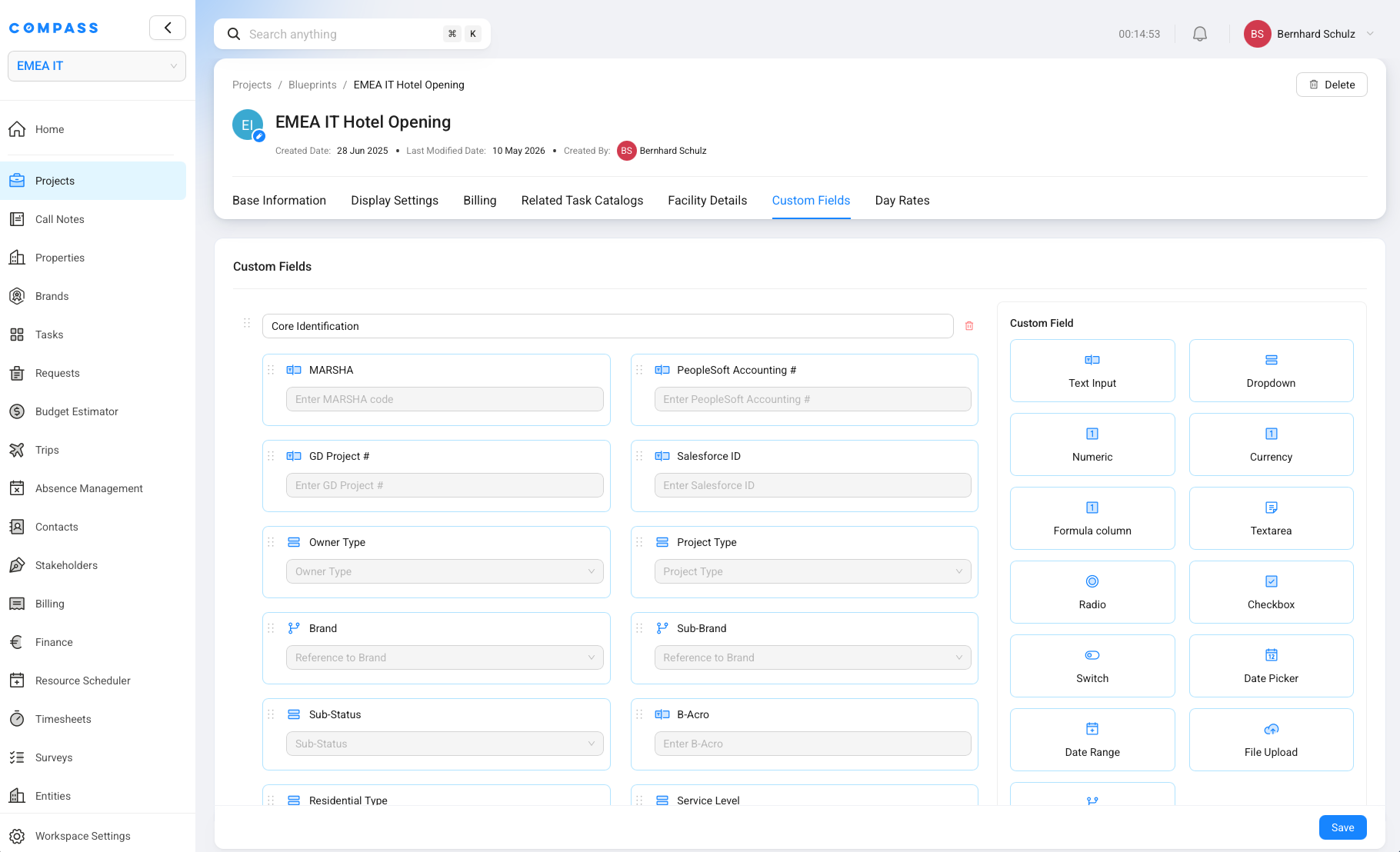
For example, a hotel opening blueprint may track:
- number of rooms
- hotel brand
- country
- restaurants
- meeting spaces
A restaurant opening blueprint may track something completely different:
- number of seats
- number of tables
- kitchen type
- service style
Because the inputs are different, the budget logic must be connected to the correct blueprint. If a catalog uses "number of rooms" as a quantity driver, Compass needs to know which blueprint provides that project value.
In simple terms: the Project Blueprint gives the Budget Catalog its vocabulary. The catalog can only use project details that exist in that blueprint.
How Rules Make One Catalog Work For Many Projects
Budget Catalogs are designed so one master catalog can adapt to different projects.
For example, one hotel opening catalog can include standard assumptions for many situations:
- different quantities for different hotel sizes
- different costs for different countries
- different items for different brands
- different service fees for different agreement types
- different calculations based on rooms, restaurants, or other facility counts
When Compass generates a budget, it reads the project's blueprint data and applies the catalog logic. The generated budget is then tailored to that project instead of being a generic copy.
This is the key idea: the catalog holds the standard, and the rules handle the variation.
What Happens When A Budget Is Generated
Budget generation is a flow from a reusable catalog to a project-specific budget.
Catalog input
Start from the reusable template
- Create or open a project budget.
- Select the relevant Budget Catalog.
Compass logic
Adapt it to the project
- Read project details from the linked Project Blueprint.
- Apply catalog rules where project details require different values.
Project budget
Review the generated result
- Compass creates the matching budget items.
- The result is a tailored budget ready to review.
The user does not need to rebuild the budget manually line by line. The catalog gives Compass a starting point, and the project details tell Compass how that starting point should be adjusted.
Budget Catalogs Are Flat Lists
A Budget Catalog is a flat list of Budget Catalog Items.
You can organize items with categories and subcategories, but the catalog does not use parent and child nesting. There is no structure where one catalog item is the parent and other catalog items sit underneath it as children.
For example, imagine a guest room setup that includes:
- bed frame
- mattress
- bedside lamps
- desk chair
- television
- kettle
In Compass, each of those would be its own budget catalog item if you want to track it separately. You might group them under a category such as Guest Room FF&E, but you would not create one parent item called "Guest Room Setup" with child items underneath it.
This keeps catalogs easier to understand, filter, import, and maintain. If you need a separate reusable list for a different purpose, you can use another catalog instead of building deep item nesting.
When To Use One Catalog And When To Split Catalogs
Use one catalog when the budget lines belong to the same budgeting purpose and the differences can be handled through project details and rules.
Good examples for one catalog:
- one IT opening catalog that adapts by brand, country, and hotel size
- one OS&E catalog that adapts by room count and facility setup
- one service revenue catalog that adapts by agreement type
Use separate catalogs when the lists serve a different purpose, budget type, ownership model, or maintenance process.
Good examples for separate catalogs:
- a CapEx IT equipment catalog and an OpEx IT subscriptions catalog
- an OS&E catalog maintained by one team and a service revenue catalog maintained by another team
- a regional catalog that is intentionally managed separately because the standards are not shared
The goal is not to force everything into one catalog. The goal is to avoid unnecessary duplicate catalogs when rules can describe the variation more cleanly.
What This Page Does Not Cover
This page explains the principle of Budget Catalogs.
It does not explain every setting on a Budget Catalog Item, such as quantity drivers, unit cost, fee amount, vendors, attachments, or item-level rules. Those details belong on a separate Budget Catalog Items page.