Budget Blueprints
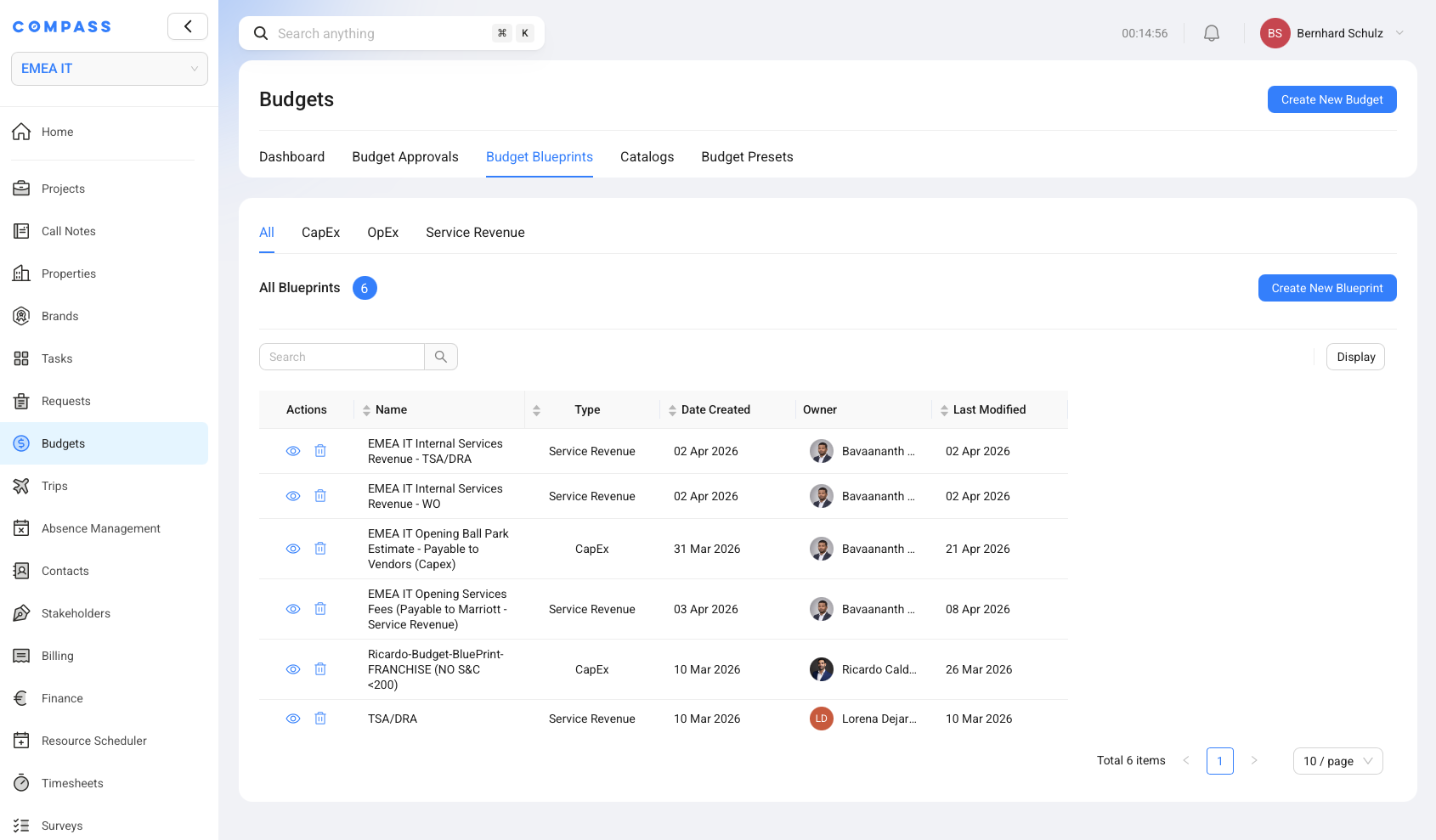
A Budget Blueprint is a reusable setup template for creating one budget. It saves the choices that users would otherwise have to enter again and again when they create a new project budget.
Think of a Budget Blueprint as the starting form for a budget that has already been prepared by an expert. When you select the blueprint, Compass fills in the budget type, linked catalogs, financial defaults, and approval settings. You still review the budget before creating it, but you do not start from an empty form.
Budget Blueprints are especially useful when the same kind of budget is created often. Instead of manually selecting many catalogs and remembering every percentage, currency, and approval rule, users can select one blueprint and continue from there.
Why Budget Blueprints Exist
Budget Blueprints exist because creating a budget can involve many repeated choices. A user may need to choose the budget type, select the right catalogs, set an alternative currency, enter contingency, sales tax, shipping, installation, or warehousing percentages, and decide whether approvals are required.
The catalog selection is often the biggest time-saver. A budget can be based on several Budget Catalogs, and those catalogs may contain many Budget Catalog Items. Without a blueprint, the user has to remember which catalogs belong together and select them manually each time.
A Budget Blueprint solves this by saving the standard setup once. After that, every new budget based on that blueprint starts with the same trusted configuration.
For example, a department might keep separate blueprints for:
- a CapEx equipment budget
- an OpEx monthly cost budget
- a service revenue budget for chargeable project support
The exact names depend on your department. The idea is always the same: the blueprint saves the standard starting point for one budget.
Where Budget Blueprints Sit In Compass
Budget Blueprints live in Budget Estimator -> Budget Blueprints. The page has filters for All, CapEx, OpEx, and Service Revenue so you can find the right blueprint by budget type.
The Budget Blueprints table shows the main information users need before opening a blueprint:
| Column | What it means |
|---|---|
| Name | The blueprint name users select when creating a budget. |
| Type | The budget type the blueprint creates: CapEx, OpEx, or Service Revenue. |
| Date Created | When the blueprint was created. |
| Owner | The user who owns or created the blueprint. |
| Last Modified | When the blueprint was last changed. |
You only see the Budget Blueprints area if your role has permission to access it. If the tab is missing, your COMPASS Administrator may need to adjust your Budget Estimator permissions.
What A Budget Blueprint Stores
A Budget Blueprint stores the standard setup that should be copied into a new budget. It does not store the final project budget itself. It stores the defaults that help Compass prepare that budget.
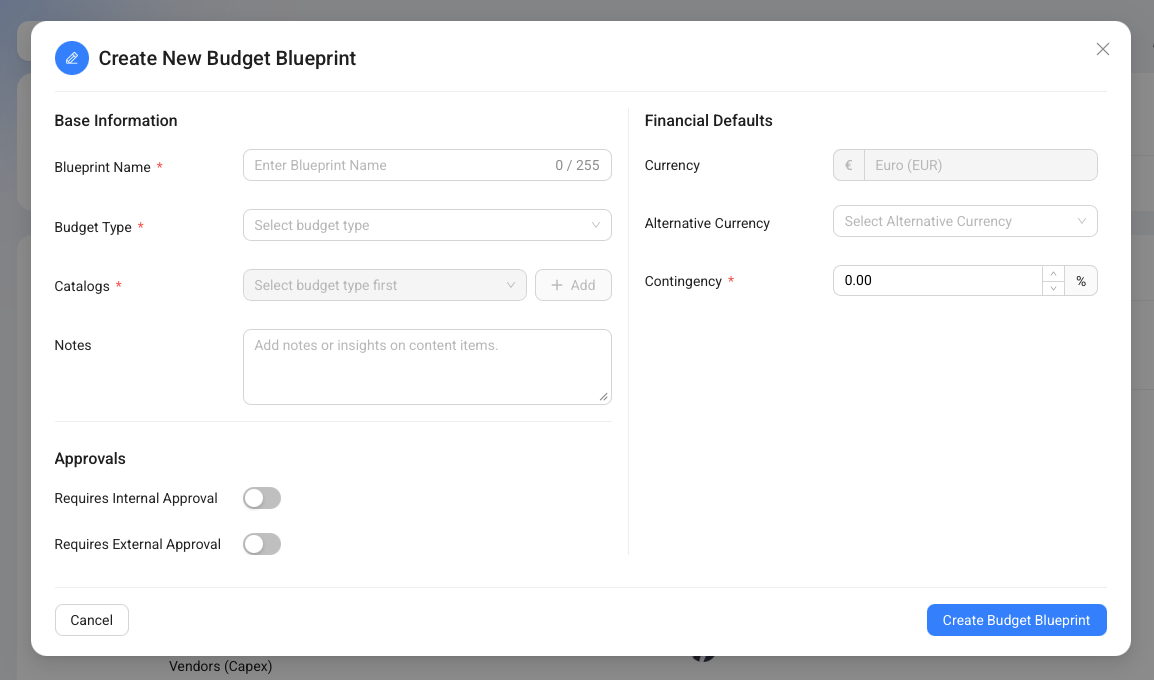
The Create New Budget Blueprint dialog includes these main areas:
| Area | What you set up |
|---|---|
| Base Information | Blueprint name, budget type, linked Budget Catalogs, and notes. |
| Financial Defaults | Workspace currency, optional alternative currency, contingency, and type-specific percentages. |
| Approvals | Whether internal approval, external approval, or both are required. |
| Approver setup | The users or roles who should approve budgets created from this blueprint, when internal approval is required. |
| Settlement defaults | For Service Revenue only: Internal only or External invoicing, the Actual Costs or Budgeted Amounts basis, and an optional default Billing Profile. |
Some fields only apply to certain budget types. For example, CapEx blueprints can include sales tax, shipping, installation, and warehousing surcharge defaults. Service Revenue blueprints can include risk factor, billing schedule, and settlement defaults.
The settlement defaults are copied into new Service Revenue Budgets. They make the standard intent reusable, but they do not settle every project automatically: the concrete Budget remains the final authority and can assign or change its Billing Profile. CapEx and OpEx blueprints do not expose external settlement because those budget types are internal cost-control budgets.
How Catalogs Work In A Budget Blueprint
The catalogs on a Budget Blueprint decide which Budget Catalogs should feed the generated budget. This is one of the most important parts of the blueprint.
A Budget Catalog is the reusable list of budget logic. A Budget Blueprint decides which of those catalogs should be used together for one budget. When a new budget is created from the blueprint, Compass adds those catalogs to the budget creation form. When the budget is generated, Compass uses the selected catalogs to create the budget items.
For example:
- A CapEx blueprint might include a standard equipment catalog and a standard installation materials catalog.
- An OpEx blueprint might include a staffing cost catalog and a recurring software cost catalog.
- A Service Revenue blueprint might include one catalog for project services and another catalog for support fees.
The blueprint and the catalogs must match the same budget type. A CapEx blueprint uses CapEx catalogs, an OpEx blueprint uses OpEx catalogs, and a Service Revenue blueprint uses Service Revenue catalogs.
Use clear blueprint names that tell users what the blueprint creates. A name like Standard CapEx Equipment Budget is easier to choose than a short internal code.
How A Blueprint Helps When Creating A Budget
When you create a new budget, you can switch on Budget based on a Blueprint and select the Budget Blueprint you want to use.
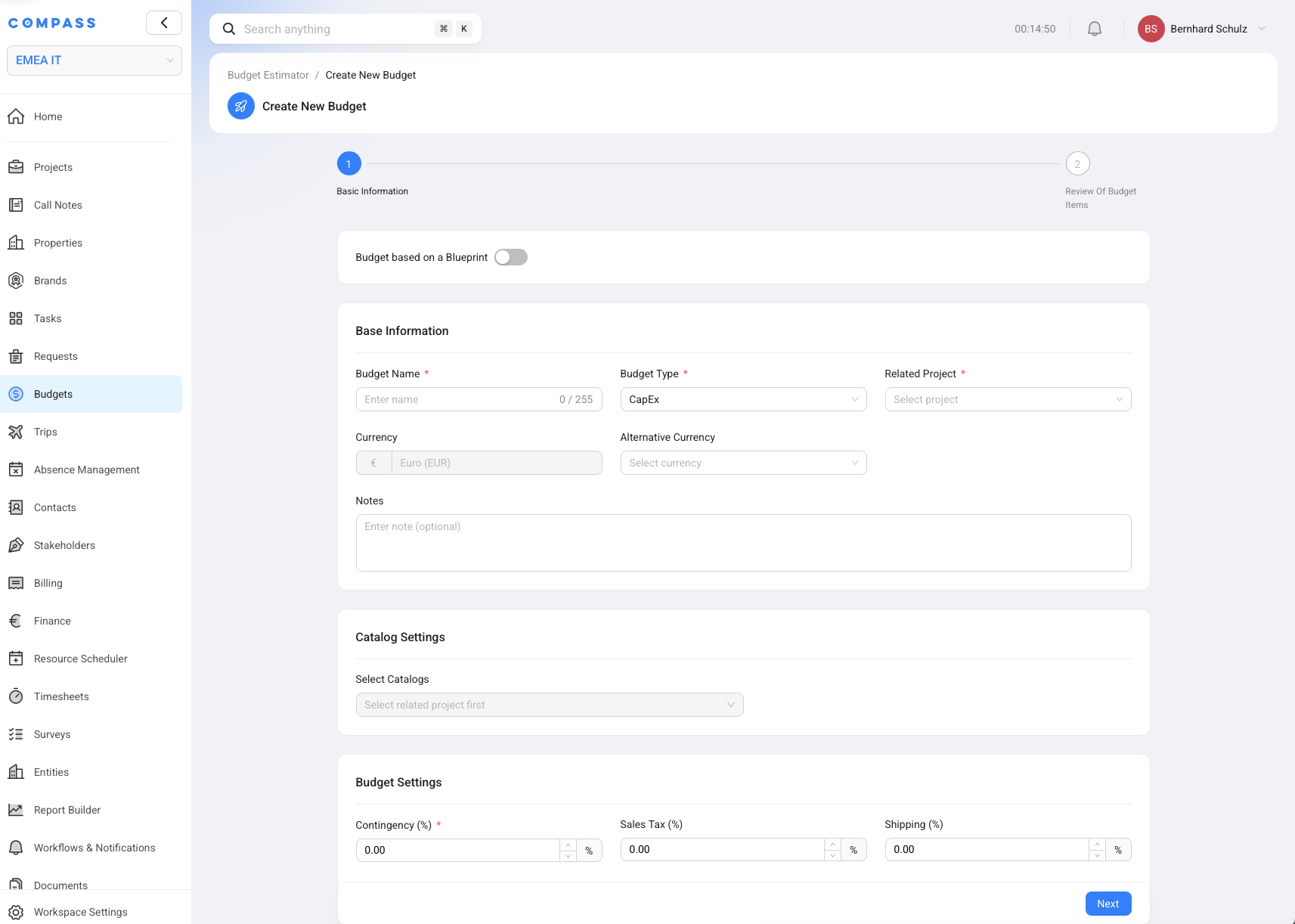
After you select a blueprint, Compass fills the budget creation form with the blueprint defaults:
- Budget Type is filled from the blueprint and locked to that type.
- Alternative Currency is filled if the blueprint has one.
- Selected Catalogs are filled from the blueprint.
- Budget Settings are filled, such as contingency and type-specific percentages.
- Approval Settings are filled, including internal or external approval requirements.
- Internal Approvers are filled from the blueprint when internal approval is required.
- Settlement and Invoicing defaults are filled for Service Revenue Budgets, including mode, basis, and an optional Billing Profile.
You can still review the form before continuing. The blueprint gives you a prepared starting point; it does not remove the review step.
If the budget has selected catalogs, Compass starts budget item generation after the budget is created. The budget items then appear from the selected catalogs. This is the same catalog-based generation flow used when catalogs are selected manually.
What Happens To Project-Specific Catalogs
Budget Blueprints can be used with project-specific catalog availability. When a project is selected, Compass checks which catalogs are available for that project and budget type.
If a blueprint includes catalogs that are not available for the selected project, Compass keeps only the catalogs that match the project. This prevents users from accidentally generating a budget from catalogs that do not belong to that project setup.
In simple terms: the blueprint says "these are the standard catalogs", and the project says "these are the catalogs allowed for this project." Compass uses the overlap between the two.
Budget Blueprint, Budget Catalog, And Budget Item
Budget Blueprints are easiest to understand when you compare them with Budget Catalogs and Budget Items.
| Concept | Plain explanation | Example |
|---|---|---|
| Budget Blueprint | The saved setup for one budget. It remembers the type, catalogs, financial defaults, and approvals. | Standard CapEx Equipment Budget |
| Budget Catalog | The reusable list of logic that can generate budget lines. | Equipment Catalog, Service Fee Catalog |
| Budget Catalog Item | One reusable line inside a catalog. | Laptop, Training Day, Monthly Subscription |
| Budget | The actual project budget created for one project. | Project Alpha - CapEx Equipment Budget |
| Budget Item | One generated or manually added line inside the actual budget. | 20 laptops for Project Alpha |
Think of it like this: the Budget Blueprint chooses the recipe and default settings. The Budget Catalog contains the ingredients. The generated Budget is the meal prepared for one specific project.
Budget Blueprints And Budget Presets
Budget Blueprints and Budget Presets are related, but they solve different problems.
A Budget Blueprint is used to create one budget. You use it when you click Create New Budget, switch on Budget based on a Blueprint, select one blueprint, and create that one budget.
A Budget Preset is used to create multiple budgets at once from a project. A preset contains one or more Budget Blueprints. When you run the preset on a project, Compass creates all configured budgets in one step.
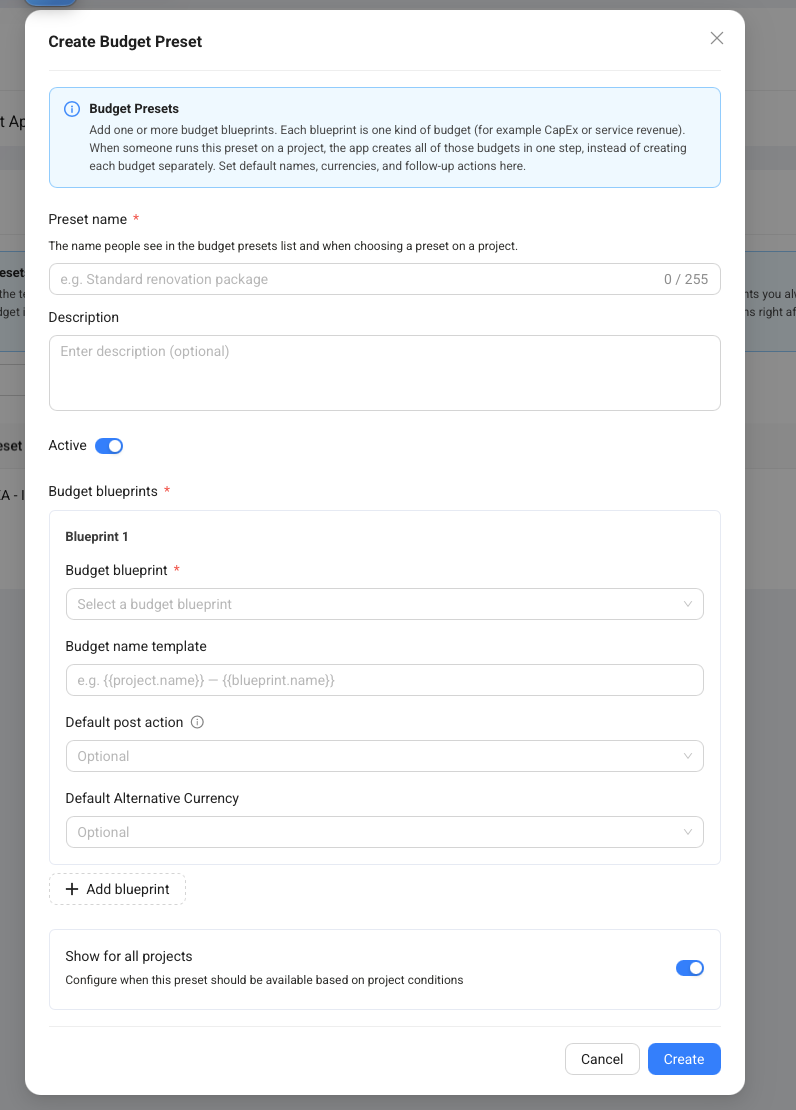
For example, a project team may often need two related budgets: one CapEx budget and one service revenue budget. Instead of creating each budget separately, an administrator can create a Budget Preset that contains both blueprints. A user can then run the preset from the project and Compass creates both budgets together.
| Use this | When you want to |
|---|---|
| Budget Blueprint | Create one budget with a prepared setup. |
| Budget Preset | Create a package of multiple budgets from a project in one action. |
Budget Presets can also define budget name templates, default alternative currency overrides, and what should happen after creation, such as keeping the budget as a draft or sending it for approval when the blueprint allows it.
Best Practices For Budget Blueprints
Budget Blueprints work best when they are treated as shared standards, not personal shortcuts. A well-maintained blueprint helps many users create consistent budgets without needing to know every setup detail.
Use these practices when creating or maintaining Budget Blueprints:
- Name the result, not the configuration. Users should understand what budget they will get from the name.
- Keep one blueprint focused on one budget. If you need several budgets together, use a Budget Preset.
- Select catalogs carefully. The linked catalogs decide which budget items can be generated.
- Use notes for business context. Notes can explain when the blueprint should be used.
- Review approval defaults. If a blueprint requires internal approval, make sure the approver users or roles are still correct.
- Update blueprints when standards change. Future budgets use the current blueprint setup; existing budgets remain their own project records.
Common Questions About Budget Blueprints
Does a Budget Blueprint create budget items by itself?
No. The blueprint prepares the budget form and links the catalogs. Budget items are generated from the selected Budget Catalogs after the budget is created.
Can I change the budget after using a blueprint?
Yes. The blueprint is a starting point. The budget created from it becomes its own project budget and can be reviewed like other budgets, depending on your permissions and workflow.
Can one project have the same blueprint budget twice?
Compass prevents the same Budget Blueprint from being used twice on the same project. This helps avoid accidental duplicate budgets from the same standard setup.
Should I create a new blueprint for every project?
Usually no. Budget Blueprints are meant to be reusable. Create a new blueprint when the standard setup is different enough that users should choose it separately.