Budget Catalog Items
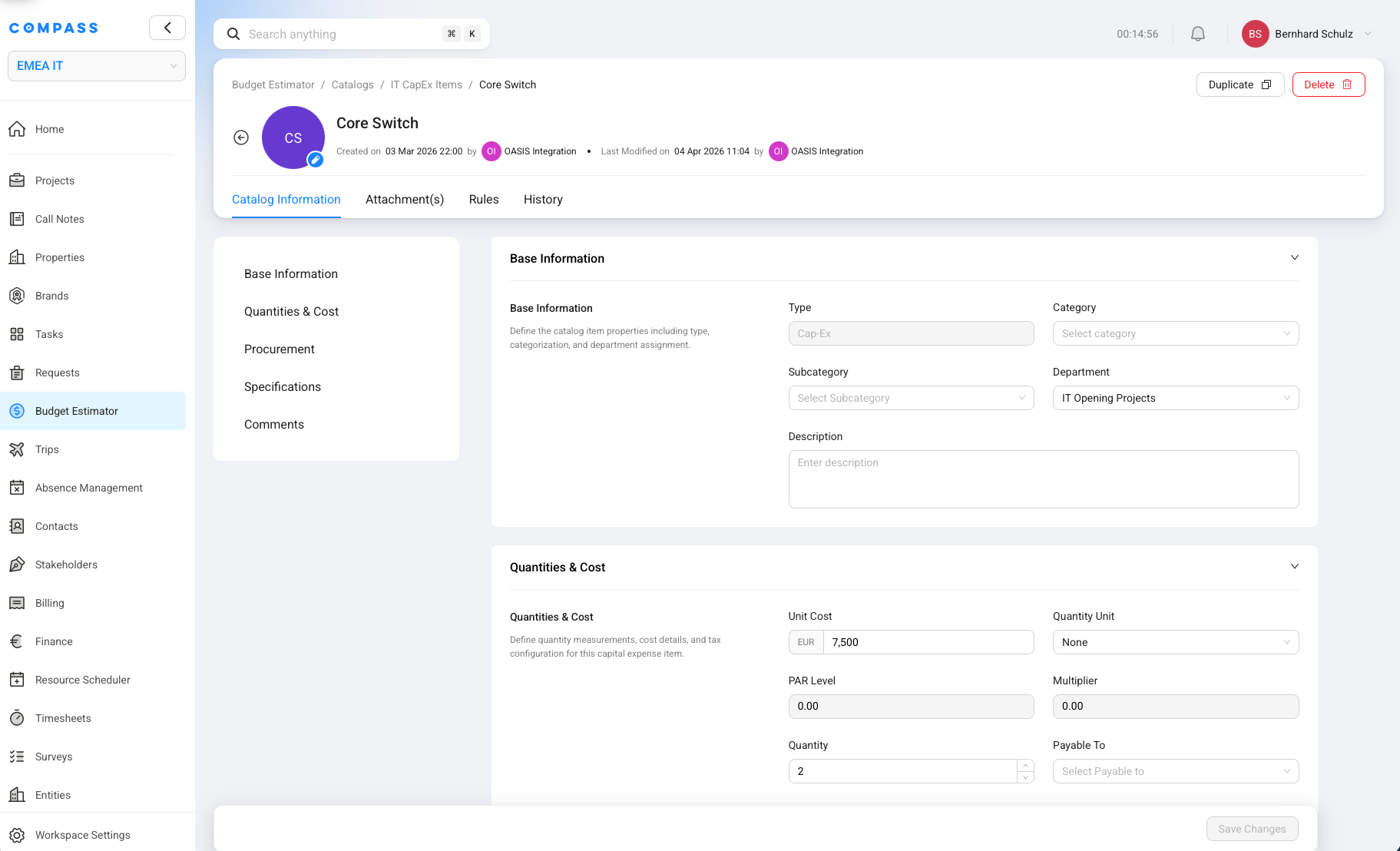
A Budget Catalog Item is one reusable line inside a Budget Catalog. It is the thing Compass can later copy into a project budget.
For a CapEx catalog, a Budget Catalog Item might be a bedroom linen set, a TV, a server, a core switch, or a shampoo dispenser. For an OpEx catalog, it might be a pre-opening payroll position or a monthly subscription. For a Service Revenue catalog, it might be a service fee that should be charged to the owner.
Think of a Budget Catalog as the full recipe book. Each Budget Catalog Item is one ingredient in that book. The item says what the line is, how it should be calculated, who it may need to be paid to, and what should change when the project details are different.
Where Budget Catalog Items Sit In Compass
Budget Catalog Items live inside a Budget Catalog in Budget Estimator. Open Budget Estimator -> Catalogs, select a catalog, and then open one item from the catalog item list.
Every Budget Catalog Item belongs to exactly one catalog. The catalog type decides which item fields matter:
| Catalog type | What the item represents | Typical examples |
|---|---|---|
| CapEx | Something that needs to be purchased once for the project. | OS&E, FF&E, IT equipment, opening hardware |
| OpEx | A recurring or time-based cost. | Pre-opening payroll, monthly software, temporary services |
| Service Revenue | A service or fee that creates revenue. | TSA fees, opening support fees, project service charges |
This means a CapEx item, an OpEx item, and a Service Revenue item are all "Budget Catalog Items", but they do not use the same logic.
What The Catalog Information Tab Stores
The Catalog Information tab stores the base setup for the Budget Catalog Item. This is where you define what the item is and which information Compass should carry into a generated budget.
Common fields include:
- Name: The line name, such as
Guest Room TV,Core Switch, orPre-Opening HR Manager. - Category and Subcategory: The budget grouping used for review and reporting.
- Department: The department responsible for the line, such as IT Opening Projects or Rooms.
- Description and Notes: Extra explanation for users who review or maintain the catalog.
- Payable To: The party that should receive payment or revenue attribution, such as vendor, hotel company, or owner.
- Quantity and Quantity Unit: The manual quantity or project-driven quantity logic.
- Attachments: Files such as technical sheets, photos, quotations, or specification documents.
These fields make the item understandable. The item becomes intelligent when you add quantity drivers and rules.
How Quantity Units Drive Item Quantities
A Quantity Unit is the project value Compass uses to calculate how many units of a Budget Catalog Item are needed.
For example, if a hotel project tracks Number of Rooms in its Project Blueprint, a CapEx item can use Number of Rooms as its Quantity Unit. When Compass generates the budget, it reads the room count from the project and uses that value in the item calculation.
Quantity Units can come from the Project Blueprint connected to the Budget Catalog:
- numeric Project Blueprint custom fields, such as Number of Rooms
- currency Project Blueprint custom fields, when they are used as numeric drivers
- numeric Facility Details fields, such as Restaurant Tables, Meeting Rooms, or Guestroom Count
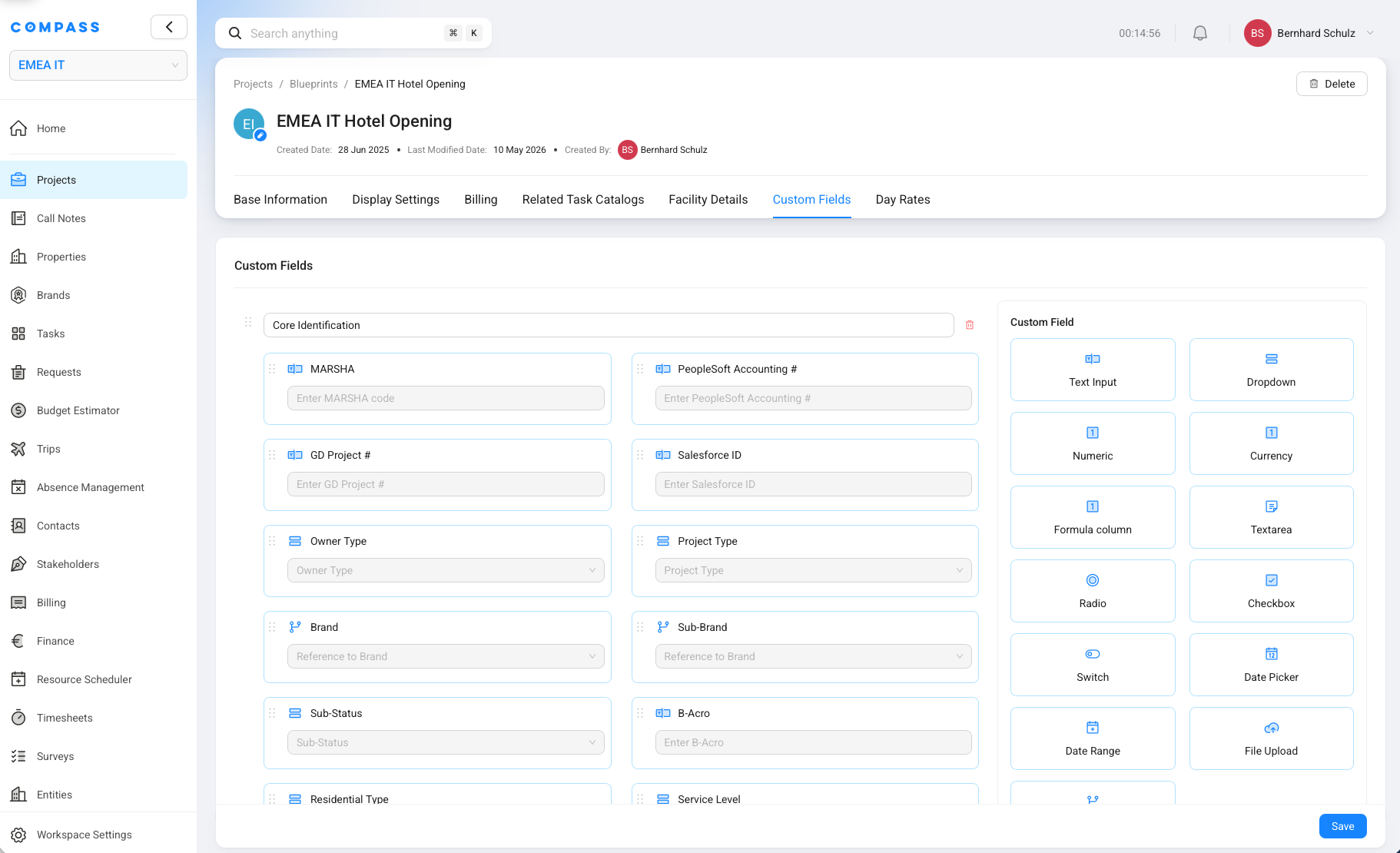
In simple terms: the Project Blueprint decides which quantity drivers are available. If the blueprint does not track a number, the Budget Catalog Item cannot use that number as a Quantity Unit.
Use a Quantity Unit when the item should scale with the project. Use a manual quantity when the item is a fixed assumption that should not change from project to project.
Manual Quantity Or Quantity Driver
A Budget Catalog Item can use either a manual quantity or a project-driven quantity.
| Method | What it means | Example |
|---|---|---|
| Manual quantity | You type the quantity directly on the item. Compass uses that number as the assumption. | Always buy 2 core switches for this catalog item. |
| Quantity Unit | Compass reads a numeric value from the project and uses it as the quantity driver. | Buy one TV per guest room by using Number of Rooms. |
Manual quantity is best for fixed items. Quantity Unit is best for items that should grow or shrink with the project size.
CapEx Item Calculation
CapEx Budget Catalog Items are purchase items. Compass uses them to calculate what needs to be bought and what the expected cost will be.
For a CapEx item, the key cost fields are:
- Unit Cost: The cost for one unit of the item.
- Quantity Unit: The project value that drives quantity, such as Number of Rooms.
- Quantity: A manual quantity if no Quantity Unit is selected.
- Par Level: How many of the item you need per quantity driver value.
- Multiplier: An additional factor for uplift, regional adjustment, contingency-style logic, or package assumptions.
- Taxable and Sales Tax %: Whether sales tax applies to the line.
When a CapEx item uses a Quantity Unit, Compass calculates the line like this:
If the item is taxable, Compass also calculates tax from the Sales Tax %.
Par Level And Multiplier
Par Level and Multiplier both change the calculated quantity, but they answer different business questions.
Par Level means "how many do we need per driver value?" If the driver is Number of Rooms and the par level is 2, Compass calculates two units per room.
Multiplier means "should the whole calculated quantity be adjusted?" It is useful for broader uplifts that are not really the per-room standard.
| Field | Plain question | Example |
|---|---|---|
| Par Level | How many of this item do we need for each room, table, workstation, or other driver value? | 5 shampoo bottles per room. |
| Multiplier | Should the calculated amount be increased or reduced for an overall assumption? | 1.10 for a 10% extra stock buffer, regional waste factor, or package rounding assumption. |
For many items, the multiplier can simply stay at 1. Use par level for the normal standard, and use multiplier only when you need a separate uplift or adjustment.
Procurement Information For CapEx Items
CapEx items can store procurement information so the generated budget is ready for purchasing work later.
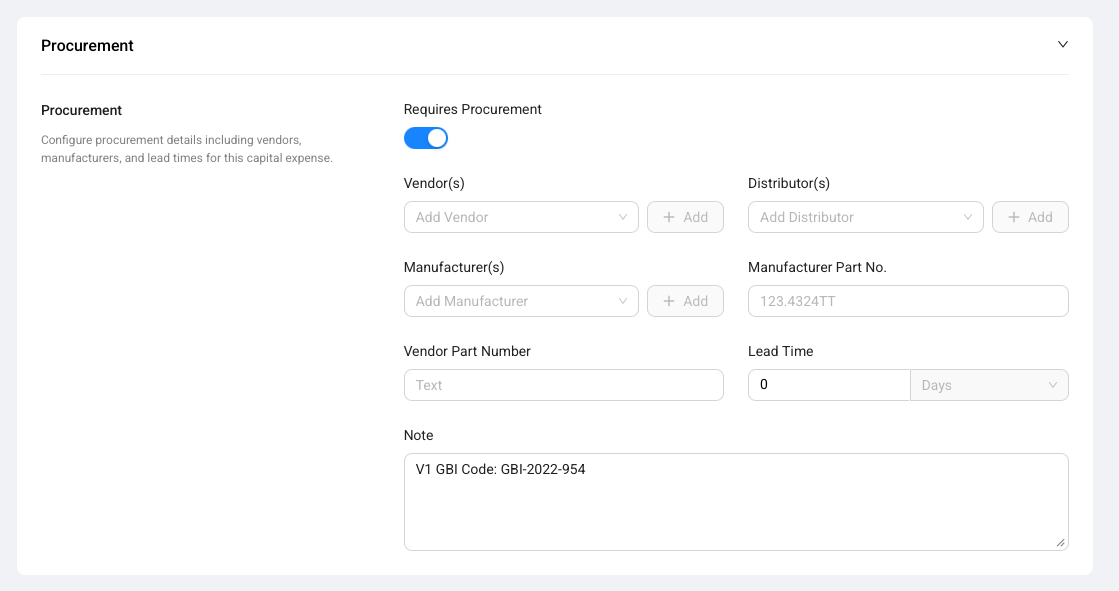
If Requires Procurement is switched on, you can track details such as:
- Vendor(s): The company the item may be purchased from.
- Distributor(s): The party distributing the item, if different from the vendor.
- Manufacturer(s): The company that makes the item.
- Vendor Part Number: The vendor's reference number.
- Distributor Part Number: The distributor's reference number.
- Manufacturer Part Number: The manufacturer's reference number.
- Lead Time: How long the item may take to arrive.
- Notes: Practical procurement notes, such as internal codes or ordering instructions.
This information helps procurement teams move from budget planning to purchasing without hunting through old spreadsheets or emails.
Specifications For CapEx Items
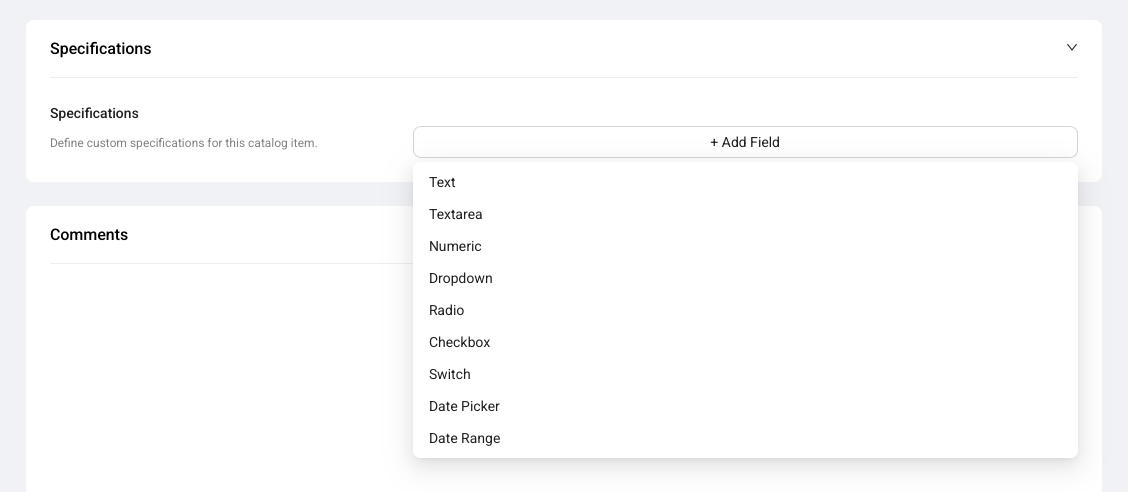
Specifications describe the exact requirements for a CapEx Budget Catalog Item. Compass lets you create custom specification fields on each item because different items need different details.
For a TV, you might track:
- screen size
- brand
- mounting type
- energy class
For shampoo, you might track:
- bottle size in milliliters
- brand
- scent
- dispenser type
For an IT switch, you might track:
- port count
- model
- rack unit size
- power supply requirement
Specification fields can use common input types such as text, textarea, numeric, dropdown, radio, checkbox, switch, date picker, and date range. Use them for details that should be visible to users and useful later for procurement or review.
OpEx Item Logic
OpEx Budget Catalog Items are used for costs that happen over a period of time. A common example is pre-opening payroll.
An OpEx item can store:
- Cost Period: The period the cost belongs to, such as monthly or another configured period.
- Cost Per Period: The cost for one period.
- Initial Cost: A one-time starting cost.
- Expected Term: How long the cost is expected to run.
- Quantity or Quantity Unit: How many positions, licenses, or units the cost applies to.
- Related CapEx Budget Catalog Item: A connection to a related CapEx item when the operating cost depends on a purchased item.
For example, a pre-opening payroll item could represent one position that is needed for six months. A software subscription could use the number of workstations as the Quantity Unit and then calculate the expected term cost.
Service Revenue Item Logic
Service Revenue Budget Catalog Items are used for chargeable services or fees. They help Compass generate revenue lines in a service revenue budget.
A Service Revenue item can store:
- Unit Cost: The service rate or charge amount used for the revenue line.
- Quantity or Quantity Unit: The manual amount or project driver used to scale the charge.
- Payable To: The party or group that the revenue should roll up to in reporting.
- Category and Department: The reporting structure for the revenue line.
For example, a technical services agreement fee could use a fixed quantity of 1. A project support fee could scale with a project value from the Project Blueprint if the catalog is set up that way.
How Rules Make Budget Catalog Items Intelligent
Rules let a Budget Catalog Item change automatically when project details match certain conditions. This is what turns a static catalog line into a smart catalog line.
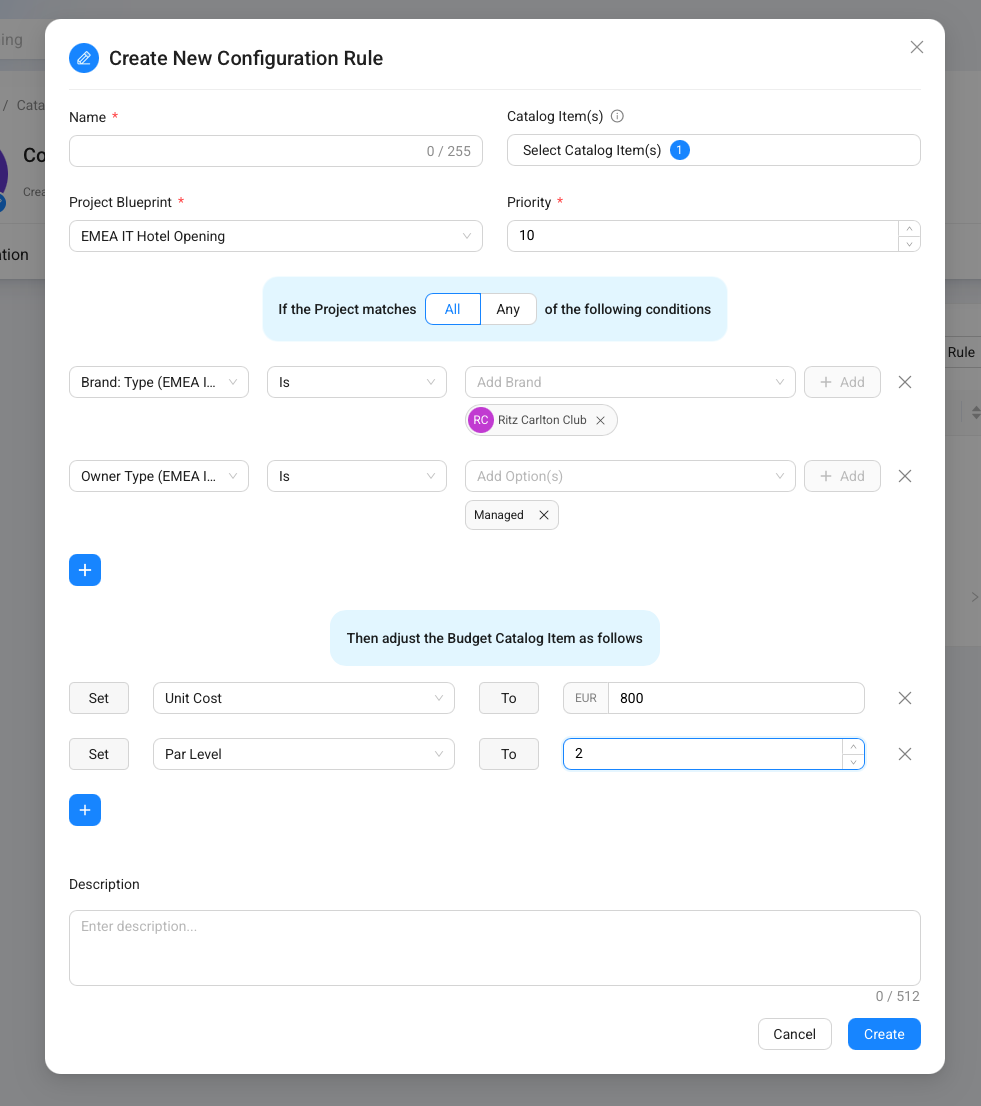
A rule has two parts:
- Conditions: The project details that must match, such as brand, owner type, country, project type, service level, or facility setup.
- Actions: The item fields Compass should change when the conditions match, such as Unit Cost, Par Level, Quantity Unit, Vendor, Manufacturer, or Specifications.
For example:
- If Brand is
Ritz-Carltonand Owner Type isManaged, set shampoo Unit Cost to800and Par Level to2. - If Brand Segment is luxury, set the guest room TV Unit Cost higher and change the specification from
43 inchto55 inch. - If Country is Germany, set the vendor to a regional supplier and use a different manufacturer part number.
- If the project has a large meeting space, change AV equipment quantity logic from a manual quantity to a facility-driven Quantity Unit.
One rule can be linked to multiple Budget Catalog Items. This is helpful when the same business logic should apply to many lines. For example, one "Luxury Brand Upgrade" rule can be attached to all items that need higher standards for luxury hotels.
What Happens When A Budget Is Generated
When Compass adds Budget Catalog Items to a project budget, it copies the catalog item and then applies project-specific logic.
Catalog item
Start with the standard line
- Compass reads the catalog item fields.
- It copies the name, category, costs, quantity setup, and procurement details.
Project logic
Adapt it to this project
- Compass reads project values from the linked Project Blueprint.
- It calculates Quantity Units and applies matching item rules.
Budget item
Create the project-specific result
- The generated item is added to the project budget.
- Totals, tax, and budget history are updated for review.
If more than one matching rule tries to change the same field, Compass chooses the strongest rule. Higher priority wins first. If priority is the same, the more specific rule wins. If both are still equal, the newer rule wins.
Attachments And History
The Attachment(s) tab stores files connected to the Budget Catalog Item. Use it for specification sheets, photos, quote documents, procurement references, or other item evidence.
The History tab shows how the Budget Catalog Item has changed over time. This helps users understand who changed an item, what changed, and when the change happened.
History is especially useful for shared catalogs because catalog items are reusable standards. A small change to a unit cost, quantity driver, vendor, or specification can affect future generated budgets.
Good Examples Of Budget Catalog Items
Good Budget Catalog Items are specific enough to calculate and review later.
| Item | Catalog type | Good setup |
|---|---|---|
| Guest Room TV | CapEx | Quantity Unit: Number of Rooms. Par Level: 1. Rules adjust size, vendor, and unit cost by brand. |
| Bedroom Linen Set | CapEx | Quantity Unit: Number of Rooms. Par Level: based on linen standard. Specifications track material and size. |
| Core Switch | CapEx | Manual quantity or driver based on network setup. Procurement tracks manufacturer and part number. |
| Pre-Opening HR Manager | OpEx | Quantity: 1. Cost Period and Expected Term define the payroll assumption. |
| Monthly PMS Subscription | OpEx | Quantity Unit: Number of Rooms or Workstations. Cost Per Period and Expected Term define total cost. |
| Technical Services Fee | Service Revenue | Quantity: 1 or a project-driven quantity. Unit Cost defines the charge. |
Common Mistakes
Using manual quantity when the item should scale with the project. If the item depends on rooms, tables, workstations, or another project number, use a Quantity Unit instead of typing a fixed quantity.
Using multiplier for the normal per-room standard. Put the normal per-driver amount into Par Level. Keep Multiplier for a separate uplift or adjustment.
Expecting a missing blueprint field to appear as a Quantity Unit. Quantity Units only appear when the linked Project Blueprint has a numeric or currency custom field, or a numeric Facility Details field.
Creating the same rule again and again. If several items share the same logic, create one rule and link it to the relevant Budget Catalog Items.
Leaving procurement details empty for purchase-heavy CapEx items. If an item will later need procurement, add the vendor, manufacturer, part numbers, lead time, and specifications while the catalog standard is being maintained.