Single Budgets
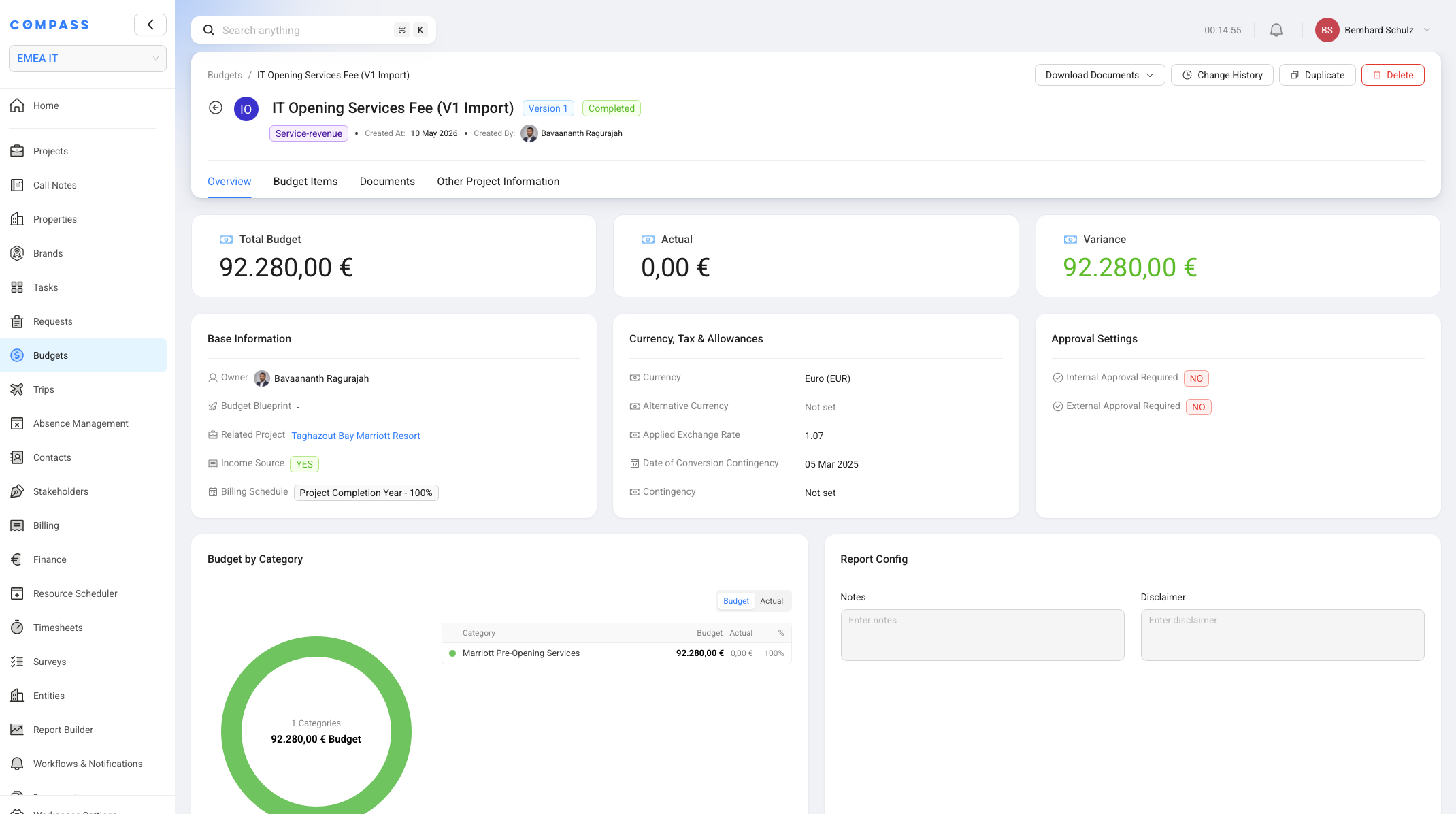
A single budget is the project-specific budget record you open after a budget has been created. It is where you review the budget total, work on budget items, track actuals, store related documents, and see the project assumptions that were used to calculate the budget.
This page is about the budget after it exists. For the reusable setup that creates budgets, see Budget Catalogs, Budget Catalog Items, Budget Blueprints, and Budget Presets.
What You See When You Open A Budget
The budget header shows the budget name, type, version, status, created date, creator, and the main actions available for that budget.
Common header actions include:
- Download Documents: generate or download budget-related documents when templates are available.
- Change History: review recorded changes, such as locking, approval actions, and assumption changes.
- Duplicate: create a new draft copy, usually used when you need the next budget version.
- Delete: remove the budget if your role and the budget state allow it.
The single budget view is organized into tabs.
| Tab | What it is for |
|---|---|
| Overview | Review totals, actuals, base information, financial defaults, approvals, and, on Service Revenue budgets, the settlement and invoicing configuration. |
| Budget Items | Review, edit, filter, group, export, and track actuals for the budget lines. |
| Unbilled | Review the Service Revenue Budget's open billing value and related Invoice Positions, when external invoicing is configured. |
| Documents | Store documents uploaded against the budget and generate budget reports from document templates. |
| Facility Details | Review the facility assumptions that were copied onto the budget, such as rooms, restaurants, workstations, or other numeric facility values. |
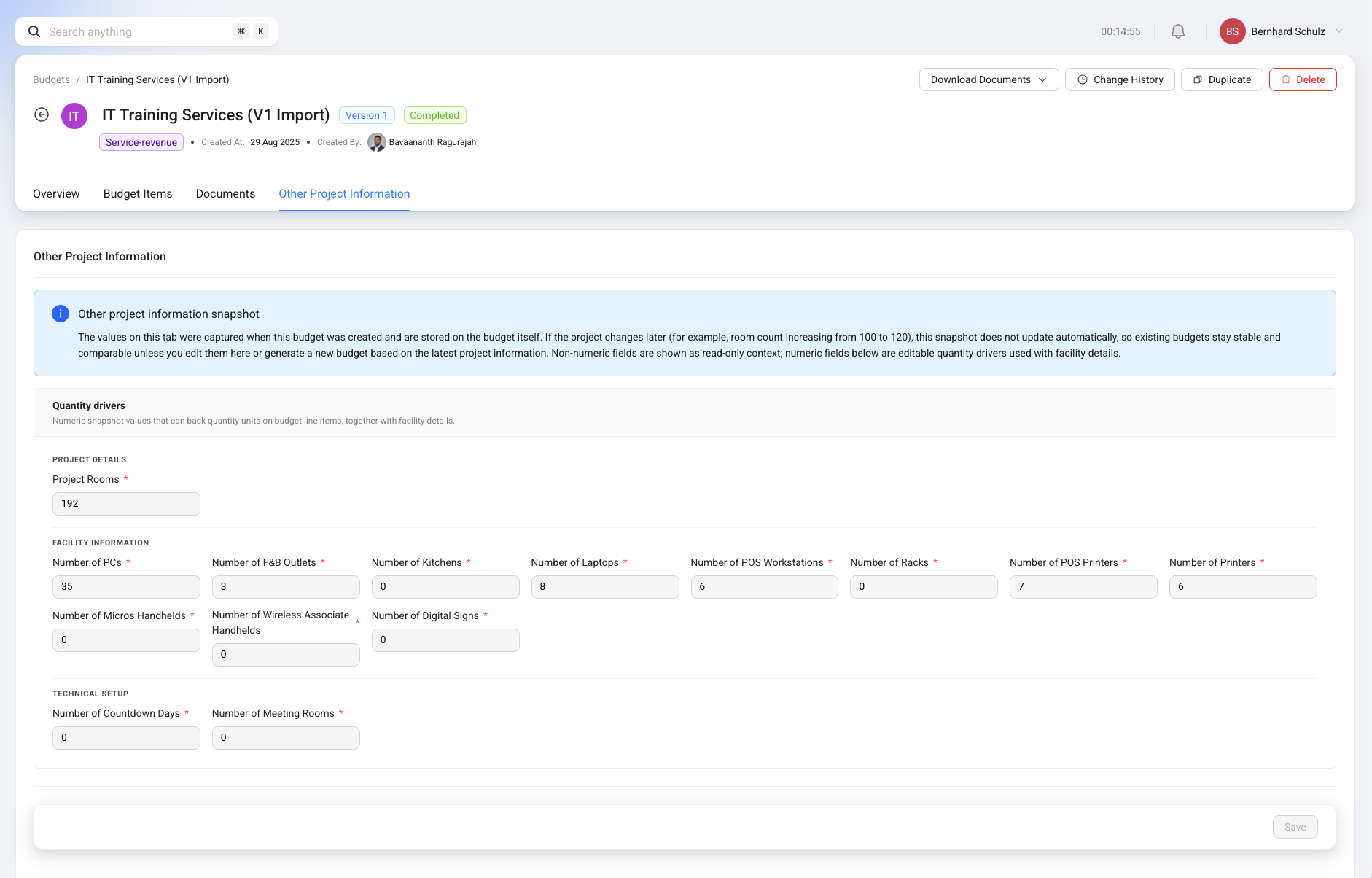
| Other Project Information | Review the other project assumptions copied onto the budget, especially custom project values that can drive budget quantities. |
Reading The Overview Tab
The Overview tab is the quick health check for the budget.
| Area | What to look for |
|---|---|
| Total Budget | The total approved or draft budget value. |
| Actual | The total actual amount recorded across all budget items. |
| Variance | The remaining difference between budget and actual amount. |
| Base Information | Owner, related project, Budget Blueprint, income source, and billing schedule where applicable. |
| Currency, Tax & Allowances | Currency, alternative currency, exchange rate, contingency, and conversion settings. |
| Approval Settings | Whether internal approval or external approval is required. |
| Budget by Category | The budget and actual split by category. |
| Report Config | Notes and disclaimer text that can be used in generated budget reports. |
Use Change History when you need the timeline behind the current state, including approval actions, locking, version changes, and assumption updates.
Budget Lifecycle
A budget normally moves through a simple lifecycle: create it, prepare it as a draft, lock it as a version, and duplicate it later when the project assumptions or standards have changed.
Draft budget
Create and prepare the budget
- Create the budget manually, from a Budget Blueprint, or from a Budget Preset.
- Review the generated budget items and adjust the draft while it is still editable.
Locked version
Freeze the budget as a historical record
- Complete the required approvals, if any.
- Lock the budget so Compass assigns the next version number and freezes the budget assumptions.
Next version
Duplicate when the project changes
- Duplicate the locked budget to create a new draft under the same version chain.
- Regenerate or update assumptions before locking the new draft as the next version.
When the first budget in a version chain is locked, it becomes Version 1. If you later duplicate it, prepare the new draft, and lock it, the new locked budget becomes Version 2. This makes old and new assumptions comparable instead of overwriting the original budget.
Duplicating a budget creates a draft copy. If the project or facility data has changed since the previous version, review the assumption tabs and use regeneration where appropriate before locking the new version.
Why Budget Assumptions Are Snapshotted
When a budget is generated or regenerated, Compass copies the relevant project and facility values onto the budget. Those copied values are the budget's snapshot.
This matters because a locked budget should not silently change when the project changes later.
For example, imagine a hotel budget was created when the project had:
- 300 rooms
- 2 restaurants
- 1 spa
- 1 golf course
If the project later changes to 330 rooms and adds another restaurant, the old locked budget should not automatically recalculate itself. It should stay as the historical budget that was based on the original 300-room assumption.
That is why the Facility Details and Other Project Information tabs are important. They are not just background information. They show the assumptions that explain how the budget was calculated.
While a generated budget is still editable, numeric snapshot values can be adjusted on the budget. When those values are used as quantity drivers, Compass recalculates the affected budget items. Once the budget is locked, those assumptions are frozen with the version.
How Quantity Units Affect Budget Items
A Quantity Unit is the project or facility number that drives a budget item quantity.
For example, a CapEx item for guest-room TVs can use Number of Rooms as its Quantity Unit. If the project snapshot says 300 rooms, Compass can calculate the number of TVs from that value.
For CapEx items, the calculation is:
Example:
| Field | Value |
|---|---|
| Quantity Unit Value | 300 rooms |
| Par Level | 1 TV per room |
| Multiplier | 1 |
| Unit Cost | EUR 500 |
| Total Net Cost | EUR 150,000 |
Service Revenue and OpEx items can also use quantity drivers. The exact cost fields differ by budget type, but the idea is the same: a numeric project assumption can scale the budget item.
For the reusable catalog-side setup, see Budget Catalog Items.
Working With Budget Items
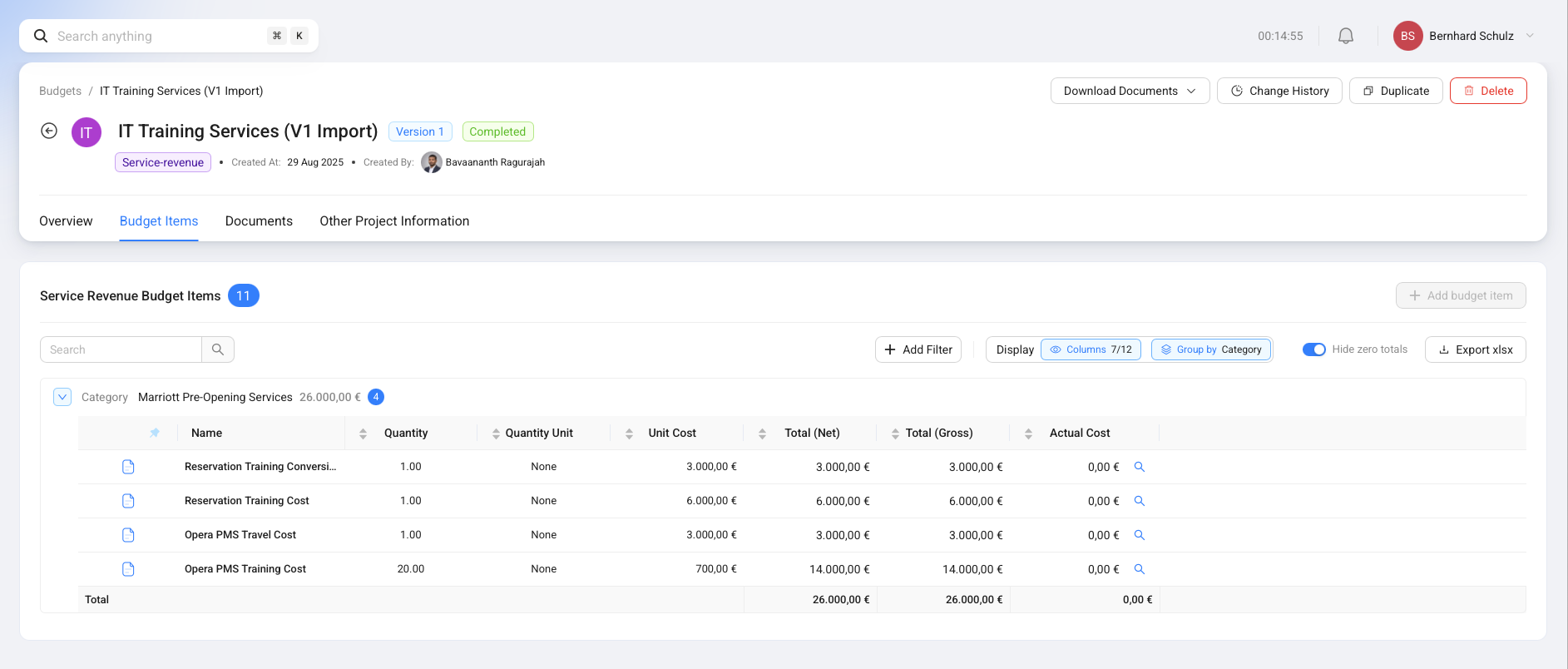
The Budget Items tab is the working list of all budget lines in the budget.
In a draft budget, users with the right permissions can usually:
- adjust item names, quantities, quantity units, unit costs, taxes, and other editable fields
- add manual budget items
- remove budget items that are no longer needed
- filter, search, group, choose visible columns, hide zero totals, and export the table to XLSX
You can also update several budget items at once. Select the checkboxes for the budget items you want to change, then use the selection bar at the bottom of the table and click Edit.
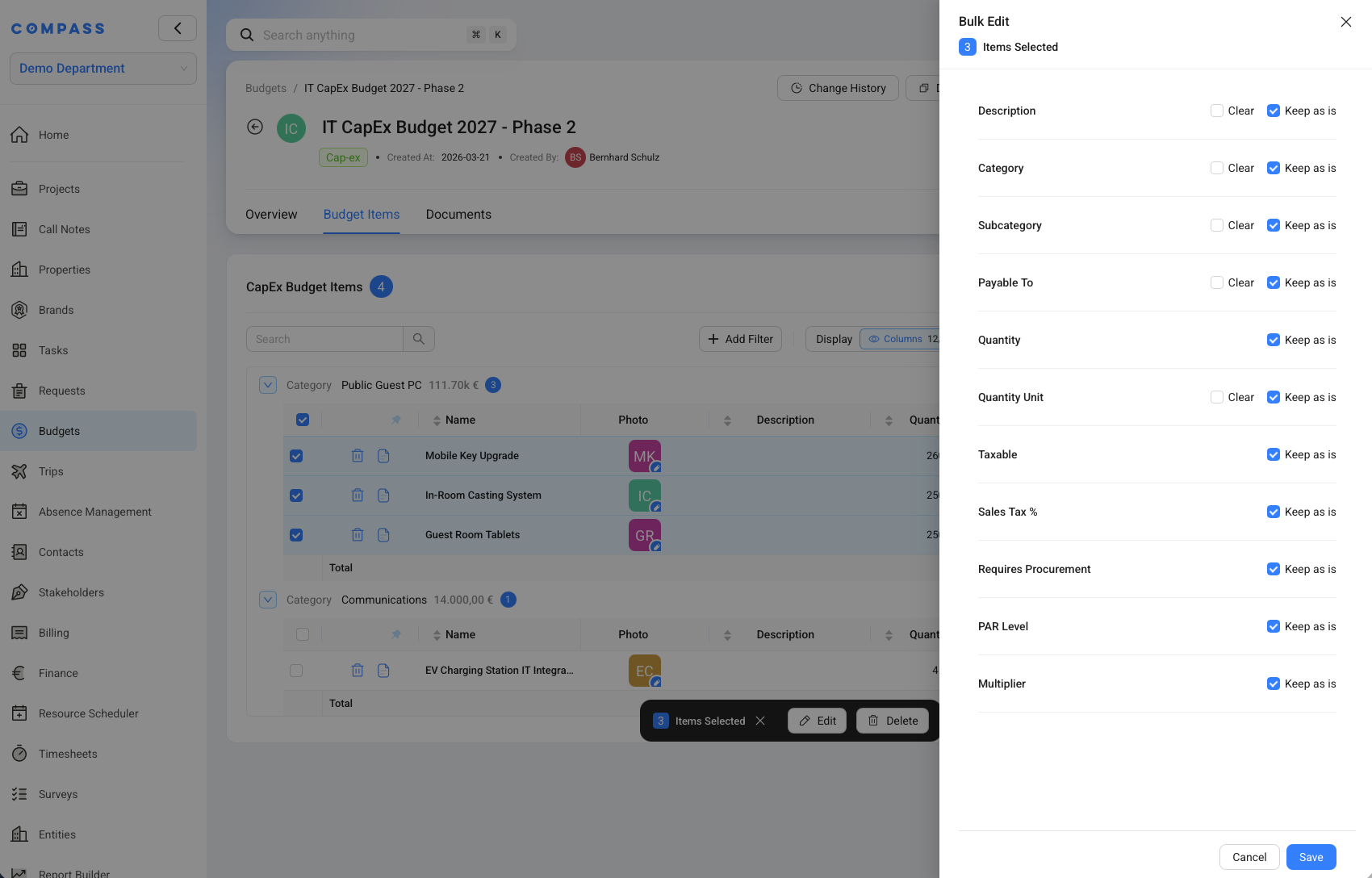
The Bulk Edit drawer lets you change shared fields across the selected items. Depending on the budget type and your permissions, this can include fields such as:
- Description
- Category and Subcategory
- Payable To
- Quantity
- Quantity Unit
- Taxable and Sales Tax %
- Requires Procurement
- PAR Level
- Multiplier
For each field, choose whether Compass should keep the current value, clear the value, or apply a new value to all selected items. This is useful when several lines need the same category, payable-to value, quantity driver, tax setting, or procurement setting.
After a budget is locked, the budget item setup is no longer editable. This protects the version from later changes. You can still record actual cost entries against locked budget items, because actuals are part of tracking what happened after the budget was approved.
Treat locked budget items as historical planning lines. If the planned scope needs to change, duplicate the budget and prepare a new version instead of changing the old version.
Regenerating A Draft Budget
Before a budget is locked, you may see an action to Regenerate Budget.
Regeneration is a start-over action for the generated budget items. Compass removes the current generated budget items from the draft and recreates the items from the selected Budget Catalogs, using the latest catalog logic and the current project values that are copied into the budget snapshot.
Use regeneration when:
- the catalog logic has changed and the draft should use the new standard
- the project or facility assumptions were updated and the draft should be recalculated from those values
- you want to return the draft closer to the catalog-generated result
Use it carefully. Regeneration can replace the lines you have been reviewing, including manual changes made to the draft items. If you have already spent time adjusting the draft, review the result after regeneration before moving toward approval or locking.
Tracking Actuals
Every budget item has an Actual Cost Ledger. The ledger stores the actual amounts recorded against that item.
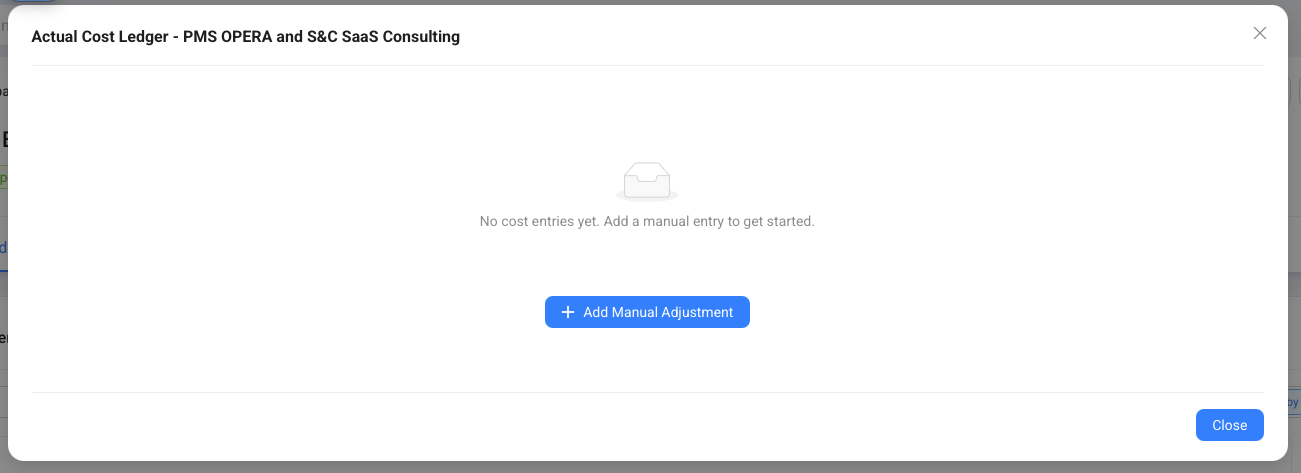
The Actual amount on the budget is the sum of the actual entries on its budget items. The Variance is calculated from the budget total minus the actual amount.
Manual actual entries can be used for simple tracking. For example, if a CapEx budget item estimated EUR 100,000 for TVs, you can record the actual spend against that TV budget item as invoices or adjustments become known.
For Service Revenue budgets, the same ledger is also used, but the business meaning is a little different. The column is still called Actual Cost, but it can represent the value already incurred against a service revenue line, such as allocated desk time, travel time, or travel expenses.
The ledger is always the internal cost history. It is not the customer invoice. See Actual Cost Ledger for source types, manual adjustments, and the connection to Billing.
Actuals From Trips And Timesheets
Budgets can receive actual entries from trips and timesheets when the project setup allows or requires cost allocation.
The key settings live on the Billing tab of the Project Blueprint. A blueprint controls internal cost allocation separately for Desk Time, Travel Time / Service Fees, and Travel Expenses. Each can use No cost allocation, Optional cost allocation, or Required cost allocation.
When allocation is required, users must choose the relevant Budget and Budget Item when recording the related work or travel information. Optional allocation lets them select a Budget Item only when the activity should contribute to a budget actual. This allows Compass to compare what was budgeted with what was actually incurred.
Typical examples:
- Trip expenses can create actual entries against the selected expense budget item when the trip is closed.
- Trip service fees and travel time can create actual entries against the selected fee Budget Item.
- Manual timesheets can create actual entries when the entry has a Budget Item and a positive fee.
For example, a service revenue budget might include:
- EUR 30,000 for travel expenses
- EUR 70,000 for project management fees
If a trip creates three allocated service days at a day rate of EUR 1,000, Compass can record EUR 3,000 as an actual entry against the project management fee Budget Item. The budget then shows how much of the planned value has already been incurred through trips and time entries.
Allocation alone does not make a cost customer-billable. A concrete Service Revenue Budget must use external invoicing before costs can flow into Billing.
Service Revenue Settlement And Invoicing
Only a Service Revenue Budget can be configured for external invoicing. CapEx and OpEx budgets remain internal cost-control budgets.
The Settlement and Invoicing section on a concrete Service Revenue Budget is the final authority for that budget:
| Setting | Effect |
|---|---|
| Internal only | Track Budget Item actuals, but never create customer billing from this Budget. |
| External invoicing + Actual Costs | Eligible allocated costs create Invoice Positions. Billing collects the open positions. |
| External invoicing + Budgeted Amounts | Billing uses the remaining approved Budget amount. Actual Cost Ledger entries remain internal and do not create positions. |
| Billing Profile | Supplies the invoice recipient and currency. One invoice uses one profile, basis, and currency. |
A Service Revenue Budget Blueprint can provide these defaults, but the values copied to the concrete Budget can be reviewed and changed there. A draft can temporarily have incomplete settlement settings. Before an external Budget is completed or locked, assign its basis and Billing Profile.
Changing the settlement configuration affects future billing records. Compass keeps existing reserved or invoiced history protected.
For the full setup sequence, see Prepare A Project For Billing.
Approvals And Locking
A budget can require no approval, internal approval, external approval, or both.
| Approval setting | What happens |
|---|---|
| No approval required | The budget can be locked directly when the user is ready. |
| Internal approval required | The budget is sent to internal approvers. Compass tracks who approved or rejected it. Depending on setup, either one approver may be enough or all required approvers may need to approve. |
| External approval required | Compass records that external approval was received, including who gave it and when. It does not run an external signature flow by itself. |
When a budget is waiting for internal approval, approvers receive system notifications and email notifications. If the budget is rejected, it returns to draft so it can be corrected. When all required approvals are satisfied, Compass can lock the budget and assign the next version number.
Locking does three important things:
- it changes the budget to the completed locked state
- it assigns the next version number in the version chain
- it freezes the budget item setup and the project assumption snapshot
The Change History button lets you review recorded changes and approval actions for the budget.
Service Revenue Income Source And Billing Schedule
Service Revenue budgets can be marked as an Income Source.
This setting matters for Finance. If Income Source is set to Yes, Compass can use the latest completed version of that service revenue budget as expected income in a financial plan.
The Billing Schedule controls when that income is recognized relative to the project's target completion year.
Examples:
| Billing schedule | What it means |
|---|---|
| Project completion year - 100% | The full service revenue budget is counted in the project completion year. |
| Completion year - 33%, one year before - 33%, two years before - 34% | The expected income is spread across three years. |
If no custom billing schedule is set, Compass treats the budget as recognized in the project completion year. Financial plans use the project's active target completion date to decide which year and month receives the budget share.
In plain language: Income Source says whether the service revenue budget should feed Finance. Billing Schedule says when that income should appear in the Finance forecast.
The Billing Schedule is an expected-income forecast for Finance. It does not generate invoice installments, Invoice Positions, due dates, or invoice timing. Users decide when to create an invoice from Billing.
See Planned Income for the Finance-side view.
Documents And Budget Reports
The Documents tab and the Download Documents button connect the budget to Compass document generation.
Document templates can use budget placeholders to pull budget data into a Word or PDF report. A template can include values such as:
- project name
- budget name and type
- total budget
- actual amount
- variance
- budget items
- category summaries
- payable-to summaries
- report notes and disclaimer text
This is useful when you need a shareable budget report for stakeholders or external approval. The user prepares the template in the Documents module, then generates the document from the budget or from the related project, depending on how the template is configured.
See Generating Documents and Document Placeholders for the document workflow.
When To Duplicate Instead Of Editing
Duplicate a locked budget when the business reality has changed and you need a new comparable version.
Good reasons to duplicate:
- room count changed
- facility setup changed
- the budget catalog standard changed
- approval has already happened and you need a new formal version
- you want to compare old and new budget assumptions
After duplicating, review the new draft carefully. If you want the new version to use current project and catalog data, regenerate it or update the assumption tabs before locking. The previous version remains available as the historical baseline.